Kota Reports
Last updated: September 14, 2026
Kota Reports turns your Hyperbound data into a document you can hand to anyone in your organization ROI summaries, usage breakdowns, persona and skill analysis. Pick a template or describe what you want in your own words, and Kota asks two or three questions before writing the report with charts and tables. Share it in-app, or download it as a PDF or Word file.
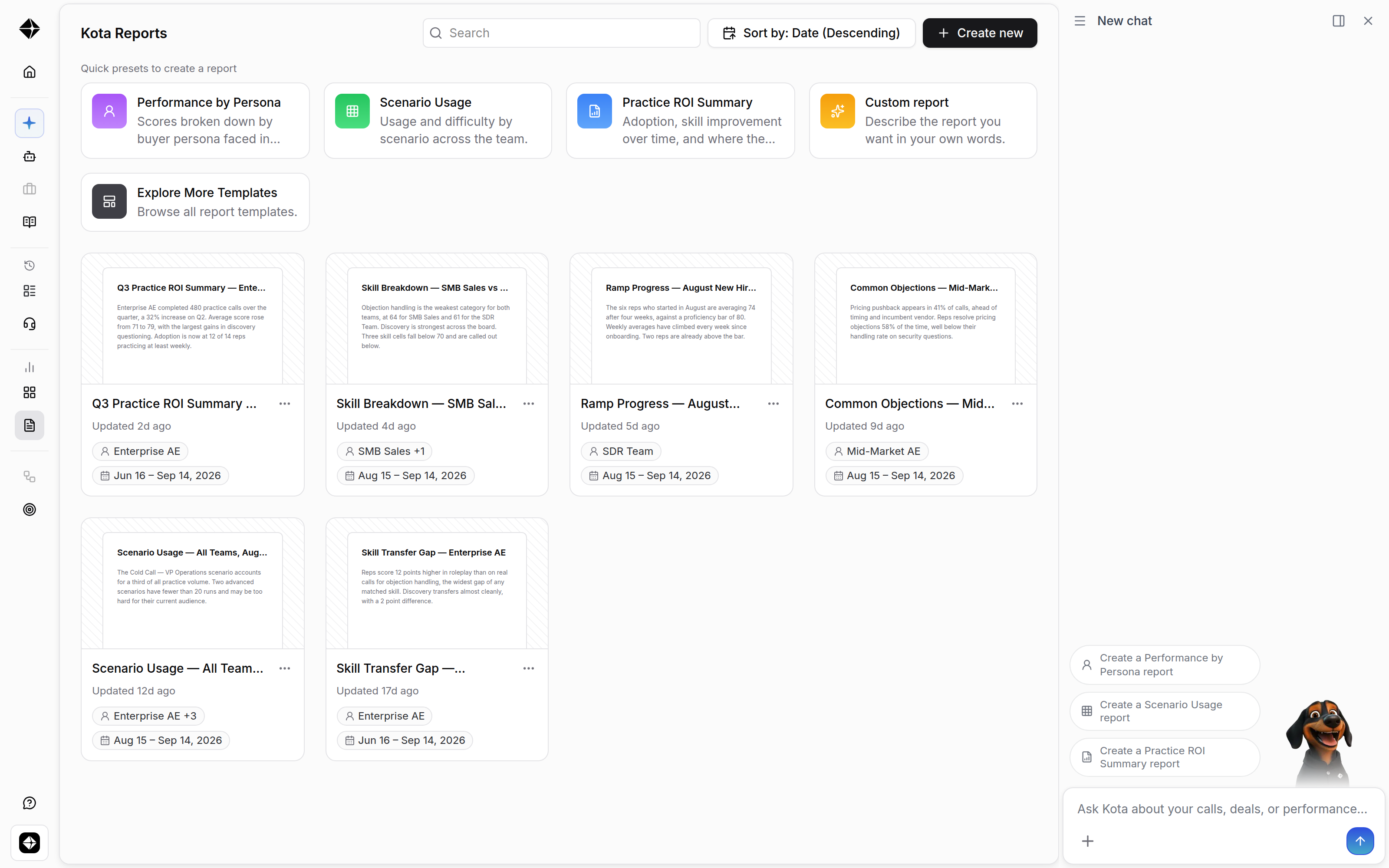
Who can create reports
Admins, Member+ and Observer roles can create reports.
Members/ Reps cannot create reports as of now
Nine templates read your real-call data and stay locked unless real-call scoring is enabled for your organization. Your Hyperbound CSM can turn that on.
Where to find Reports
In the left sidebar, go to Analytics → Reports.
Create a report from a template
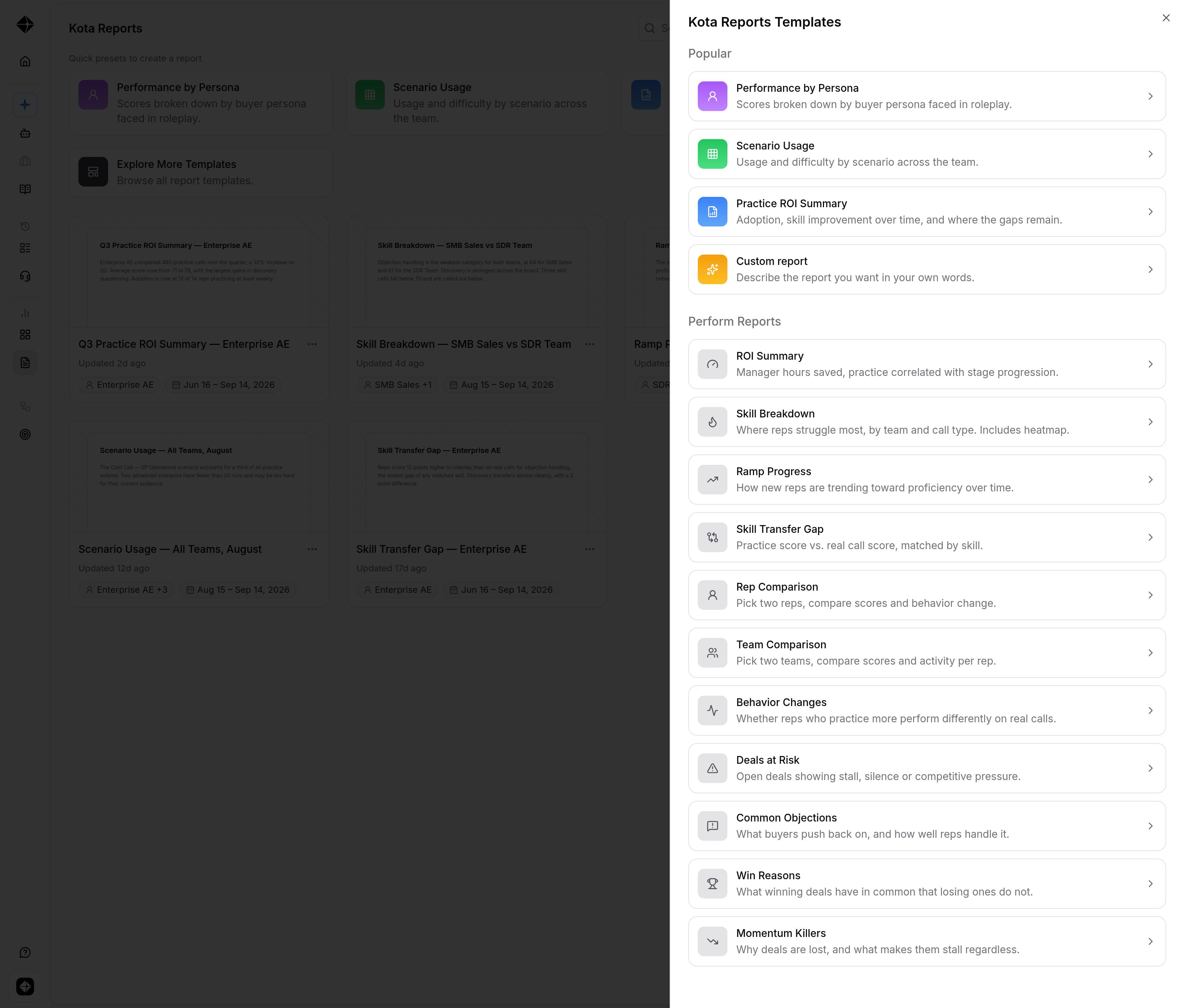
Open Reports. The hub shows a row of quick presets. Select Explore More Templates to open the full template list, grouped into Popular and Perform Reports.
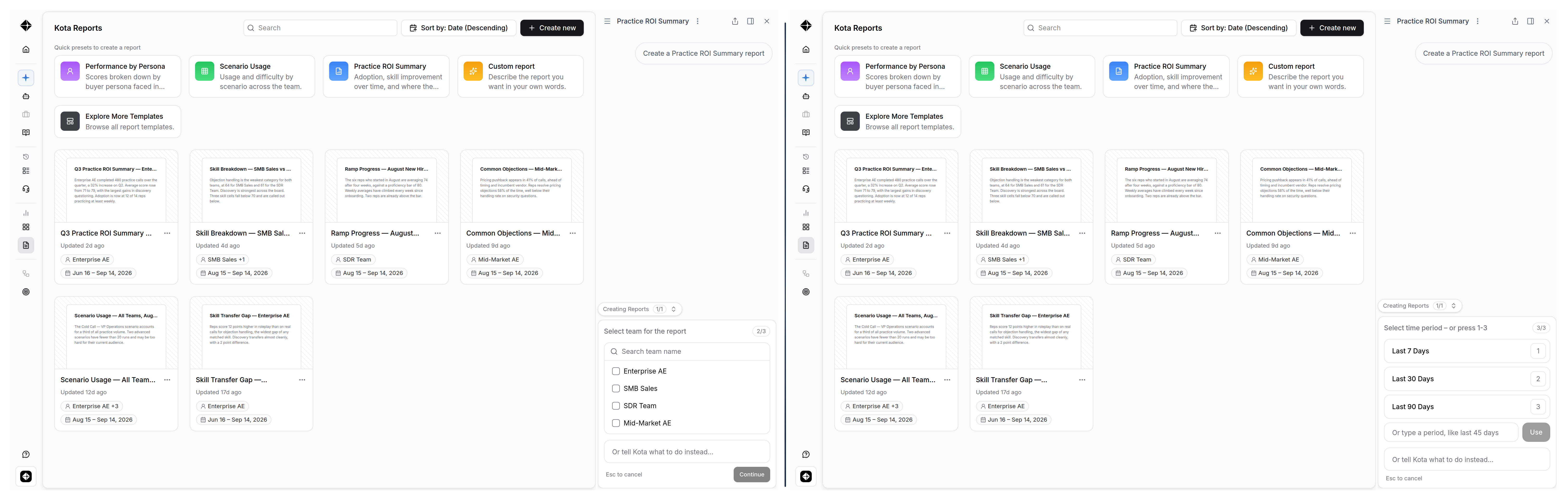
Click the template you want. Kota opens in the side panel and asks only for the details it still needs.
Select team for the report. Search or pick from your team hierarchy. Leave it empty to cover every team you can see. Comparison reports need exactly two.
Select time period. Choose Last 7, 30, or 90 days, or type a custom window like “last 45 days,” up to 365 days. Reports default to the last 30 days.
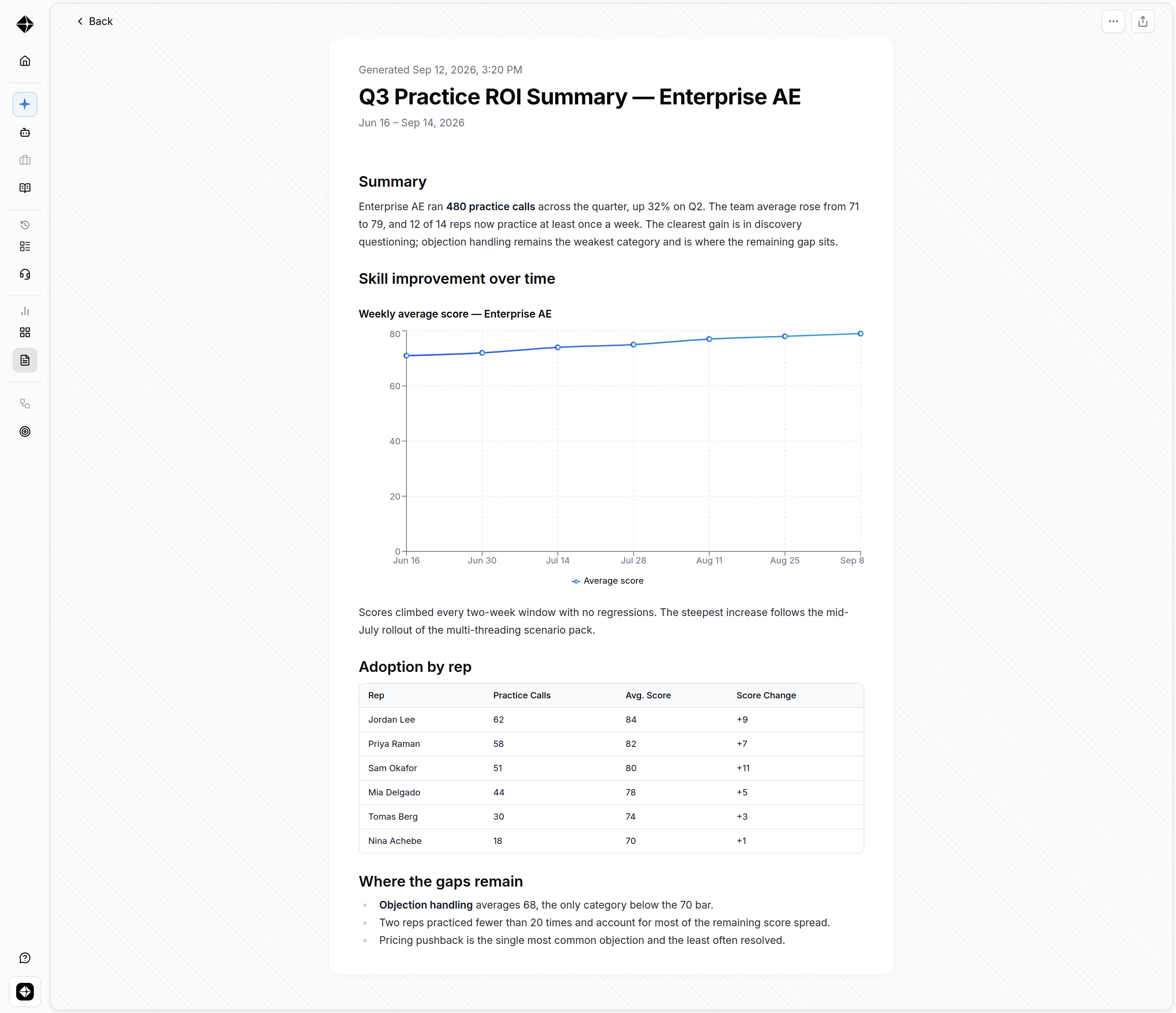
Kota builds the report. The card reads Generating…, and the finished document opens on its own page. A large report can take a few minutes.
Create a report in your own words
Select Create new, or tell Kota what you want in chat, such as “objection handling for SMB Sales over the last 60 days.” Choose Custom report and describe it. Anything you already specified in chat is not asked again.
Revise a report
Ask Kota in the same chat, for example: “same report for the last 45 days” or “use the SDR team instead.” Kota carries your earlier answers forward, asks only about what changed, and updates that report in place, so the link and the card always show the latest version.
Each chat owns one report, so start a new Kota chat for a second report. Reports are edited through Kota only; there is no text editor in the report view.
Share a report
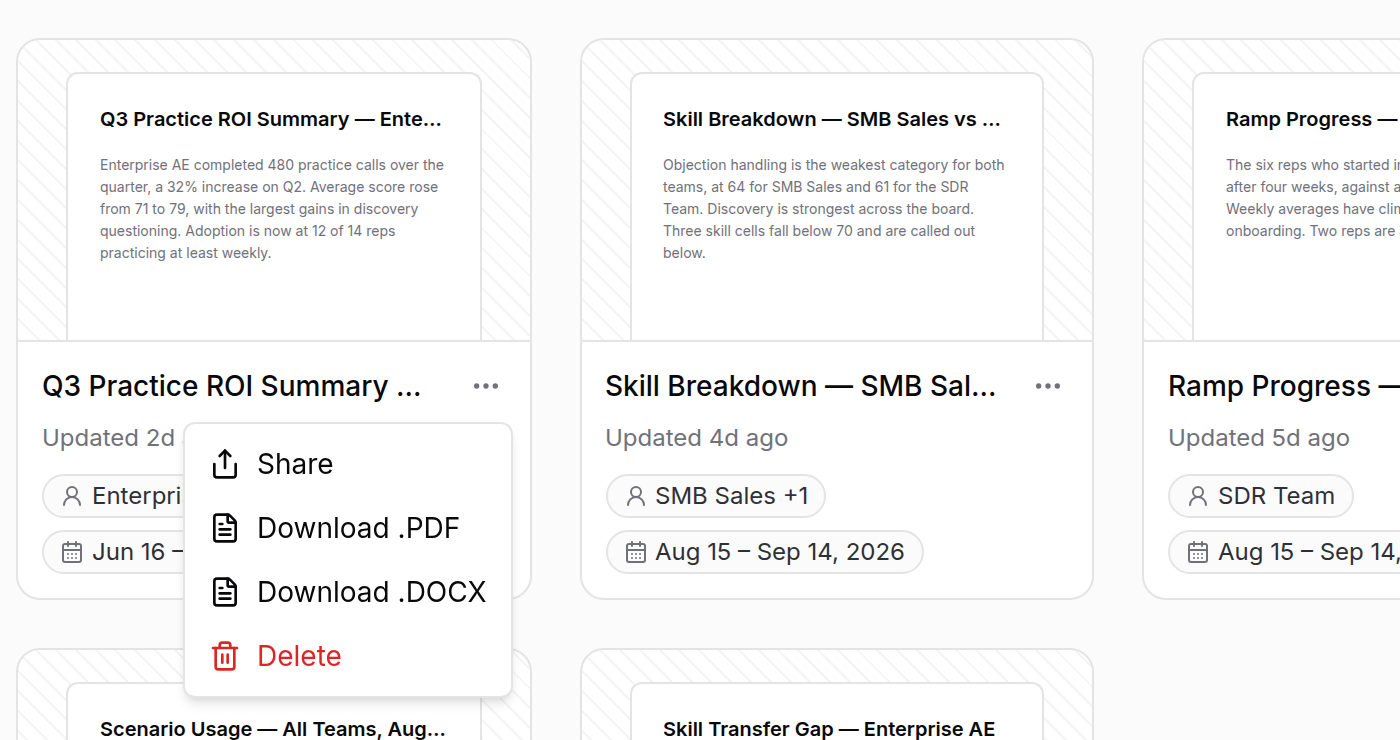
Open the report and select Share, or use the ⋯ menu on its card.
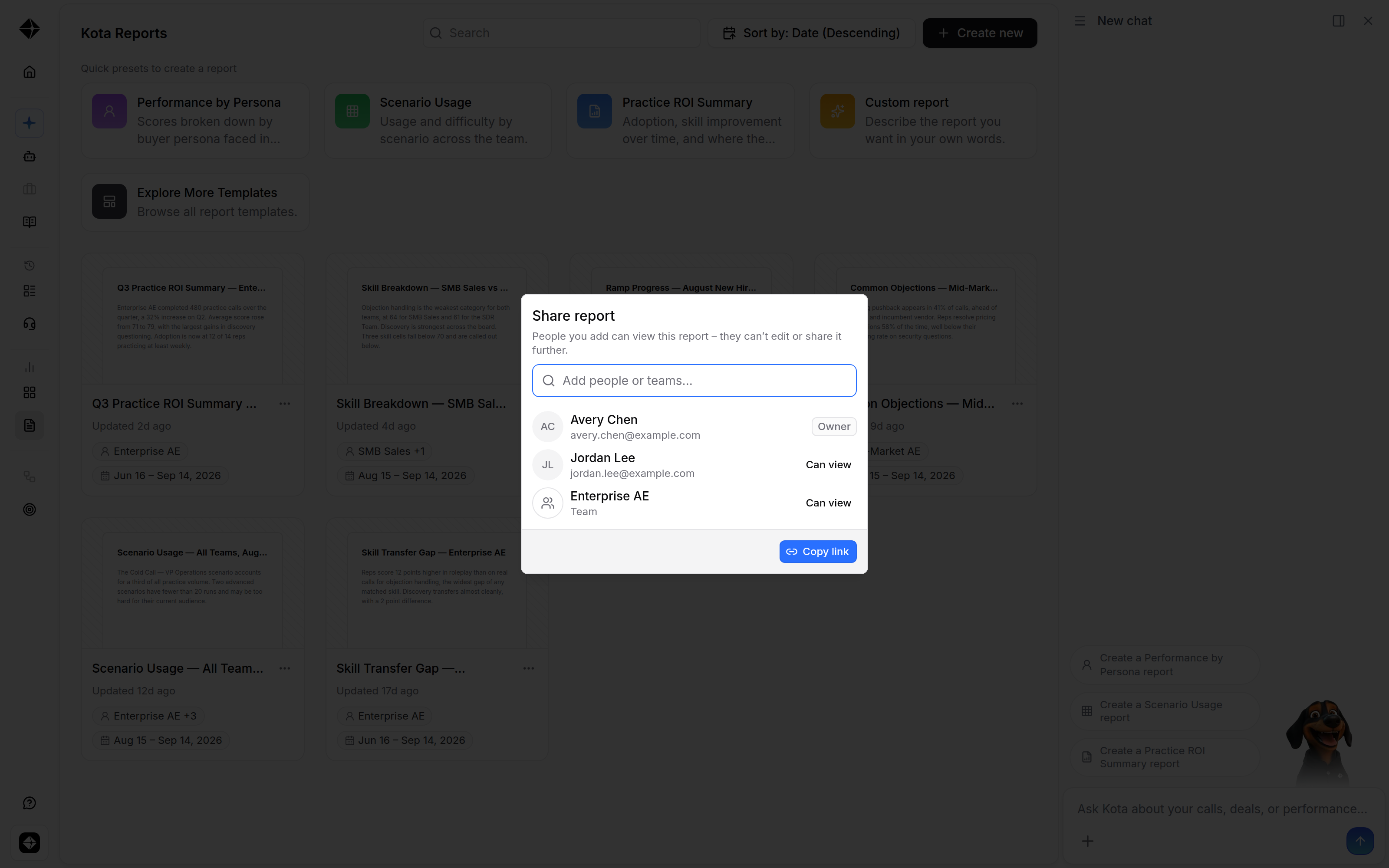
Type a name, email address, or team into Add people or teams…. A team grant includes that team’s sub-teams.
Everyone you add gets Can view access. They can read and download the report, but not edit it, share it onward, or delete it. Only the owner can change sharing.
Select Copy link and send it wherever your team works.
Worth knowing:
Adding someone does not notify them. Send them the link.
The link is not public. Opening it requires being signed in to your organization, having access to Reports, and being the owner or someone the report was shared with. Anyone else sees Report not found.
A shared report does not appear in the recipient’s own Reports list. They reach it from the link.
You can only share with people and teams inside your own organization.
To revoke access, open Share and select Remove access.
Download as a PDF or Word file
Use the ⋯ menu on a report card or in the open report, then select Download .PDF or Download .DOCX. The PDF matches what you see on screen, and the DOCX opens as an editable Word document. Charts are included as images. Anyone with access can download a report, not only its owner.
Delete a report
Use the ⋯ menu on a report you own and select Delete. This cannot be undone.
What teams use reports for
Prove ROI at a QBR or renewal Use Practice ROI Summary for adoption, skill improvement over time, and remaining gaps, or ROI Summary for manager hours saved and practice correlated with stage progression.
Check adoption Use Scenario Usage to review usage and difficulty by scenario across the team.
Decide what to coach next Use Skill Breakdown to see where reps struggle most by team and call type, including a heatmap. Use Performance by Persona to review scores by buyer persona faced in roleplay.
Track new-hire ramp Use Ramp Progress to see how new reps are trending toward proficiency over time.
Show that practice transfers to real calls Use Skill Transfer Gap for practice score vs. real call score, matched by skill, and Behavior Changes to review changes over time.
Compare like for like Use Rep Comparison or Team Comparison. Each comparison report takes exactly two reps or teams.
Review pipeline from call data Use Deals at Risk, Common Objections, Win Reasons, and Momentum Killers.
Build anything else Use Custom report and describe the report you want in your own words.
Troubleshooting
“Generation failed”: Create the report again, and contact support if it keeps failing.
A template is greyed out with a lock icon: It needs real-call scoring enabled for your organization. Ask your CSM.
Someone cannot open your link: They need access to Reports and must be added to the report. Base Members do not have access.
No Reports item in the sidebar: You are on the base Member role, or Reports is switched off for your organization.
Still need help? Reach out to support@hyperbound.ai