Real Call Webhooks
Last updated: June 25, 2026
Real Call Webhooks let Hyperbound automatically send your scored real-call data to your own systems; the moment a real call finishes scoring. No more manual exports.
How it works
A real call is recorded and scored in Hyperbound.
As soon as scoring completes, Hyperbound sends an HTTP
POSTrequest to the URL(s) you've set up.The request contains the call's transcript, summary, AI notes, action items, and participant info.
Webhooks work only for Hyperbound meeting recorder! None of the dialer/ other call recorder integrations calls will be supported.
Setting up an endpoint
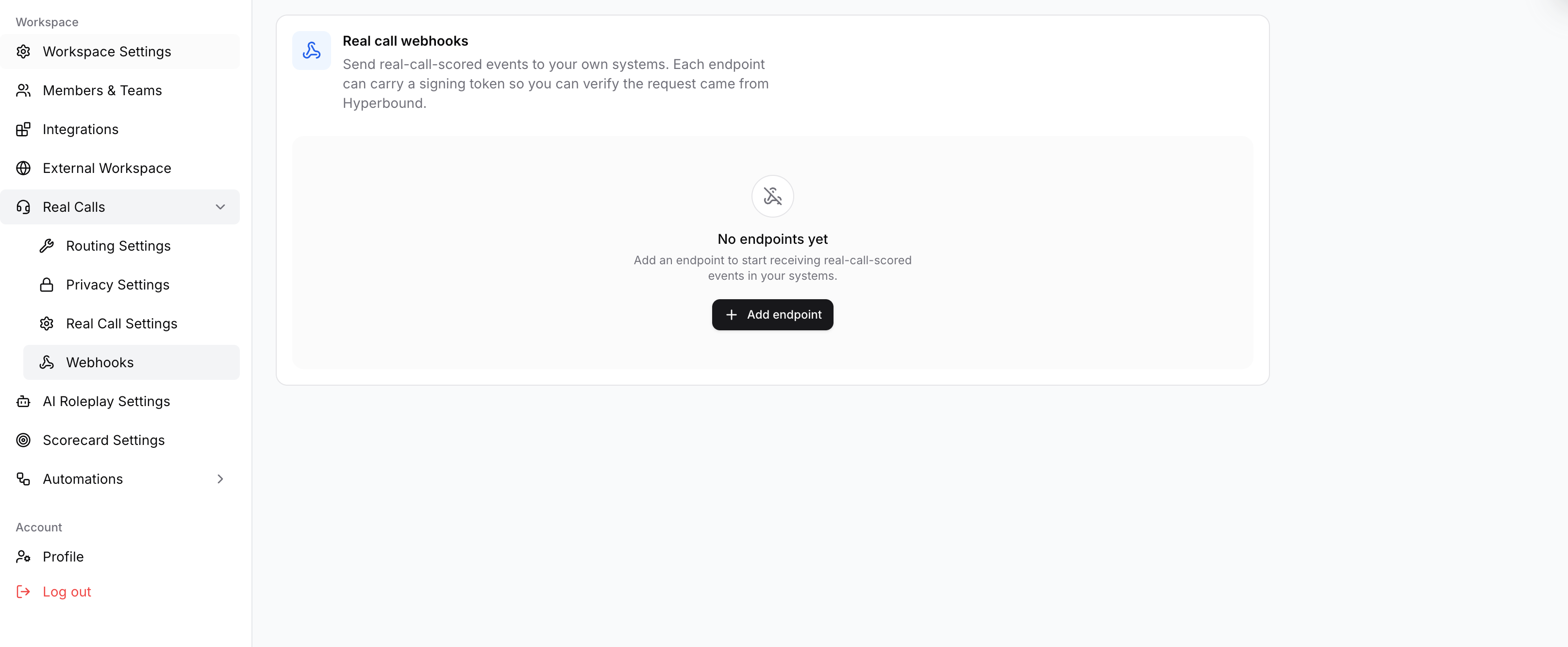
Go to Settings → Real Calls → Webhooks.
You need to be an Admin to manage this.
Click Add endpoint.
Enter your Target URL: this is where Hyperbound will send the data. It must start with
https://(for example,https://example.com/webhooks/hyperbound).(Optional but recommended) Generate a signing token so your system can verify each request really came from Hyperbound.
Click Create endpoint.
That's it — your endpoint is now active and will start receiving scored calls.
Verifying requests (signing token)
If you generate a signing token, Hyperbound includes it on every request in this header:
X-Hyperbound-Webhook-Token: <your token>Your receiving system can check this header to confirm the request is genuine.
Important notes about the token:
It's shown only once when generated — copy it right away, you won't be able to see it again.
Generating a new token replaces the old one as soon as you save.
What gets sent
Each webhook is a POST request with a JSON body like this:
{
  "eventType": "REAL_CALL_SCORED",
  "eventId": "whd_xxxxxxxxxxxxxxxxxxxxx",
  "occurredAt": "2026-01-01T00:00:00.000Z",
  "data": {
    "realCallId": 123,
    "recordingUrl": "https://.../recording.mp4",
    "primaryRep": { "name": "Jane Rep", "email": "jane@yourco.com" },
    "externalParticipant": { "name": "Sam Buyer", "email": "sam@prospect.com" },
    "transcript": [{ "speaker": "Rep", "text": "Hi Sam, thanks for hopping on..." }],
    "summary": "Short summary of the call.",
    "aiNotes": "AI-generated notes.",
    "actionItems": [
      {
        "text": "Send pricing follow-up",
        "owner": { "name": "Sam Buyer", "email": "sam@prospect.com" },
        "isCompleted": false
      }
    ]
  }
}
Field | What it is |
|---|---|
| Unique ID for this delivery — use it to avoid processing the same event twice |
| When the event was sent (ISO timestamp) |
| Hyperbound's ID for the call |
| Link to the recording (video if available, otherwise audio) |
| Your rep on the call (name + email) |
| The external person on the call (name + email) |
| The call transcript |
| AI summary of the call |
| AI-generated notes |
| Follow-up items, each with text, an owner, and completion status |
Managing endpoints
Each endpoint shows its current status and a menu of actions:
Active — sending events normally.
Off — you've paused it; no events are sent until you reactivate.
Paused — Hyperbound paused it automatically after repeated delivery failures. Fix the endpoint, then click Reactivate.
From the endpoint's menu you can Pause/Activate, Edit (change the URL or token), or Remove it. Removing stops delivery — you can always add it back later.
Good to know
Your endpoint should return a
2xxresponse to confirm it received the data. Hyperbound retries a few times on failure.Repeated failures auto-pause the endpoint (after 10 consecutive failures) so you don't lose data silently — just reactivate once it's fixed.
Each call is sent once per endpoint. Use
eventIdto safely ignore any duplicates.Requests time out after 15 seconds, so make sure your endpoint responds quickly (do heavy processing in the background).
Got more questions? Reach out to support@hyperbound.ai