How To: Fix An Unresponsive Bot & Microphone Issues
Last updated: June 16, 2026
If your bot isn't responding during a roleplay session, it's likely due to microphone issues. Follow these steps to troubleshoot and get things working again.
Step 1: Perform a Mic Test
Step 2: Check Browser Permissions
Your browser might be blocking access to your microphone, preventing the bot from hearing you.
Go to your browser settings (ex: Chrome, Safari, Firefox.)
Navigate to the Permissions or Privacy section.
Make sure microphone access is allowed for the Hyperbound site.
Quick tip: In Chrome, click the padlock icon next to the URL to adjust permissions.
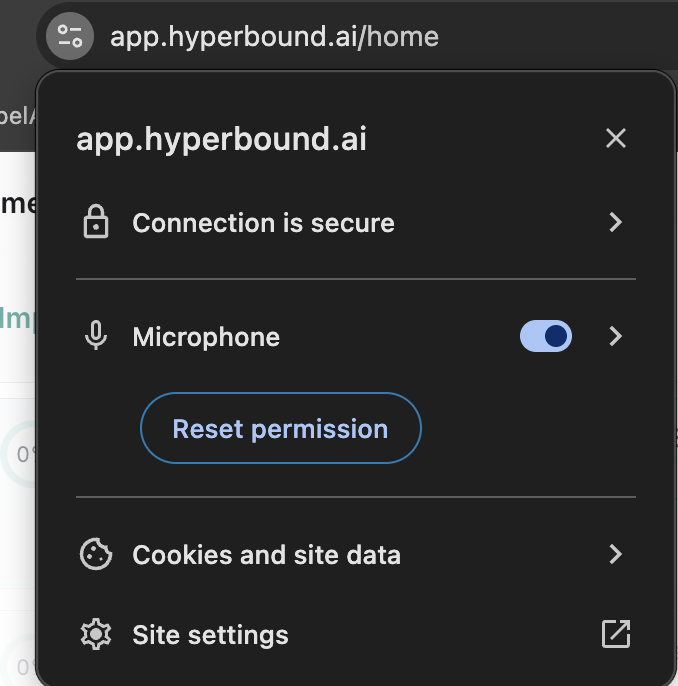
If the microphone still does not activate even after checking permissions:
Clear your browser cache and cookies for the Hyperbound site on your browser.
Reopen Hyperbound and re-allow microphone permissions when prompted.
Step 3: Disconnect External Misc or Docking Stations
External microphones and docking stations can sometimes cause issues with the bot responding. Here's what you can do:
Disconnect any external microphones or docking stations you're using.
Switch to your built-in computer mic or use earpods/airpods instead.
⚠ Note: We're aware of an issue with some external devices and are working on a fix. Thanks for your patience!
Step 4: Fix Echo or Background Noise
If you're experiencing echo or background noise, this can affect your bot's ability to respond correctly.
Try switching to headphones to eliminate the echo and improve the audio quality.
This usually resolves background noise issues and allows the bot to hear you clearly.
Still having trouble?
Contact us at help@hyperbound.ai, or use the green chat icon on the bottom-right corner of your Hyperbound dashboard to leave us a message.