How To: Invite Users to Hyperbound
Last updated: September 25, 2026
Summary
In this tutorial, you will learn how to invite individual users or bulk upload reps via CSV into the Hyperbound platform. This ensures your team is properly onboarded with the correct access and roles.
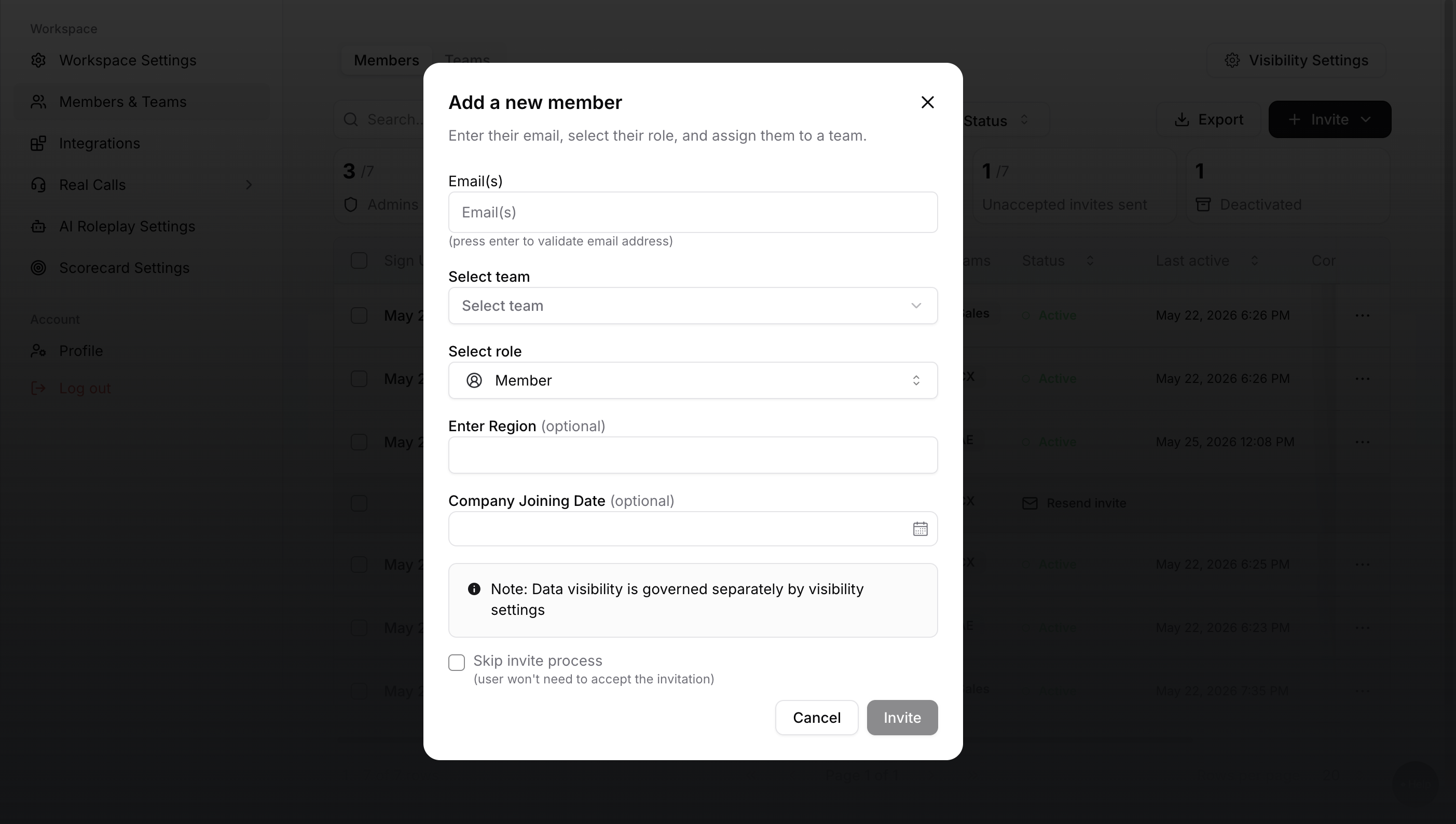
Step 1: Members page
1. Log into the Hyperbound admin account.
2. Click on your Org Logo, on the bottom corner
3. Click on Invite and manage members
Step 2: Invite a User
1. Click on the 'Action' button.
2. Select 'Invite' from the dropdown.
3. In the popup, insert the user’s email address.
4. Assign a role (Admin or Member).
5. Add them to a team
6. Click 'Invite'.
Step 3: Invite via CSV (for Bulk Uploads)
1. Prepare a CSV file with email addresses.
2. Navigate to the Invite section and upload the CSV.
Step 4: Resend Invites (If They Expire)
• Invitations expire after two weeks
• Click 'Resend Invite' for an individual or select multiple users to resend in one click.
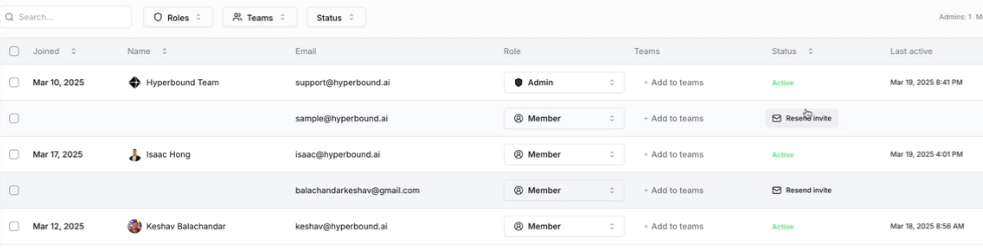
Best practices for role types
We recommend the following:
Category | Admin | Observer | Member | MemberPlus |
Ideal For | Enablement team members who create bots, scorecards, and manage licenses | Leadership or stakeholders who want visibility | Reps who participate in roleplays | Player-coaches who support content iteration or a Program admin. |
Call Access | ✅ Can make calls | ✅ Can make calls | ✅ Can make calls | ✅ Can make calls |
Bot & Scorecard Access | Full: create, edit, delete | View only | View only | Full: create, edit, delete |
User Management & Settings | ✅ Can invite and remove users and adjust settings | ❌ No | ❌ No | ❌ No |
Integrations | ✅ Have access to enable/ disable new integrations | ⚠ Only to their personal integration | ⚠ Only to their personal integration | ⚠ Only to their personal integration |
Typical Use Cases | Owning content creation and managing platform access | Observing rep performance and progress | Practicing scenarios and receiving feedback | Tweaking bots and scorecards to improve content quality |
Skip Invite
Enabling the skip invite checkbox, adds the user directly to Hyperbound. Users will not get an email to accept the invitation.
If users are added via "Skip Invite", they can follow these instructions to sign in:
Go to app.hyperbound.ai
Option1: Drop in your email
Hyperbound will prompt you to enter/ Create your password.
Option 2: [Recommended] Use Magic Link
Enter you email -> Click send Magic link -> check your inbox for an URL, which you can click to get yourselves logged in!
Need help?
If you have any other questions, feel free to reach out to the HyperBound team, either via the chat button, or email us at help@hyperbound.ai.