User Attribute Enrichment
Last updated: September 15, 2026
Automatically create teams, assign users, and build your reporting hierarchy from your HRIS/SSO attributes.
What it is?
User Attribute Enrichment (UAE) reads the manager information your company keeps in your login system (SSO) or HR system (HRIS) and uses it to build your Hyperbound teams and reporting hierarchy for you.
Set it up once. When people join, move, or leave, Hyperbound updates your teams to match — no manual work.
It has two parts:
Attribute sync — user attributes (region, department, manager, etc.) flow in from SSO/HRIS and stay up to date. You can view and filter by them on the Members page.
The rule — uses those attributes to create teams, assign people, and set the hierarchy.
Rules-based automation runs on the data Attribute Sync provides — so your attribute sync needs to be working before automation can do anything.
Before you start (prerequisites)
Attributes are syncing from your SSO or HRIS (e.g. Workday, Okta), including each user's manager email and manager name.
Manager Hierarchy v2 is on.
Users are provisioned through SCIM.
You're an org admin (only admins can set this up).
Methods:
How attributes sync
Once your SSO/HRIS integration is connected, each user's attributes sync to their profile and refresh automatically. See and filter by them on the Members page.
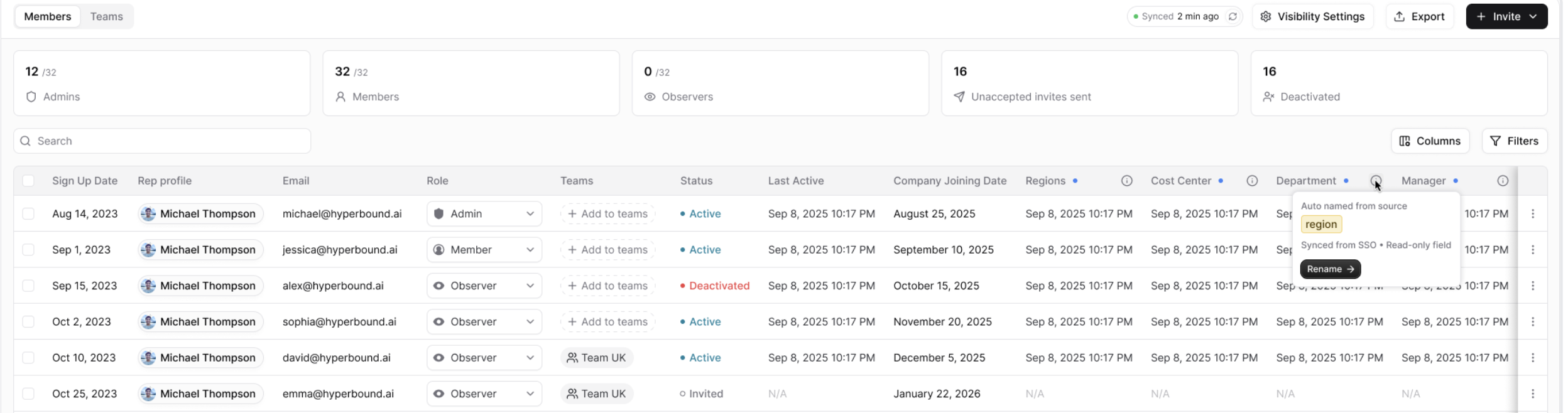
Two things to know:
New attributes need a name first. New attributes sync in, but stay hidden from tables and filters until an admin gives them a display name. You'll see a banner prompting you.

Deactivated users stop syncing. Once a user is deactivated or deleted, Hyperbound stops syncing attributes to them.
Filter by attribute
On the Members page, click Filters to narrow people down. Filters come in two groups:
Hyperbound Native — built-in fields like Date Range, Call Type, Reps, Teams, AI Roleplay Bots.
Synced from SSO — your synced attributes. Example: Region, Cost Center, Department, Manager, Employee ID, Start Date, and any others you've named.
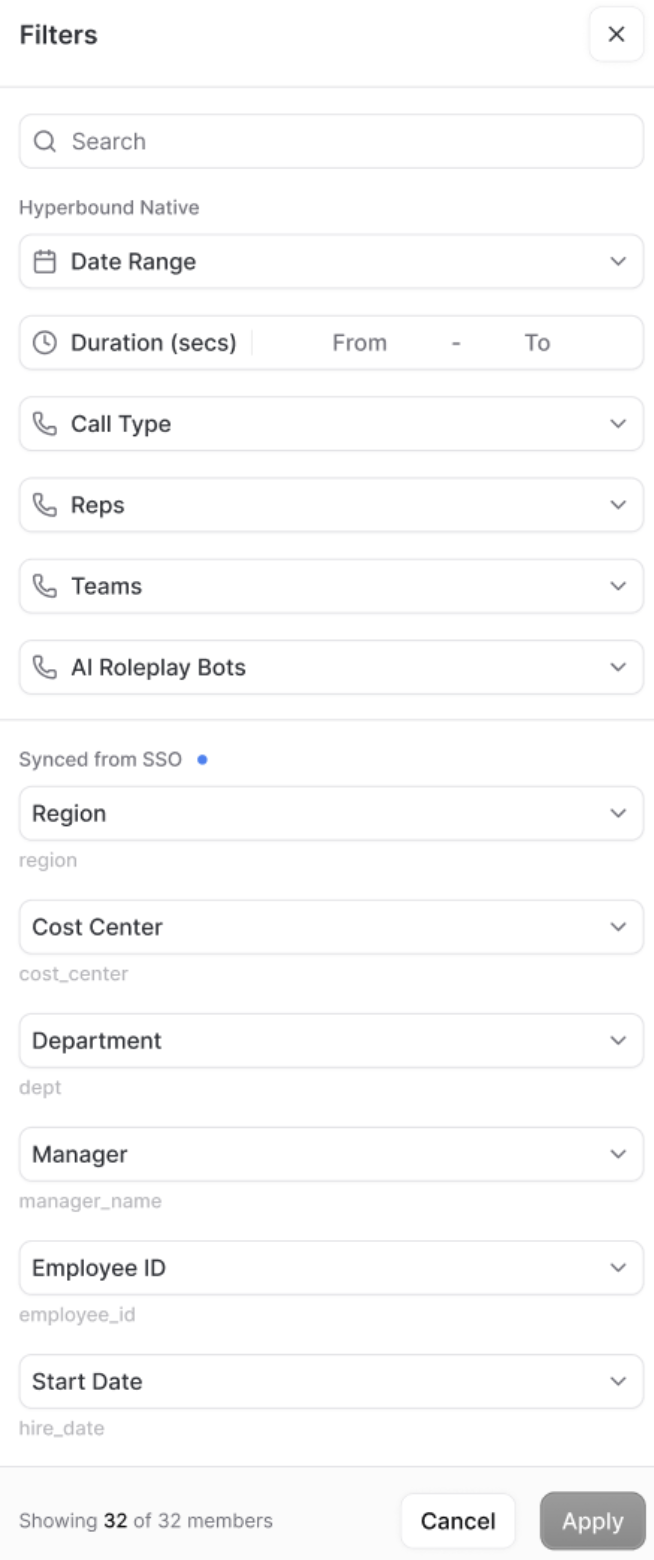
Don't see an attribute here? It probably needs a display name first.
Set up the rule
To build teams around managers, Hyperbound needs to know who each person's manager is. That info already comes in from your HRIS/SSO — but the fields have technical names (like manager_email or mgr_name) that differ at every company. So you tell Hyperbound, once, which field is which:
Manager email — how Hyperbound identifies who the manager is (emails are unique).
Manager name — used to name the team (e.g. "Dana Lee Team").
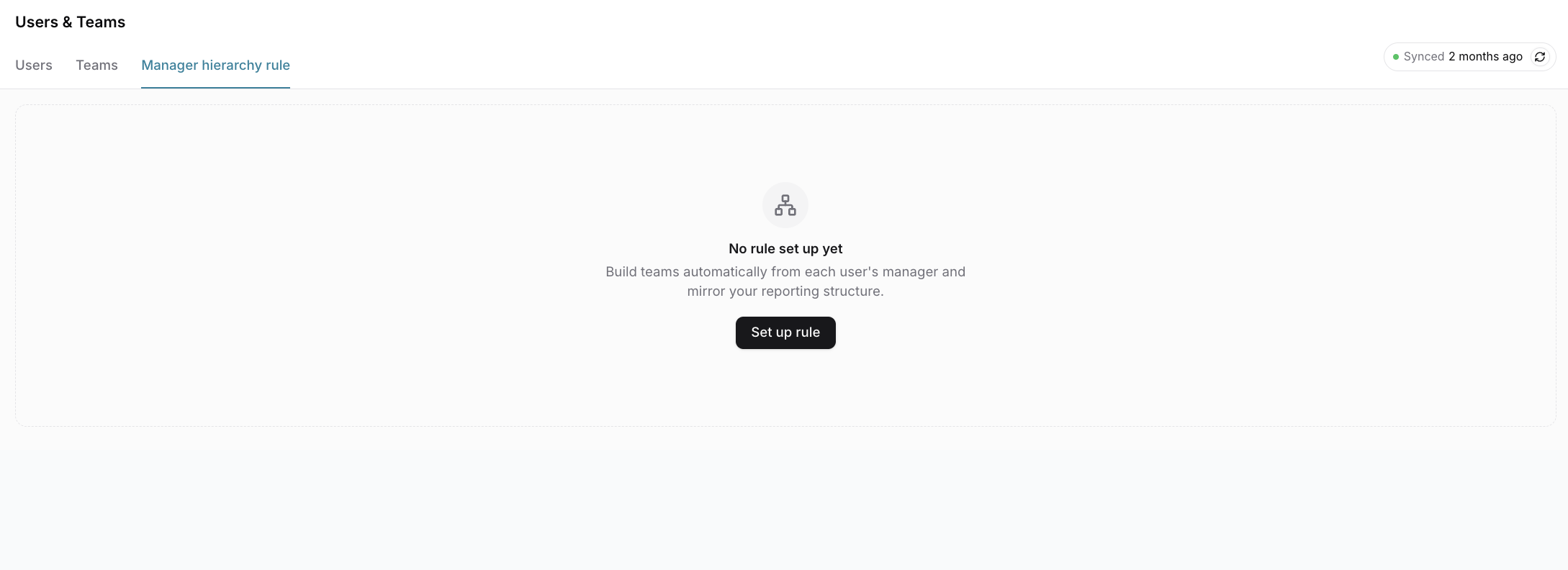
Go to Members & Teams → Manager hierarchy rule.
Click Set up rule.
Map the manager email attribute.
Map the manager name attribute.
Click Save and Run.
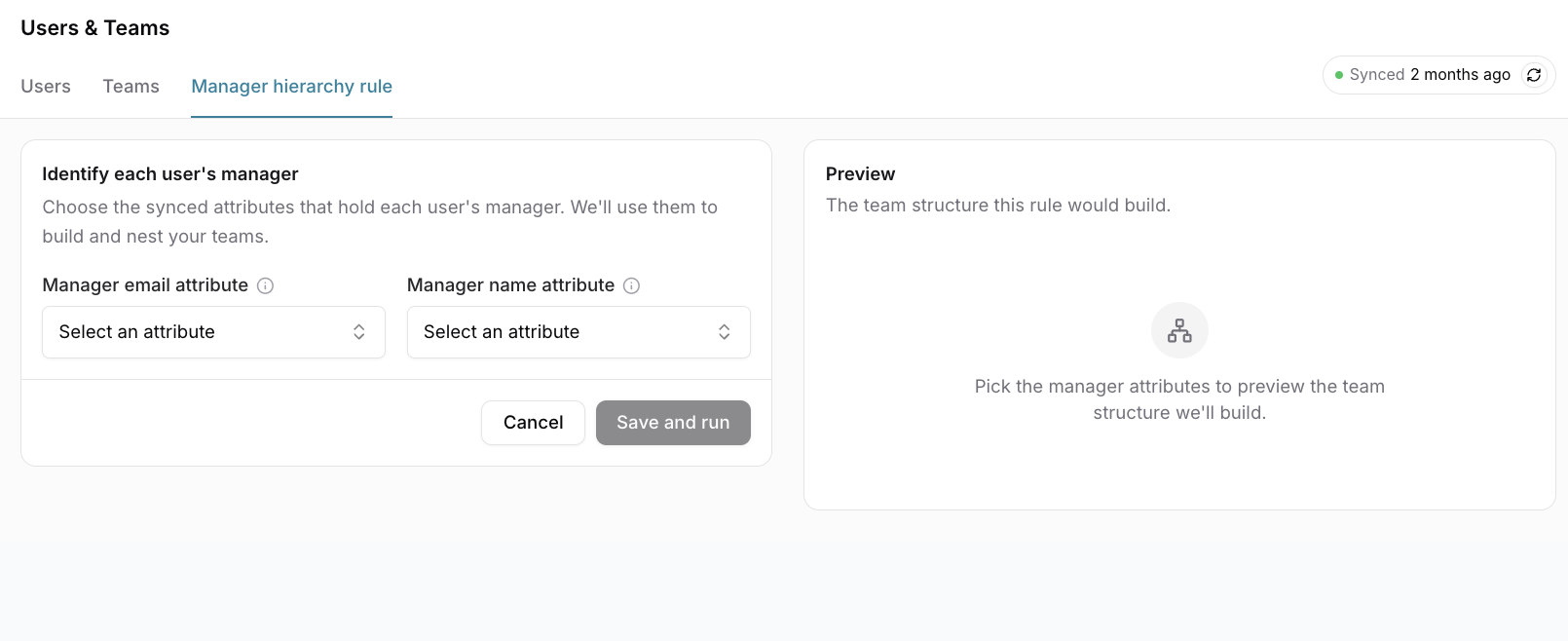
Preview before anything changes
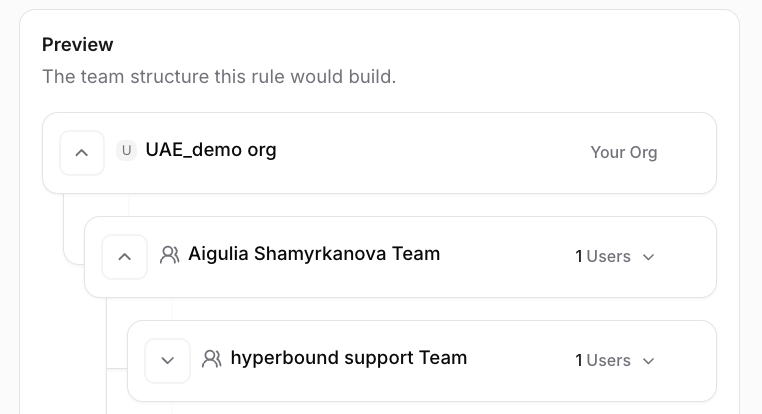
Nothing executes while you build a rule. You first see a dry-run preview — how many users match and which teams would be created or affected. Nothing changes until you save and run the rule. On activation, it runs once against your current users, then stays live for future events.
What it does automatically
From that one mapping, Hyperbound:
Creates a team per manager (named from the template).
Adds each person to their manager's team.
Nests each team under the manager's own manager — mirroring your org chart.
When it runs
A new user is added via SCIM or manually.
A user's manager attributes change.
A user is deactivated or deleted → no auto change; it's flagged for you.
Once, when you first save and run
Conflicts and how you resolve them
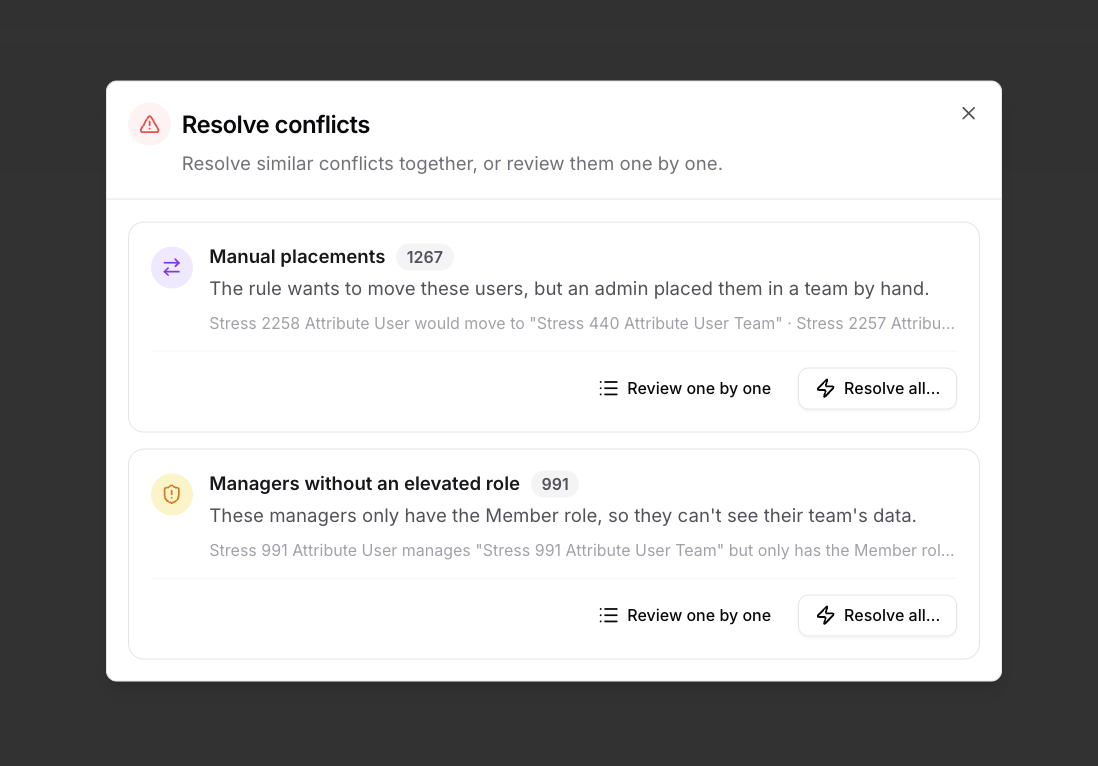
When the answer is clear, Hyperbound just does it. When it isn't, it flags the issue in the Review Center for you to decide instead of guessing.
Open Resolve conflicts to handle them — you can resolve similar conflicts together ("Resolve all") or review them one by one.
Conflict | Meaning | Your options |
|---|---|---|
Manual team assignment | Someone was put on a team by hand, and the rule would move them. | Move them to the rule's team, keep the manual placement (the rule stops trying), or add to both. |
Manager needs role | A manager doesn't have a high enough role to lead their team. | Promote the manager to an eligible role (Observer, Member+, or Admin). |
Team without manager | A team's manager is gone, so the team has no place in the hierarchy. | Reassign the team under another active manager's team, or set it manually (pick a parent, or make it top-level). |
Troubleshooting
My rule didn't create or assign anything.
Check, in order:
(1) the rule is activated — building/previewing alone changes nothing
(2) the preview count is non-zero — if zero, your conditions match no one
(3) the attribute values match exactly — watch for case and whitespace differences
(4) whether the action is waiting in the Conflict Resolution Center rather than applied.
I added/mapped a new attribute but I don't see it.
Attributes appear after the next sync cycle, not instantly. Give it a sync, refresh the Members page, and confirm the attribute is being sent from your SSO/HRIS and mapped on the integration.
A deactivated user is still showing attributes / still on a team.
Attributes are no longer synced to deprovisioned users. Deactivation does not auto-remove team/hierarchy placement — it's flagged for an admin instead, so check the Conflict Resolution Center.
A team I edited by hand got flagged.
Expected. Hyperbound tracks manual edits and flags (instead of overwriting) when a rule would change them. Resolve it by choosing apply the rule or keep your edit.
Duplicate teams appeared.
Usually a same-name collision resolved as "create duplicate," or two rules generating the same name. Review the naming templates and merge if needed.
Hierarchy didn't nest the way I expected.
Hierarchy is derived from the manager attribute only. The manager must exist on the platform and be an admin/observer of a team for their team to become the parent. If the manager is only a member, you'll get a prompt to promote them. Circular relationships are flagged for manual fixing.
Ask the Hyperbound team!
If attributes confirmed syncing at the integration but not appearing on users after a full sync cycle; rules activated with a positive preview but no actions and nothing in the Conflict Center; or any audit-log entry that doesn't match what actually happened.
Or if you have any questions at all 🙂
FAQ
Who can create rules?
Org admins only.
Will activating a rule change everything immediately?
It runs once against current users on activation, after you confirm the blast radius, then runs on the trigger events above.
Does our AI assistant (Kota) respect these attributes?
Yes — Kota's answers and the data it can reach respect the same attribute mapping.
Related help articles
📄 Getting started with Manager Hierarchy