How To: Create Scorecards! (new)
Last updated: September 16, 2026
A scorecard defines what a good call looks like. Hyperbound grades every roleplay and real call against one.
Why Use Scorecards?
Consistent evaluation — same bar for every rep, regardless of who reviews the call
Specific coaching — feedback points to a named criterion, not a general impression
A shared standard — reps see what they're measured on before they dial
Usable data — scores roll up into analytics, so you can spot team-wide skill gaps
Finding your scorecards
Go to Scorecards in the left nav. The listing page has three tabs:
Recents: folders and scorecards you touched most recently. This is the default view.
Folders: all folders.
Scorecards: see the whole list.
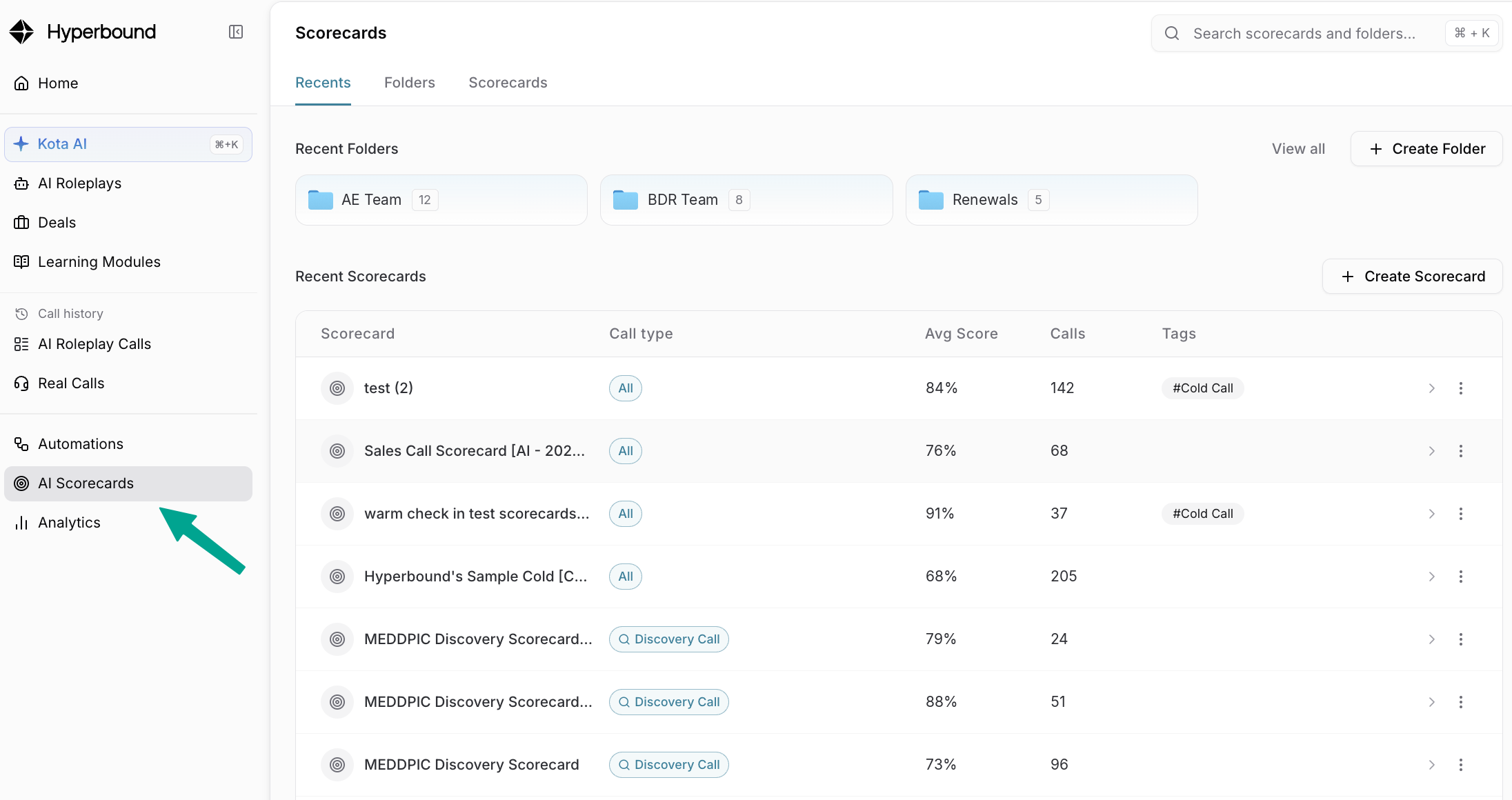
Each row shows Call type, Avg Score, Calls, and Tags, so you can find the right scorecard without opening it.
Folders work the same way they do for AI Roleplays. Click + Create Folder, name it, then drag scorecards in or use the ⋮ menu on a row to move one.
Tip: one folder per team or per motion (Outbound, Discovery, Demo, Renewals) is a good starting structure.
What's new
Each scorecard is now broken into three categories: Overview, Content, and Testing
Overview:
Overview answers one question: is this scorecard working? It shows the pattern across every call the scorecard has graded, not individual calls.
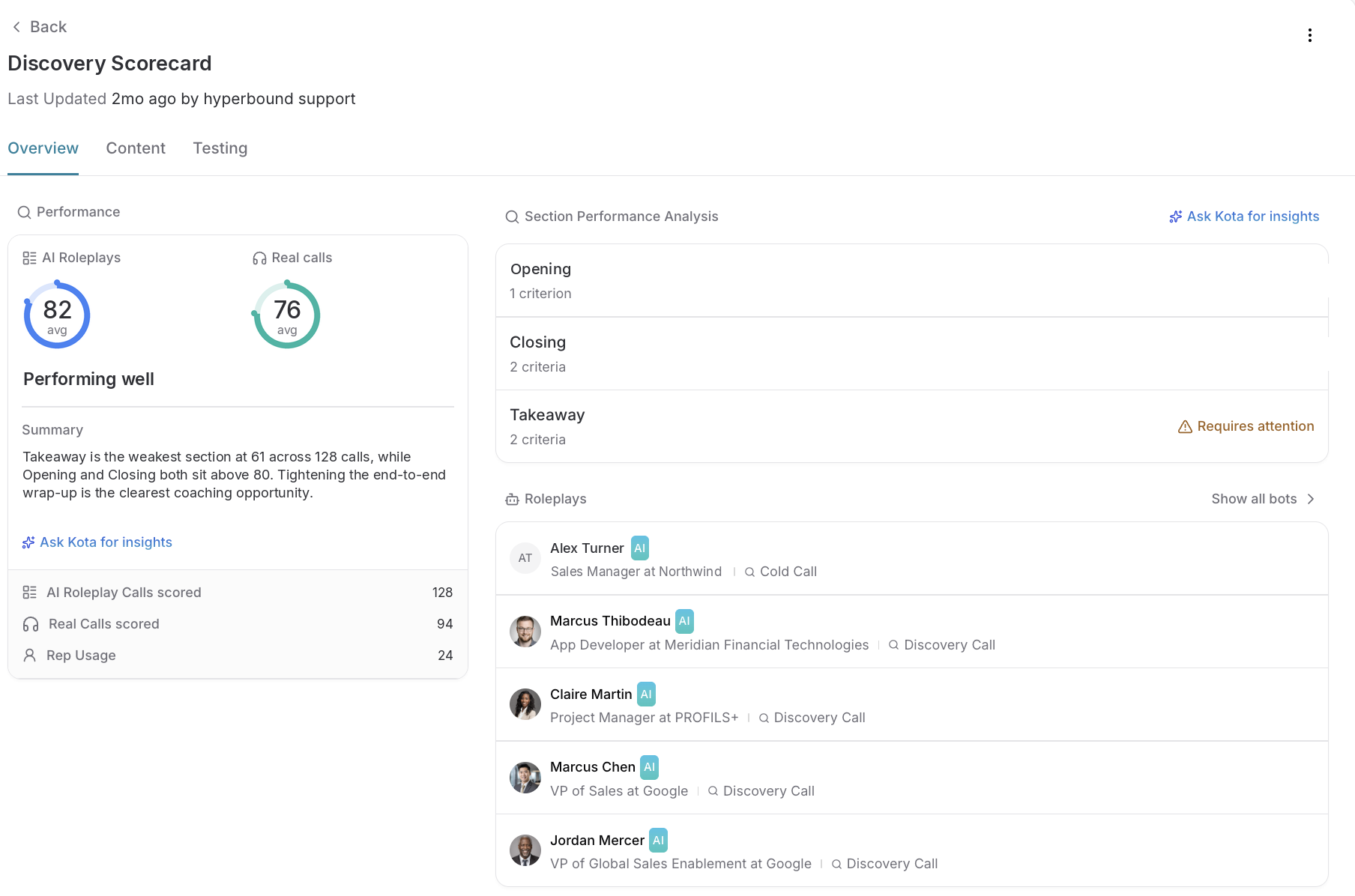
Performance. Measure how reps are performing in AI Roleplays (practice) and Real calls (live). You can now read the gap between them. Close together means practice is transferring. Roleplays much higher means reps have learned to pass the scorecard, not the real call.
Calls scored and Rep Usage. How many calls each average is built on. Check this before trusting the number. A 90 built on 4 calls tells you very little.
Section Performance Analysis. Sections scoring consistently low are flagged Requires attention. That flag is either a real skill gap or a criterion worded so it rarely passes. Run a strong call through the Testing tab to tell which.
Roleplays. Every bot using this scorecard.
Ask Kota for insights opens a chat with this scorecard's data loaded, so you can ask which criteria fail most often without re-explaining context.
Content
The sections and criteria themselves. This is the way to edit your scorecards.
You can view and edit Drafts so changes arn't made to all of the reps as you're working on content.

Testing
Run the scorecard against real calls before you roll it out
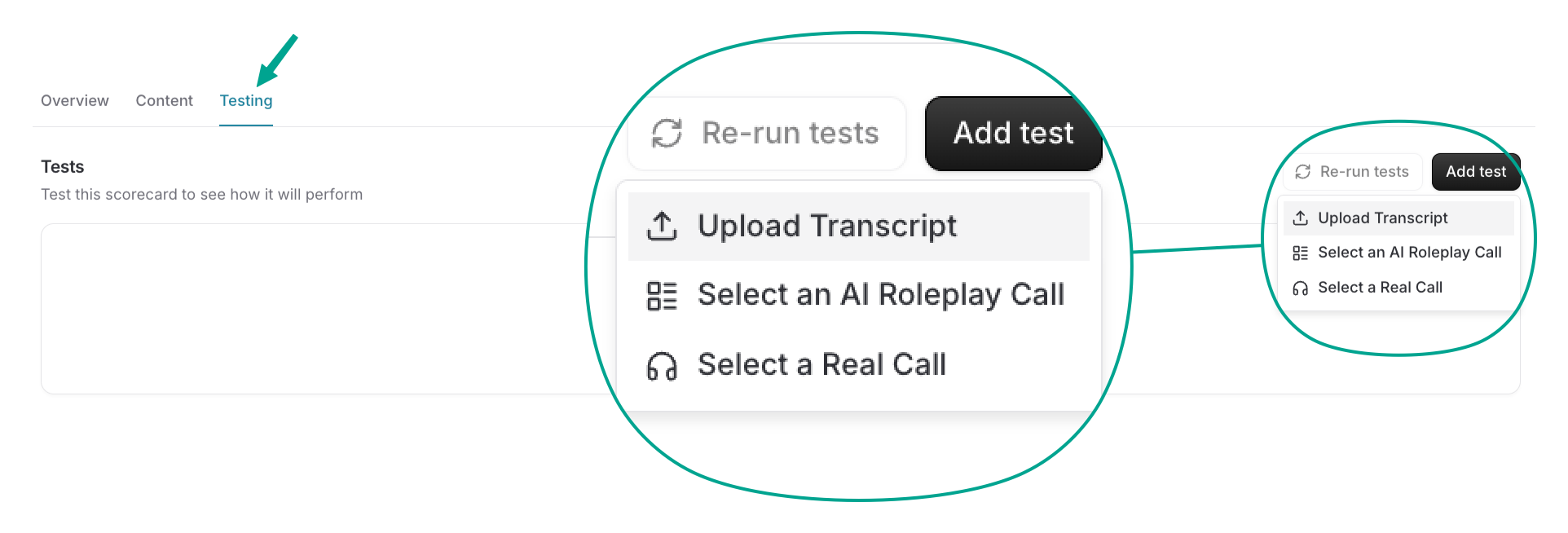
Click Add test and pick your input: upload a transcript, select an AI roleplay call, or select a real call. Run it and you get the full result: overall score, section by section, and per-criterion pass or fail.
Read the rationale, not the score. The rationale explains why the AI graded each criterion the way it did. When it passes something you would have failed, the rationale usually shows which word in your criterion is doing the wrong work. That is the fix.
What to test. One call you would call great and one you would call poor, at minimum. Add an average call to check for consistency.
Note: if a strong call and a weak call score about the same, your criteria are not discriminating. Reword before rollout, not after.
Re-run tests re-scores everything after an edit, so you can see whether the change worked.
New Features!!!!
🏁Folders and search on the listing page, so scorecards stay findable a
s your library grows.
🏁Drafts and versions. You can edit without affecting anyone's scoring, then publish when you are ready.
There are three ways to build a scorecard!

Which Path Should You Take?
Path | Best when | Start from |
|---|---|---|
Build with AI | You have enablement docs, a methodology guide, or good transcripts | Your materials |
Ask Kota | You'd rather describe it in conversation, or need several scorecards at once | A chat |
Build manually | You know exactly what to measure and want full control | A blank scorecard |
💥 TIP: Start with AI or Kota even if you plan to edit heavily. Reacting to a draft is faster than filling a blank form.
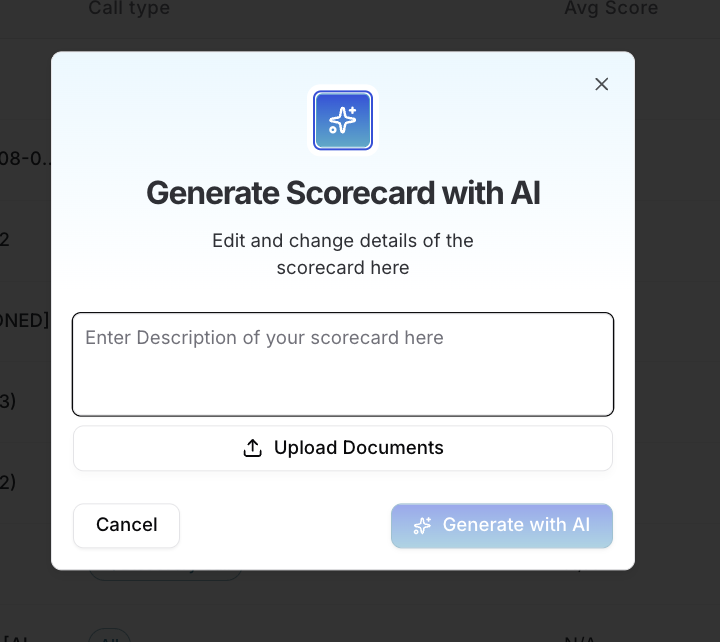
Option A: Build with AI
1. Upload your materials
One file or several:
Enablement docs and training slides
Sales methodology guides
Call transcripts — real examples of what you're grading
Or skip the upload and just describe what you want.
2. Add your instructions
Examples:
no upload | "Please build me a scorecard to handle various elements of sales objections." |
paste in transcript | Here is a transcript of a call with a prospect, please build a generalized scorecard based on this call. |
upload MEDDPICC scorecard | On top of using MEDDPICC, I also want my reps to be evaluated on the FFF objection handling framework and I want to evaluate active listening. |
3. Generate
You get a full scorecard — sections, questions, criteria.
4. Review and customize
The step that matters. Read every criterion and ask: could a reviewer judge this from a transcript alone? Rename sections, reword or delete criteria, adjust grading.
Read Understanding Your Criteria below before publishing.
5. Select call types and publish
💥 TIP: Two or three transcripts of the same call type beat one. The AI can tell what's consistent across good calls from what happened once.
Option B: Ask Kota
Describe what you need:
"Create a discovery call scorecard for our enterprise AEs covering pain identification, quantifying business impact, multi-threading, and locking in a next step."
Kota drafts it, you refine it in chat, you approve before it publishes. Fastest route for several related scorecards at once.
Full walkthrough: 📄 Kota Actions! (New)
Option C: Build Manually
1. Open the Scorecard Builder
Scorecards page → create new.
2. Name it
Say the call type and audience: "Enterprise Discovery — AE" beats "Discovery v2."
3. Select the call type
Discovery, warm, or cold. Determines where the scorecard can be applied.
4. Add questions and criteria
5. Customize each criterion
Set the grading question and scoring instructions. Specific instructions produce consistent grading.
6. Design Yes/No questions carefully
"Did the rep quantify the cost of the problem?" is gradeable. "Was the rep effective?" is not.
7. Enable AI Coaching (optional)
Gives reps written coaching alongside their score.
Note: Adds 5–10 seconds of load time per question. On a long scorecard that adds up.
8. Organize sections and criteria
Drag and drop into the order the call actually flows. Reps read top to bottom.
9. Save
Understanding Your Criteria
Applies to all three paths. If you built with AI or Kota, don't skip this — your generated criteria each have a grading type.
How criteria are graded
AI Grading looks for themes and concepts. It can tell a rep quantified business impact without the word "impact."
Keyword Matching is exact — a "command + F" search. Use it when a specific phrase matters: a compliance disclosure, a required disclaimer, a product name.
💥 BEST PRACTICE: Default to AI Grading. Keyword Matching is brittle — a rep who says the right thing a different way fails the criterion.
Writing criteria that grade well
Make it binary — a defensible yes or no from the transcript alone
Avoid absolutes — "always" and "never" fail in edge cases they shouldn't
Be specific — "Asked about budget" is vague; "Asked who signs off on a purchase of this size" is gradeable
Optional settings
Section weights — make some sections count more. See How To: Weight Scorecard Sections
N/A option — skip a criterion when it doesn't apply, without penalizing the rep. See Enabling the N/A Option on a Criterion
Before You Publish: Test It
Upload a transcript in the Test Scorecard section to see how it actually grades. You can test the whole scorecard or a single criterion.
💥 BEST PRACTICE: Test one call you'd call great and one you'd call poor. Similar scores mean your criteria aren't discriminating.
Full walkthrough: 📄 How To: Test Scorecards with Transcripts
Best Practices
One scorecard per call type — don't stretch one across cold calls and enterprise discovery
Start small — 8 criteria reps understand beat 30 nobody reads
Write instructions like you're briefing a new manager — vague in, vague out
Revisit quarterly — your market shifts, your scorecard should too
Full walkthrough: 📄 Best Practices for Making Scorecards!
Still have questions? That's what we're here for! Reach out to us at help@hyperbound.ai and we'll get back to you as soon as possible.