How To: Create a Learning Module
Last updated: June 25, 2026
Learning modules help you standardize training, track skill development, and support ongoing learning for new and existing team members.
Creating a Learning Module
Getting Started
Accessing Learning Modules: On the left-hand navigation panel, select “Learning Modules.”
Click “+ Create New” to start a new module
Design your module
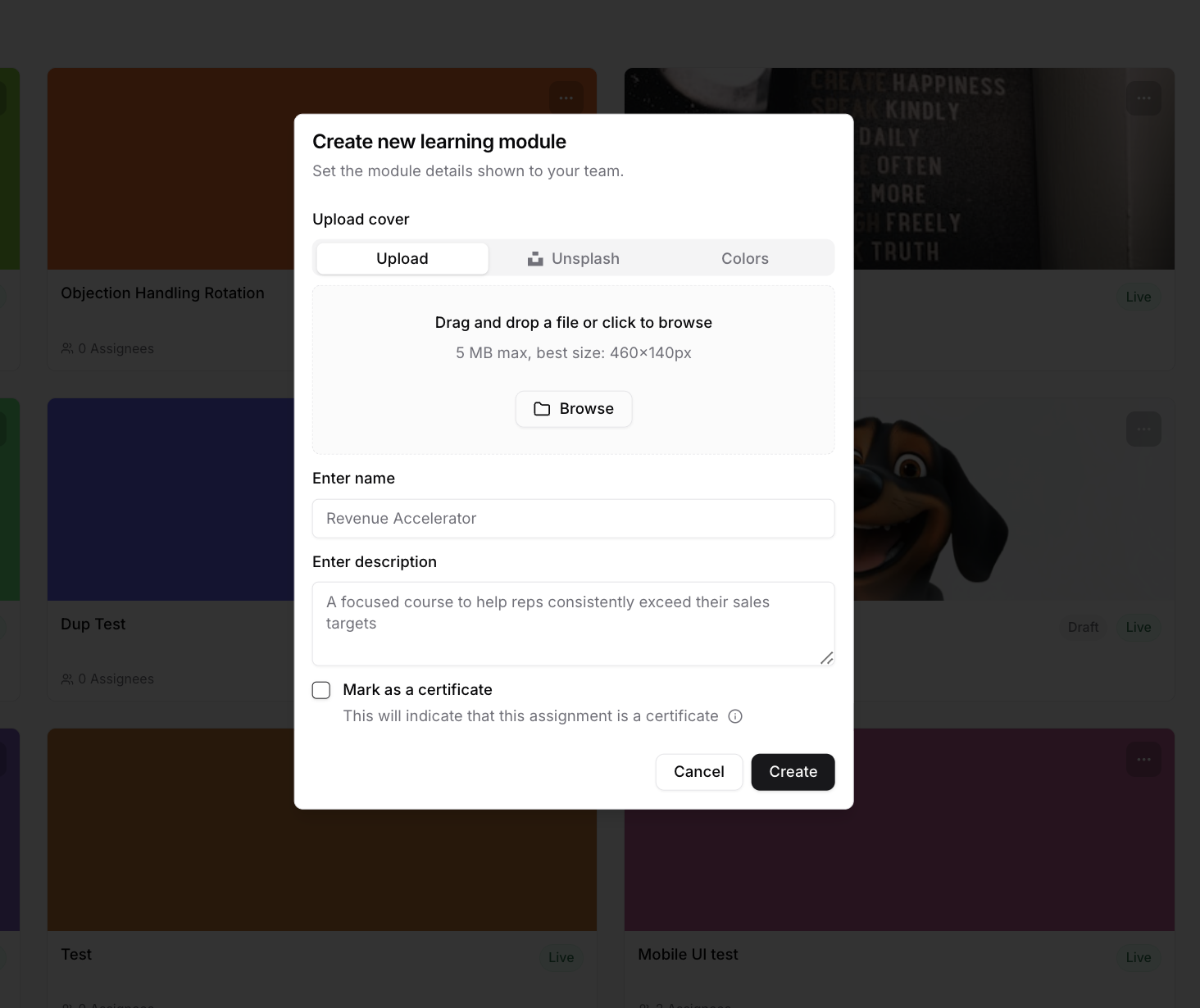
Upload a cover. Add an image from your device, pick one from a select group, or choose a solid color.
Enter a name
Enter a description
Mark as a certificate (optional). Check this if the module should count as a certification. Learners will see it flagged as a certificate rather than a standard assignment.
Building your module
Each section is a milestone reps must pass to complete the module. You build a module by creating sections, then adding one or more tasks to each section.
Step 1: Create a section
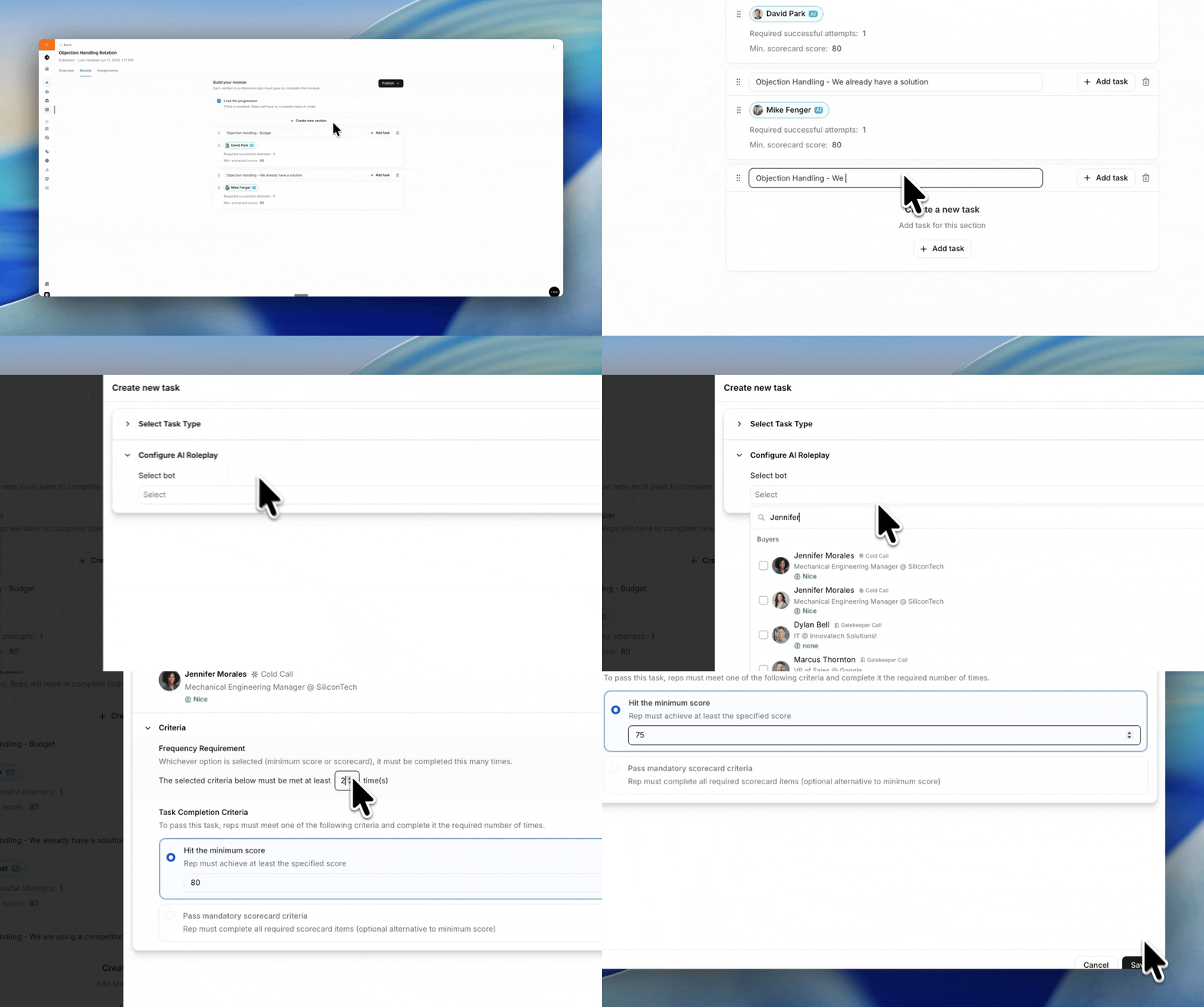
Click "+ Create new section."
Enter a name.
Repeat to add as many sections as you need.
Step 2: Add a task
Within a section, click "+ Add task"
Select the task type, such as AI Roleplays or Call Blitz.
Choose your bot:
For an AI Roleplay, select or search for the bot you want. You can add more than one bot to a task
For a Call Blitz, set the minimum number of bots reps must call.
Step 3: Set completion criteria
This is how a rep passes the task. The criteria depend on the task type - AI Roleplay vs. Call Blitz
For an AI Roleplay:
Set the Frequency Requirement. Enter how many successful attempts are required to complete the task (default is 1).
Set the passing criteria:
Hit the minimum score: the rep must reach at least the score you set, for example 80.
Pass mandatory scorecard criteria: the rep must complete all required scorecard items. This is an optional alternative to the minimum score.
For a Call Blitz:
Set the minimum number of bots to call: the number of bots a rep must call to complete the task, for example 5.
Set the average score to reach across all bots: the minimum average score the rep must hit across those calls, for example 80.
Step 4: Set the order and publish
Reorder: drag the handle on the left of any section or task to change the order.
Delete: click the trash icon to remove a section or task.
Lock the progression: require reps to complete tasks in order.
Publish: use the Publish dropdown to save as a draft or publish when ready.
Assign your reps to a Learning Module
Where you assign a module to reps and track each assignment's progress. This is how reps actually receive the module and how you keep tabs on due dates and status.
Making an Assignment
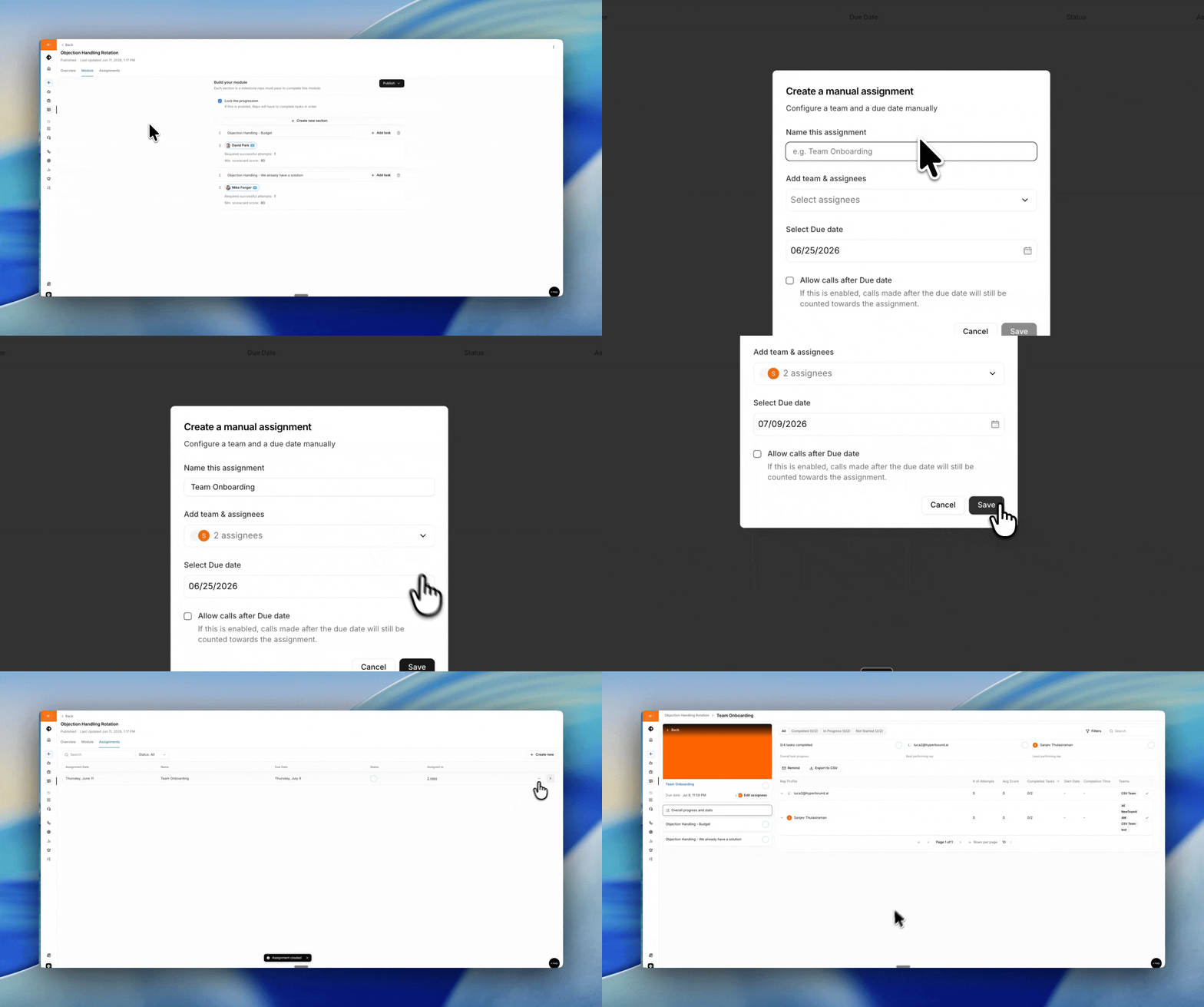
Click "+ Create new."
Name the assignment, for example "Team onboarding."
Add team and assignees. Select the reps or teams who should receive the module.
Set a due date.
Allow calls after due date (optional). Enable this if calls made after the due date should still count toward the assignment.
Click Save.
Viewing assignments
Each assignment appears in the table with its:
Assignment Date: when it was created.
Name
Due Date
Status: progress toward completion.
Assigned to: the number of reps, which you can click to see who's included.
Use the search bar to find an assignment by name, or the Status filter to narrow by In Progress or Completed.
Editing or deleting
Click the "..." menu on any assignment to Edit its details or Delete it.
More References
📄 How To: Track Performance of a Learning Module
📄 How To: Set Up Rule-Based Assignment for Learning Modules
Need Help?
If you have questions, reach out to support@hyperbound.ai