How To: Set Up Rule-Based Assignment for Learning Modules
Last updated: September 1, 2026
Why Use Rule-Based Assignment?
Use a rule when you do not want to track who joined and assign modules by hand.
Common Use Case: Onboarding + Cohorts
Cohort-based onboarding repeats every couple of weeks. With a rule, you invite a new hire and add them to a team, and the module assigns itself. Enablement does not touch it again.
What is rule-based assignment?
Instead of assigning a learning module to people yourself, you set a rule once, like "anyone who joins the Sales team gets this module," and Hyperbound assigns it automatically as people match.
To avoid creating a separate assignment for every person, Hyperbound groups matches into 2-day windows. The first match opens a window; everyone who joins in those 2 days shares one assignment and due date. When it closes, the next match starts a new window.
Prerequisites
Must be an Admin
Must have Learning Modules enabled for the workspace
Helpful context:
📄 How To: Create a Learning Module
Two ways to assign a module
Every Learning Module can be assigned two ways:
Manual assignment. You pick the people and a due date yourself. This is a snapshot of who is on the team right now. New people who join later are not added automatically.
Rule-based assignment. You set conditions once, and anyone who matches is assigned automatically, including people who join later.
Where rules live
Rules are set per module, on the module's Rules tab.
Open the Learning Module
Go to the Rules tab
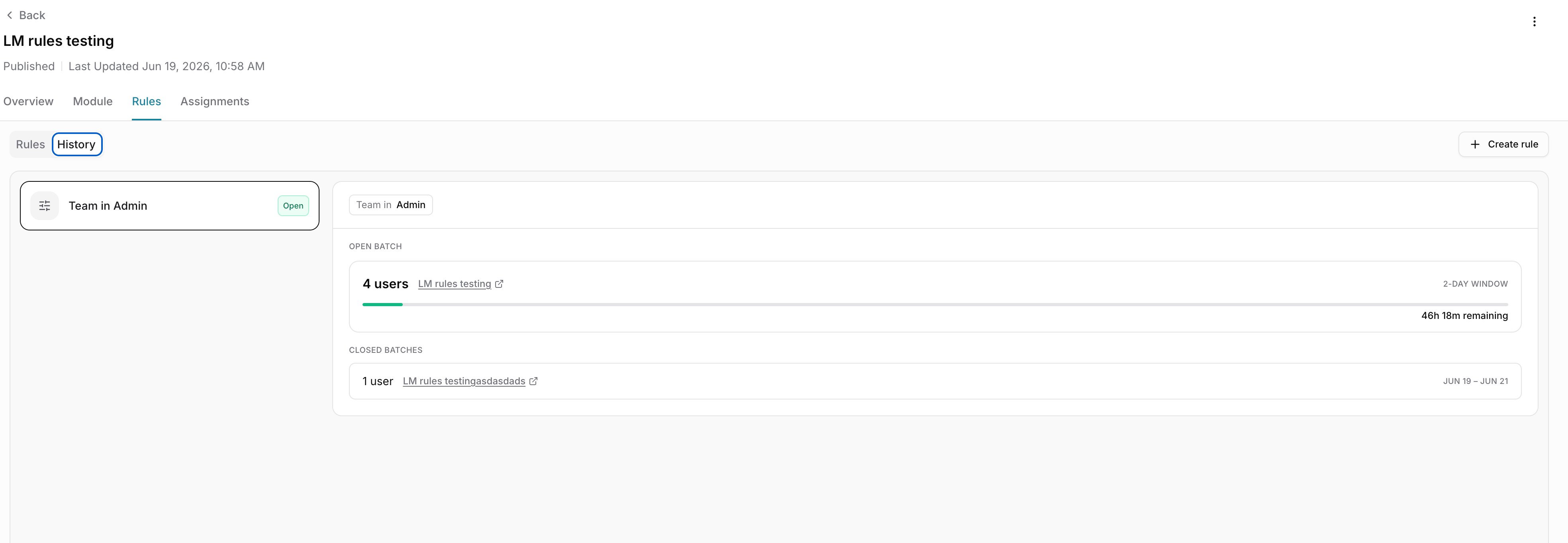
The Rules sub-tab lists active rules. The History sub-tab shows every time a rule has run
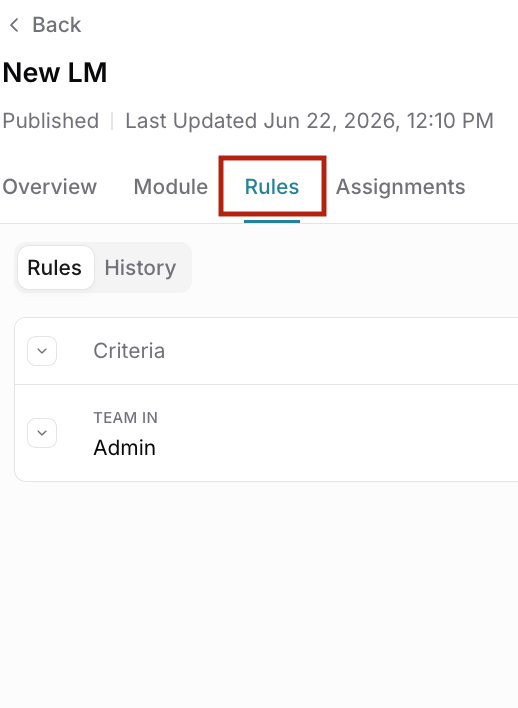
Each rule row shows its Criteria, Due date, and Created date. For example, a rule reading TEAM IN Admin assigns the module to anyone invited to the Admin team.
Creating a rule
On the Rules tab, click Create rule
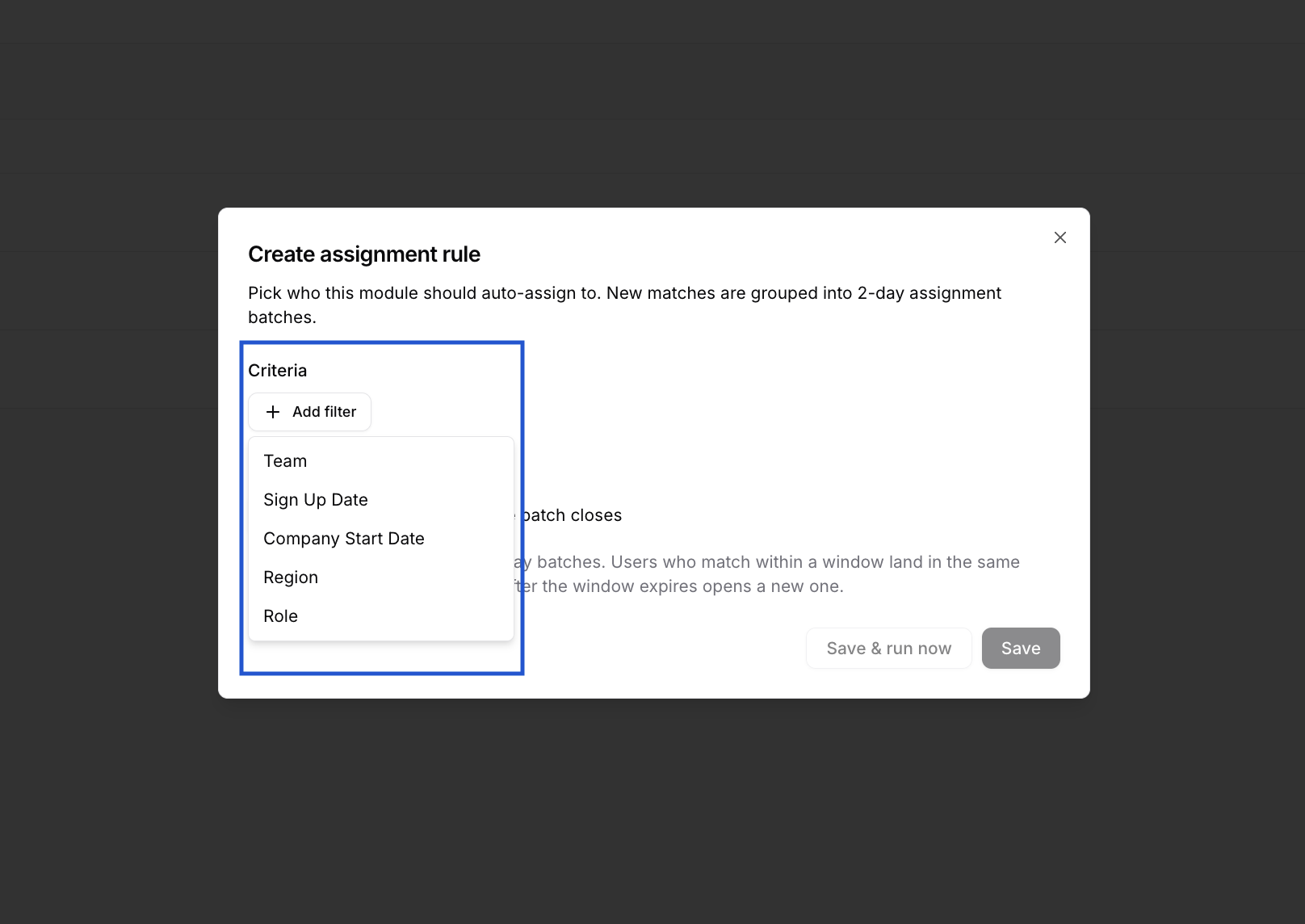
In the Create assignment rule dialog, click Add filter under Criteria and choose your conditions (see below)
Set the Due date
Click Save, or Save & run now to run the rule immediately
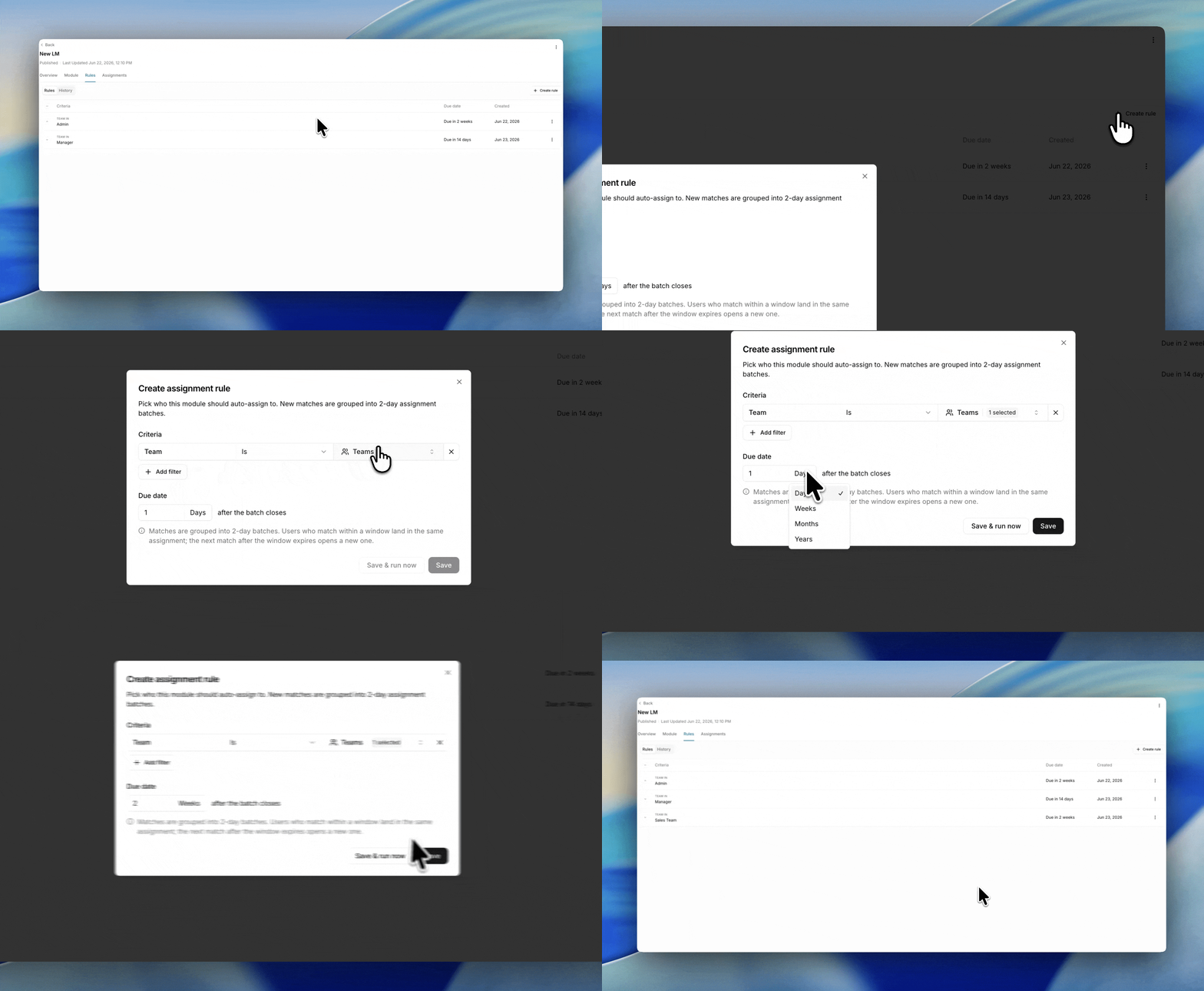
You can select multiple teams at once!
Available criteria
Add one or more filters. Combine them to target a specific group. One rule can cover multiple teams, so you do not need a separate rule per team.
Criteria | How you can match on it |
|---|---|
Team | is in / is not in |
Sign up date | exact date / between dates |
Company start date | exact date / between dates |
Region | exact text match |
Role | is in / is not in |
Any SSO/ HRIS attributes will also be available here soon!
How new joiners are grouped
You do not get a separate assignment for every single person who matches. People who match around the same time are grouped into one assignment.
When a rule first matches someone, Hyperbound creates an assignment and opens a 2-day window. Anyone else who matches within those 2 days joins the same assignment. After the window closes, the next match opens a new assignment and a new window.
This keeps new hires in meaningful cohorts instead of flooding the module with one-person assignments.
Due dates
Each group shares one due date, set when you create the rule. Everyone in the same group gets the same due date, even if they joined a day or two apart.
Need it assigned right away?
Use Save & run now when you create the rule to run it immediately instead of waiting for the next match.
Checking that a rule ran
Open the History sub-tab on the Rules tab. It lists each run with its status: in progress, successful, or failed. Failed runs include the reason.
You can also confirm results on the Assignments tab, which lists the resulting assignment with its dates, status, and how many reps are assigned.
Good to know
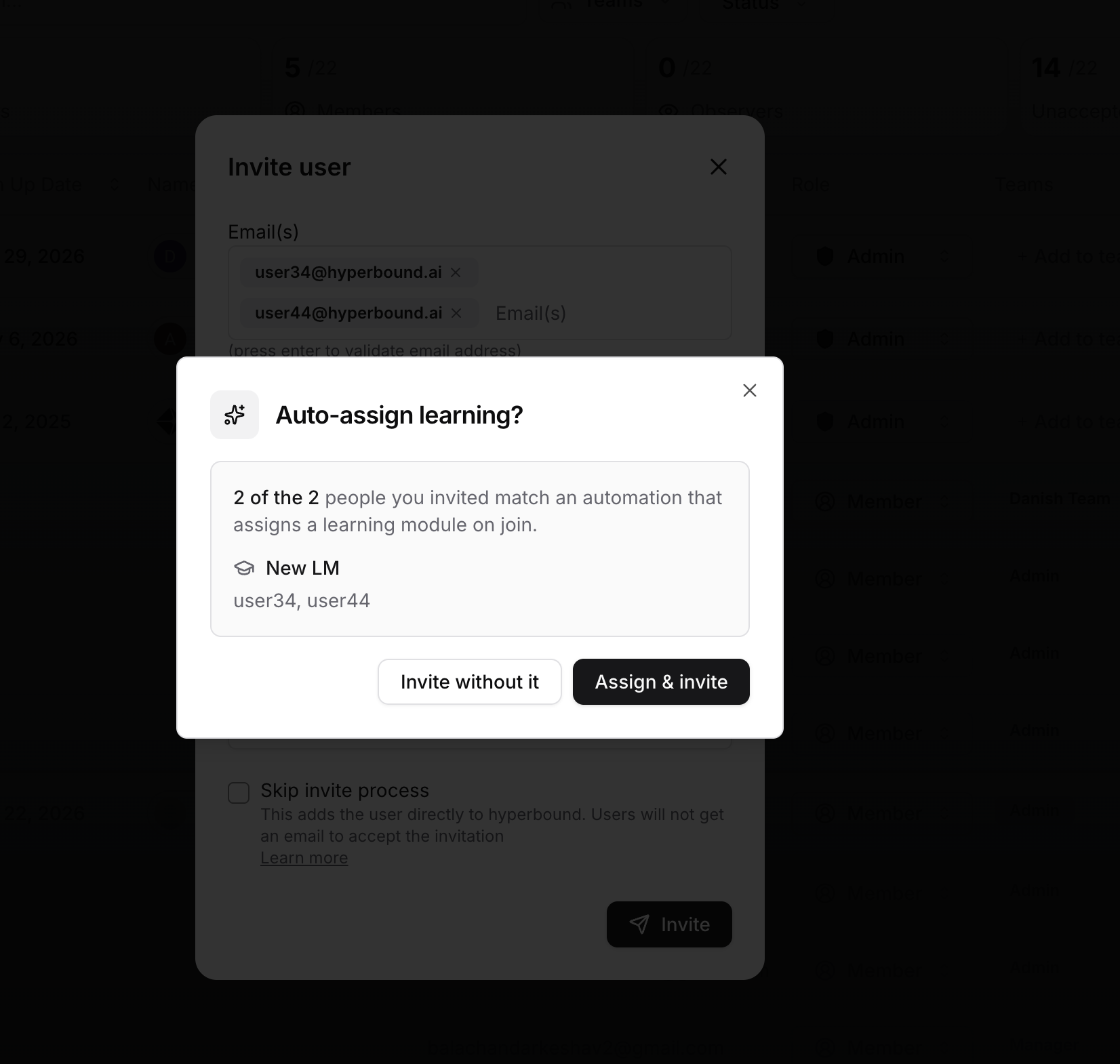
Rules apply to newly invited users only. A rule runs when a user is invited and matches selected criteria. It does not run when an existing user moves from one team to another. This is intentional. If you move someone between teams and want them assigned, add them manually.
This is also surfaced right after you invite the user manually from our UI!
FAQs
If I manually assign a module to a whole team, will new joiners get it automatically?
No. A manual assignment is a snapshot of who is on the team at that moment. To assign the module to people who join later, use a rule.
What is the difference between a manual assignment and a rule, then?
A manual assignment is a one-time action. A rule is standing automation: set the conditions once and the module assigns itself to anyone who matches going forward.
Why are new joiners grouped instead of each getting their own assignment?
steady trickle of new hires would otherwise create a separate one-person assignment for every invite. Grouping everyone who matches within the 2-day window keeps cohorts meaningful and the module tidy.
Can one rule cover more than one team?
Yes. Select multiple teams in a single rule rather than creating a rule per team.
How is the due date decided, and can two people have different ones?
The due date is set on the rule and is shared by everyone in the same group. Two people who join a day apart in the same window share the same due date, so the later joiner has slightly less time. This is expected.
A new user was invited but the module was not assigned. Why?
Check three things. Do they match the rule's criteria? Were they newly invited, or did they move from another team (rules only fire on invite)? And open the History sub-tab to see whether the run failed and why.
Need help?
Reach out via the chat button or email support@hyperbound.ai.