How to: Set up a Learning Module
Last updated: September 14, 2026
Use this guide if you are setting up a Learning Module for the first time.
Learning Modules let you group Hyperbound bots into a structured training path, assign that path to reps, and track completion and performance.
Before you start
Manager Hierarchies must be enabled for your workspace.
You need permission to create and edit Learning Modules.
Have the bots you want to include ready.
1. Create the module
Go to Learning Modules and select Create new learning module.
Add a cover, name, and description. If the module should count as a credential, select Mark as a certificate.
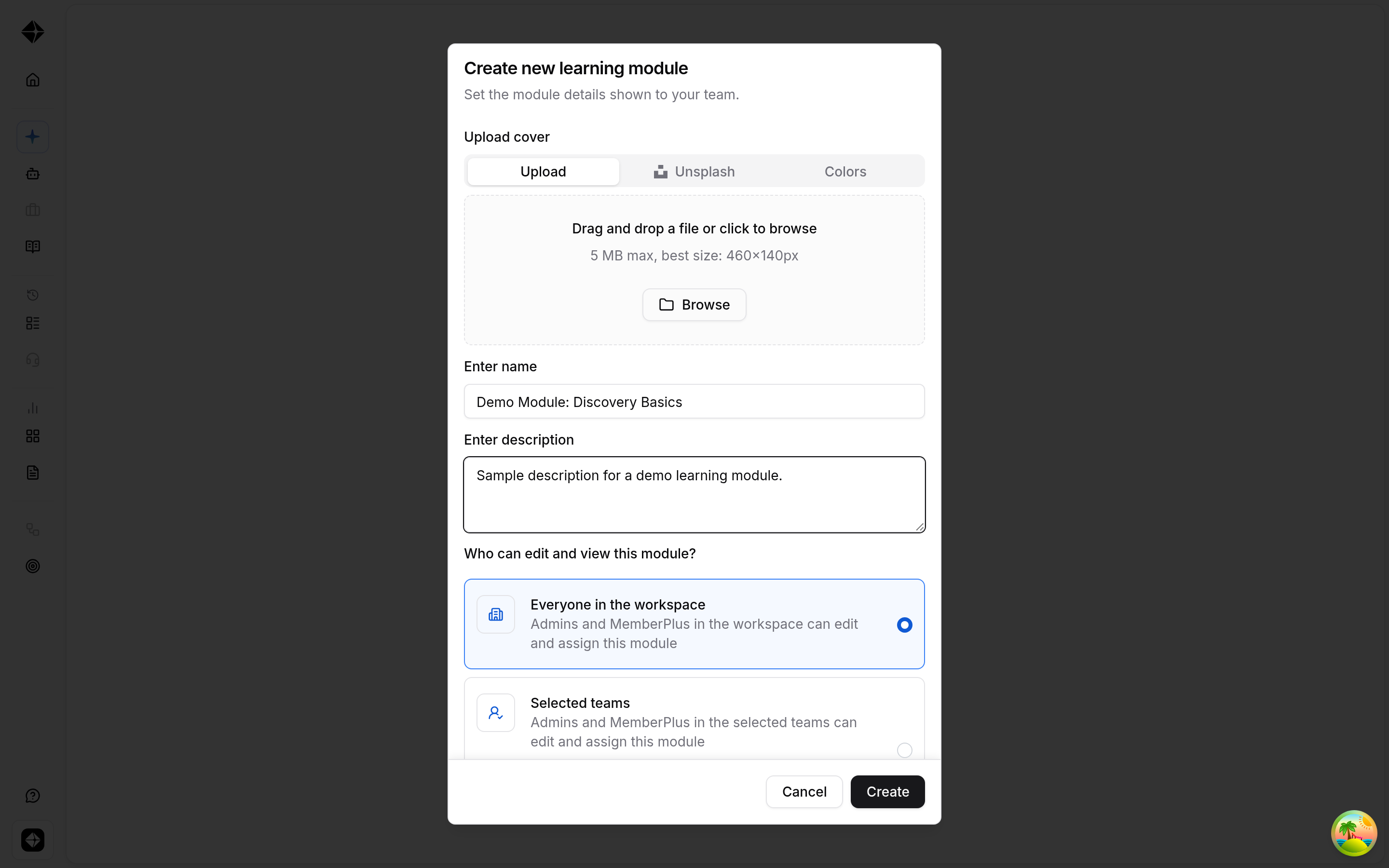
2. Choose who can edit and view the module
Under Who can edit and view this module?, choose who should manage the module.
Option | Use when |
|---|---|
Everyone in the workspace | All eligible admins and MemberPlus users should be able to edit and assign it. |
Selected teams | Only eligible users on specific teams should edit and assign it. |
If you choose Selected teams, you can also select Automatically include new sub-teams so new sub-teams inherit access later.
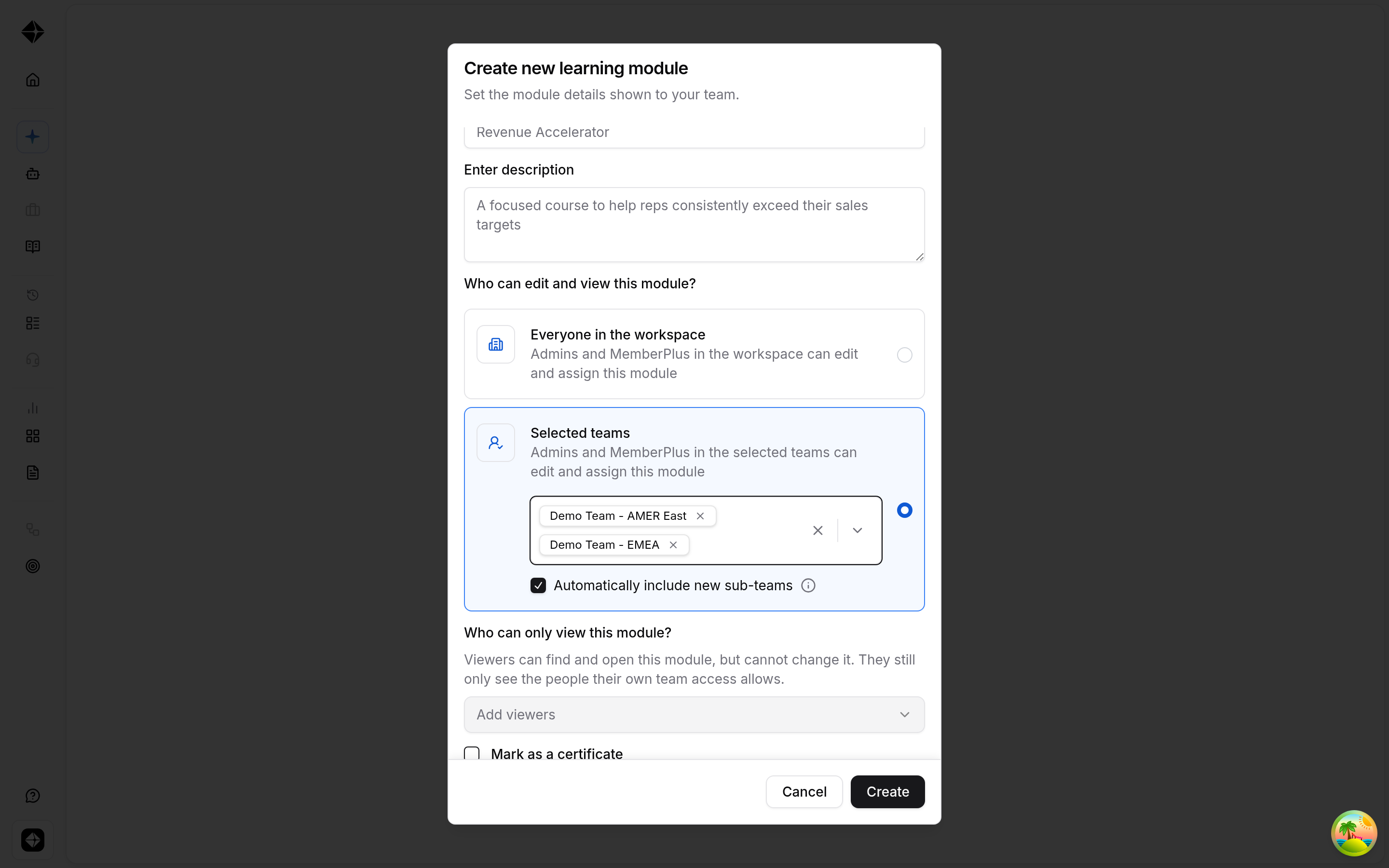
3. Add viewers, if needed
Use Who can only view this module? for people who need read-only access, such as coaches or program owners.
Viewers can open the module and see data their team access allows. They cannot edit the module, create assignments, or complete the training as viewers.
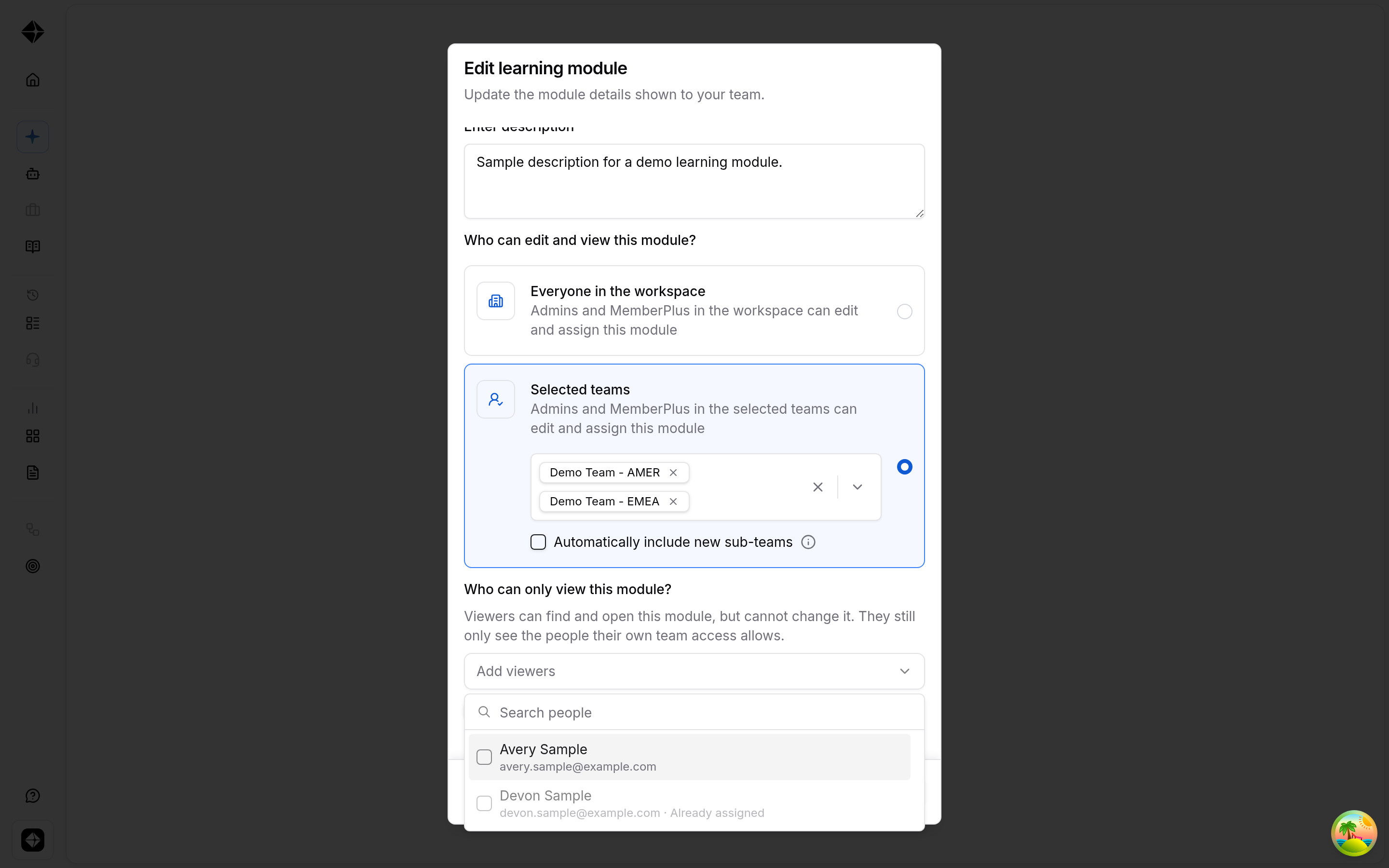
4. Add bots
Add the bots reps should practice with.
With the updated model, assignment grants bot access. If a rep is assigned the module, they can call the module's bots, even if the bot's folder is not shared with their team.
Always-private bots cannot be added to Learning Modules.
5. Create an assignment
Select Create a manual assignment.
The assignment flow has three steps:
Details: name the assignment, choose a due date, and decide whether calls after the due date should count.
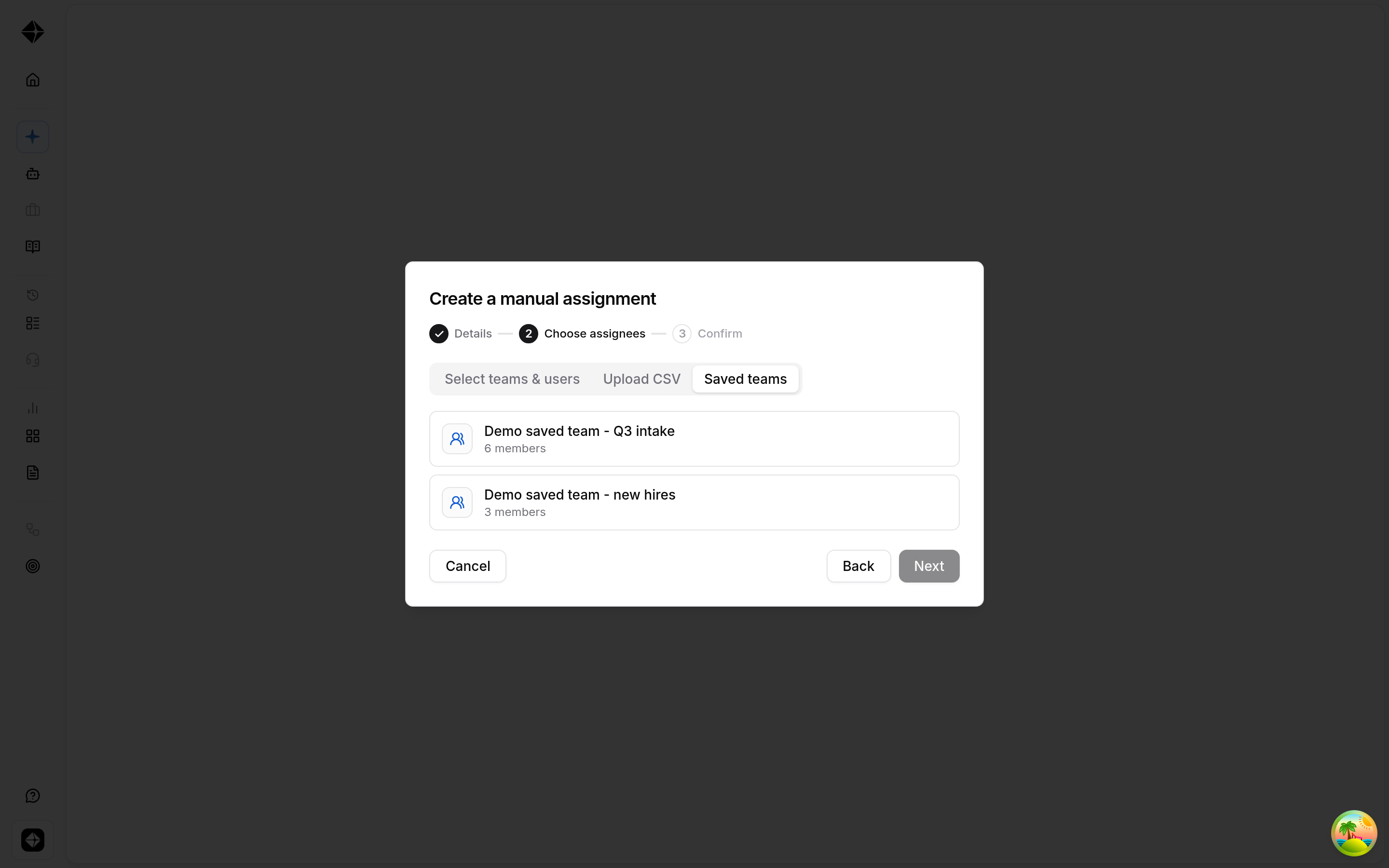
Choose assignees: select teams and users, upload a CSV, or use a Saved team.
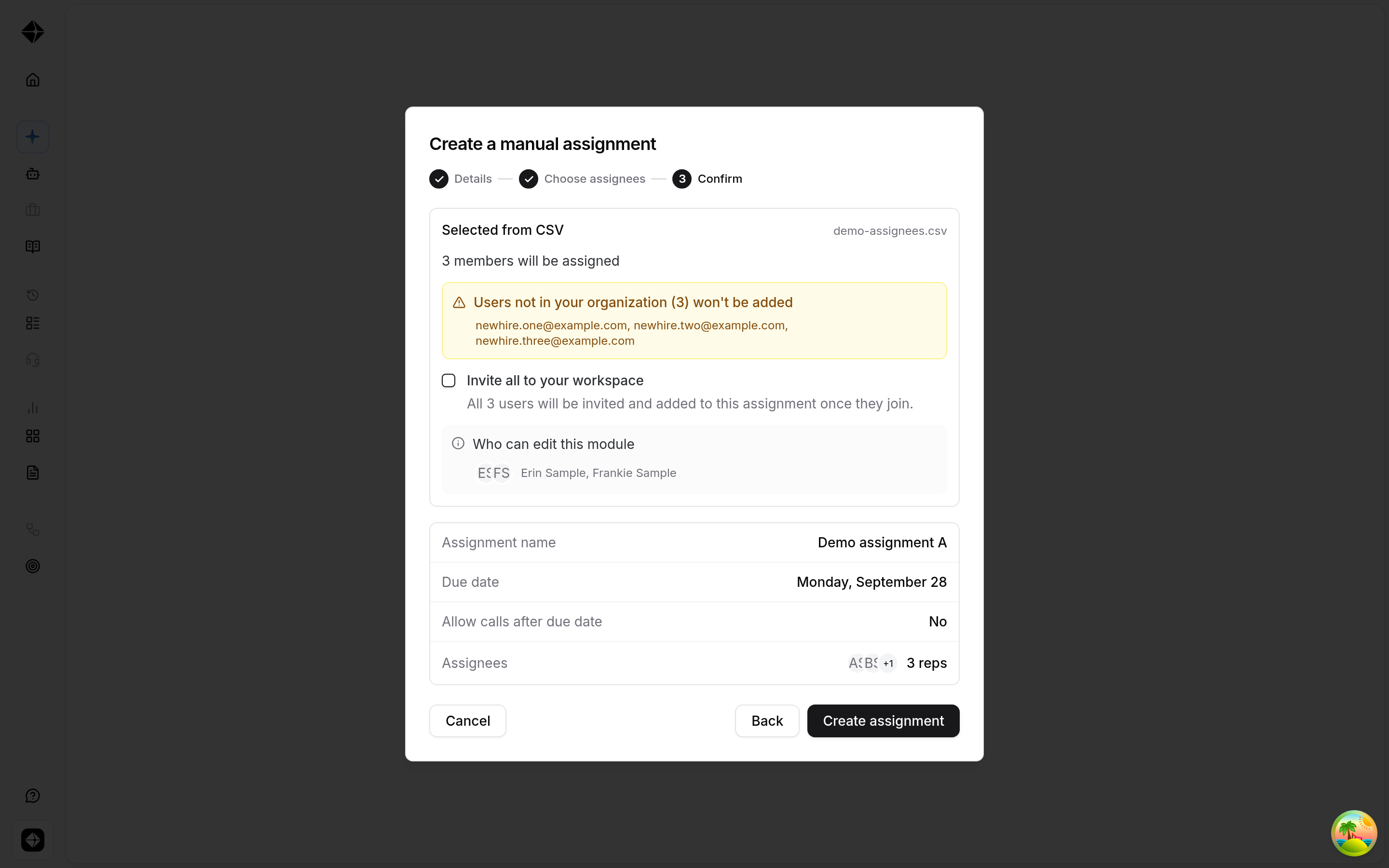
Confirm: review the assignment and create it.
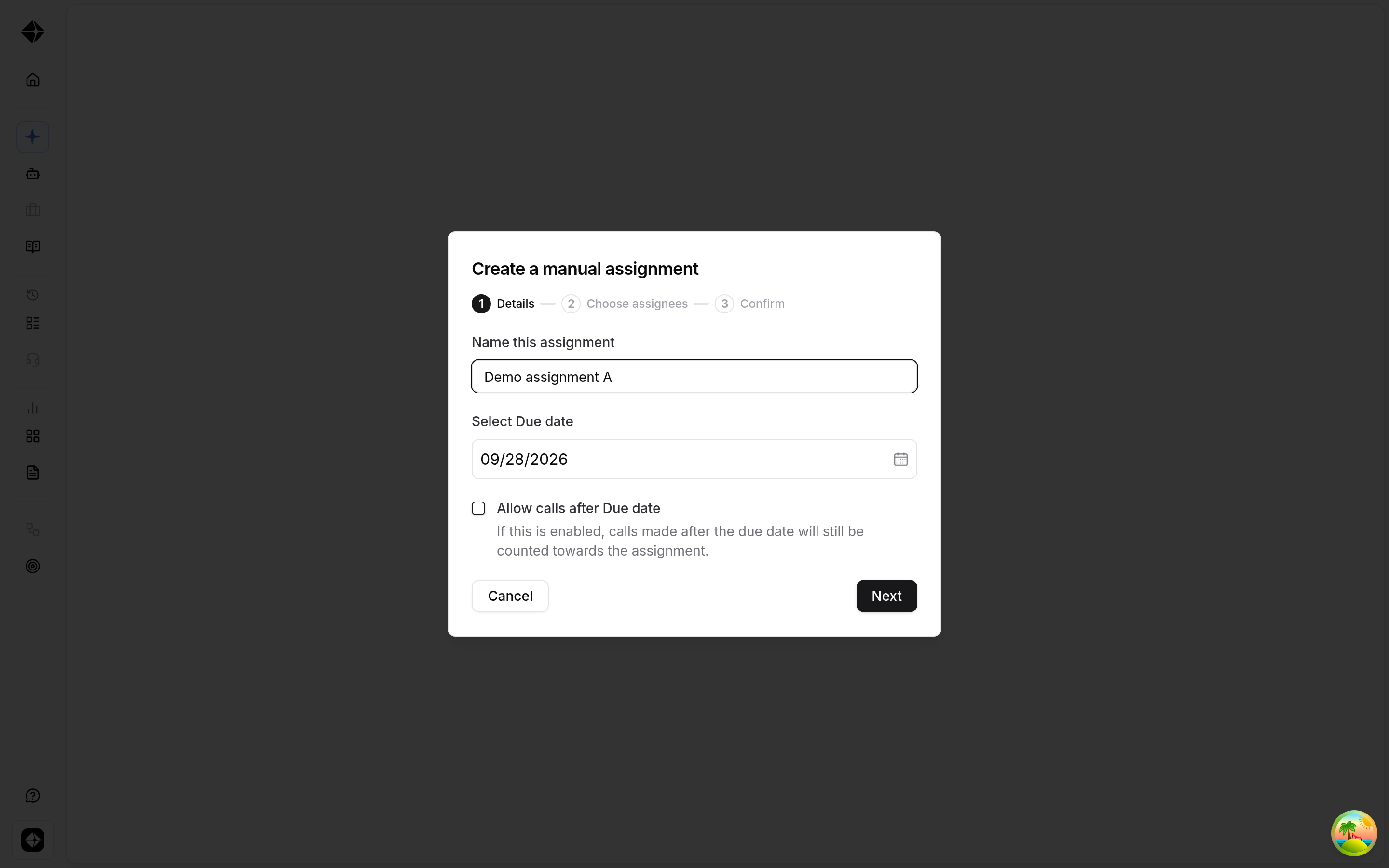
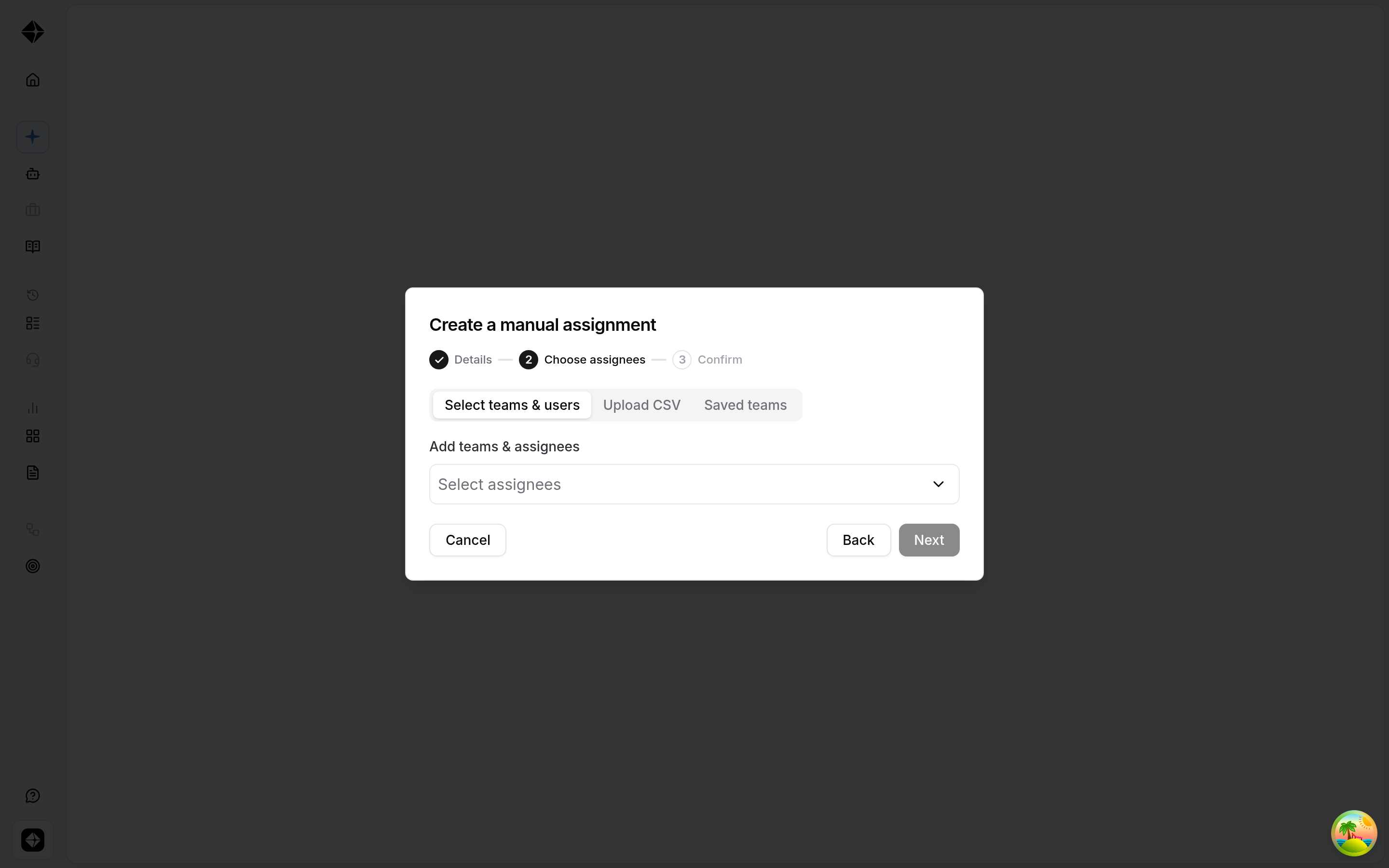
Assigning by CSV
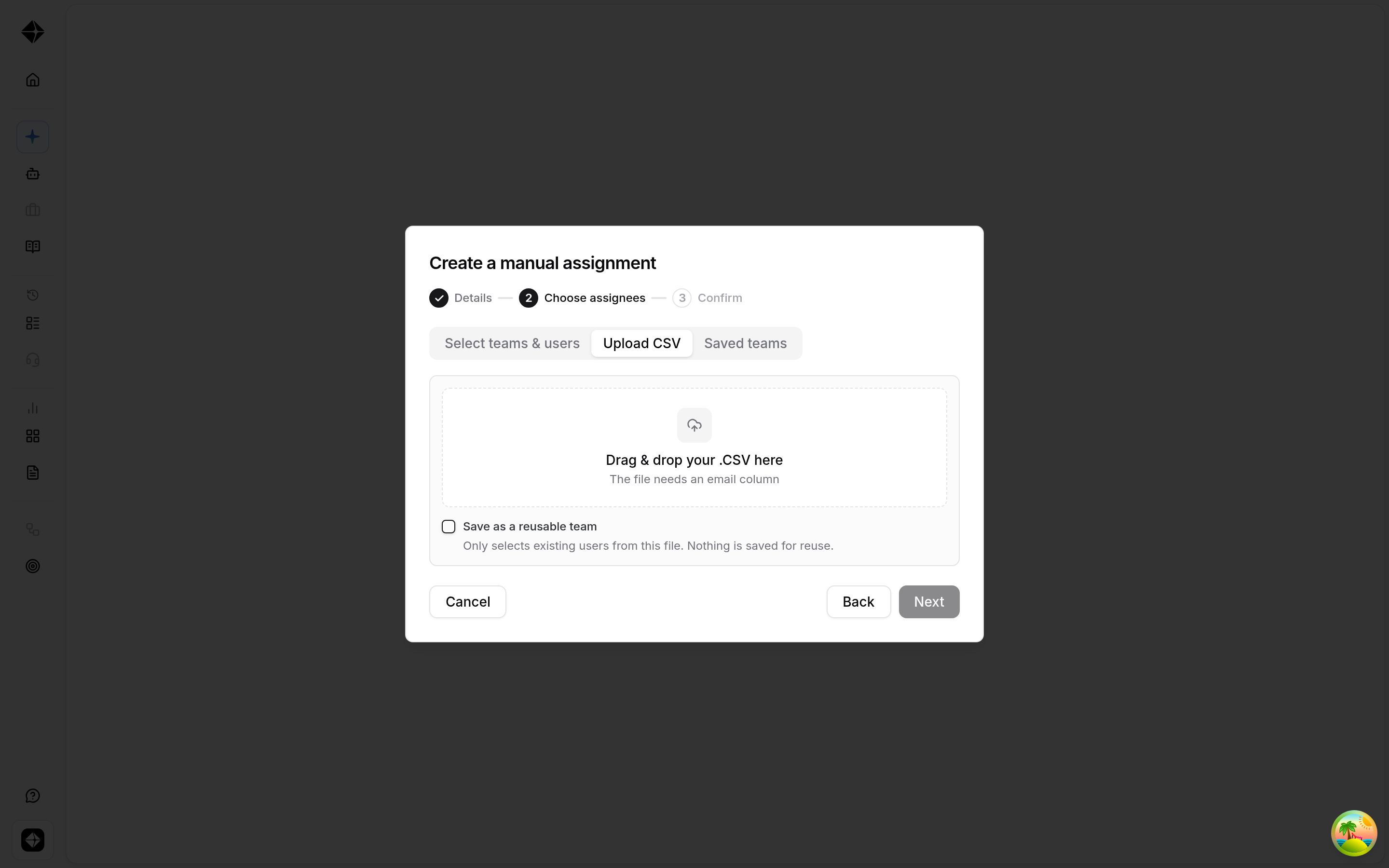
On the Upload CSV tab, upload a file with an email column.
Select Save as a reusable team if you want to reuse that list in future assignments. Saved teams are not part of manager hierarchy.
If the CSV includes people who are not in your workspace, Hyperbound shows that on the confirmation step. If you have permission, you can invite them before creating the assignment.
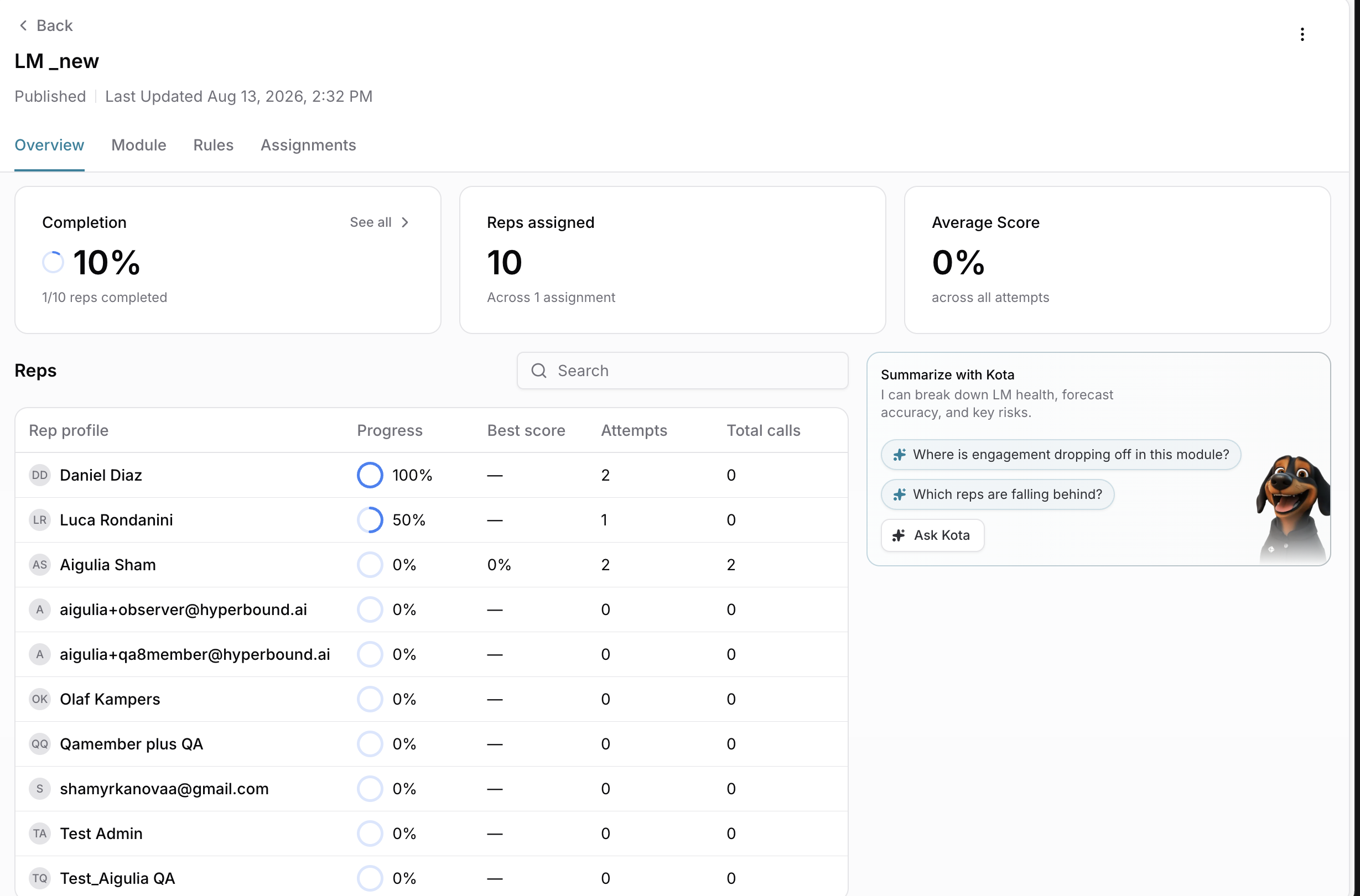
6. Review results + overview
Analytics are scoped by manager hierarchy:
Editors see all assignees on the module.
Viewers see the teams their access allows.
Assignees see themselves.
Suspended tasks
A task can be suspended if a module includes an always-private bot. Change the bot visibility to make the task available again. Completed work is kept.
Need help?
Reach out via the chat button or email support@hyperbound.ai.