Text blocks in learning modules
Last updated: September 22, 2026
Text blocks let you add written content—like instructions, frameworks, or reading material—to a learning module alongside AI roleplays and call blitzes. Reps read the block, mark it complete, and it counts toward their module progress.
Adding a text block
Open your learning module and go to the Module tab.
Click Add task in the section where the block should live.
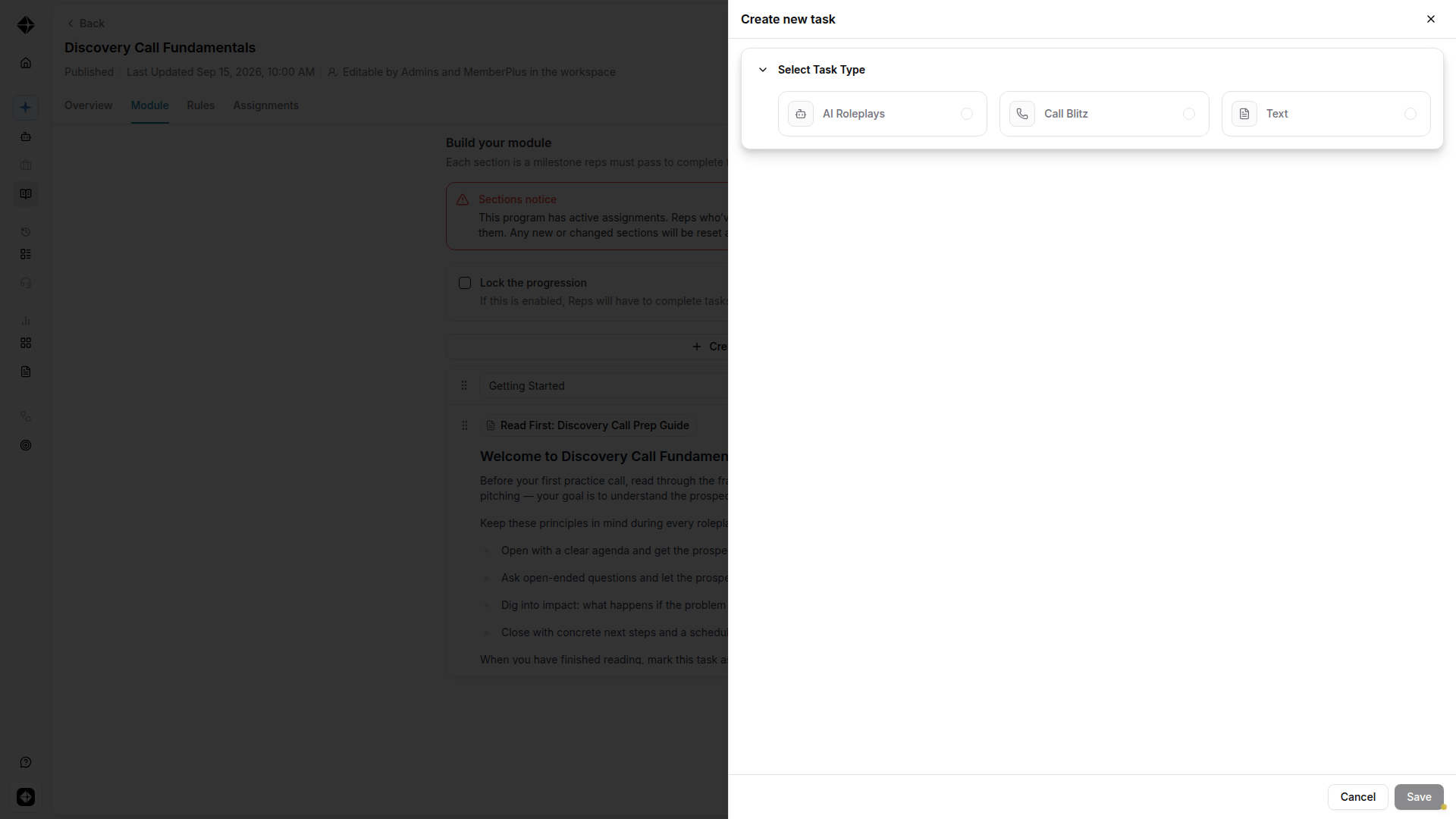
In the Create new task drawer, under Select Task Type, choose Text.
Under Configure Text, enter a Title and write the content reps should read. Both are required.
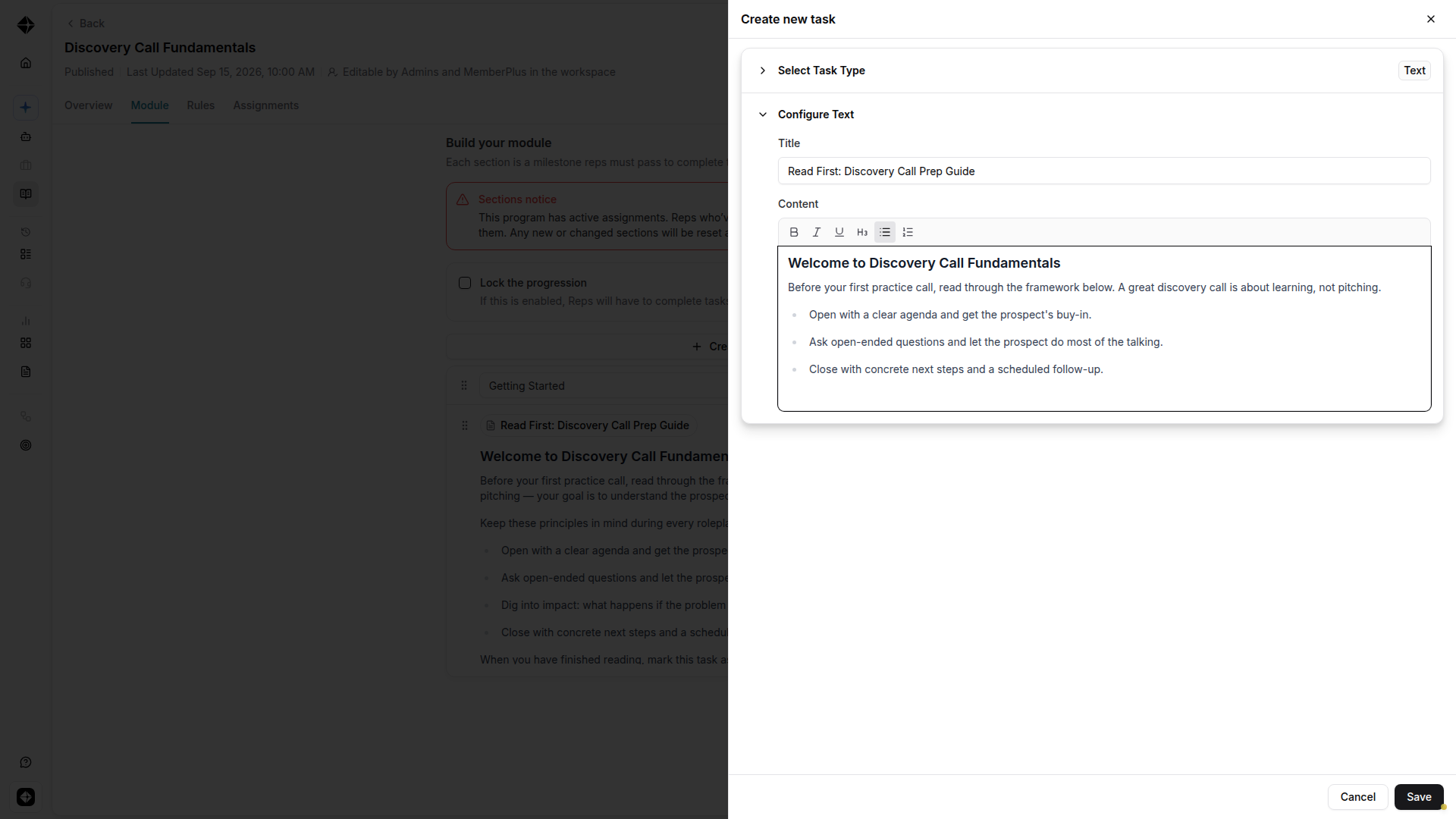
Click Save. The block appears in the section's task list, where you can edit, delete, or drag it to reorder.
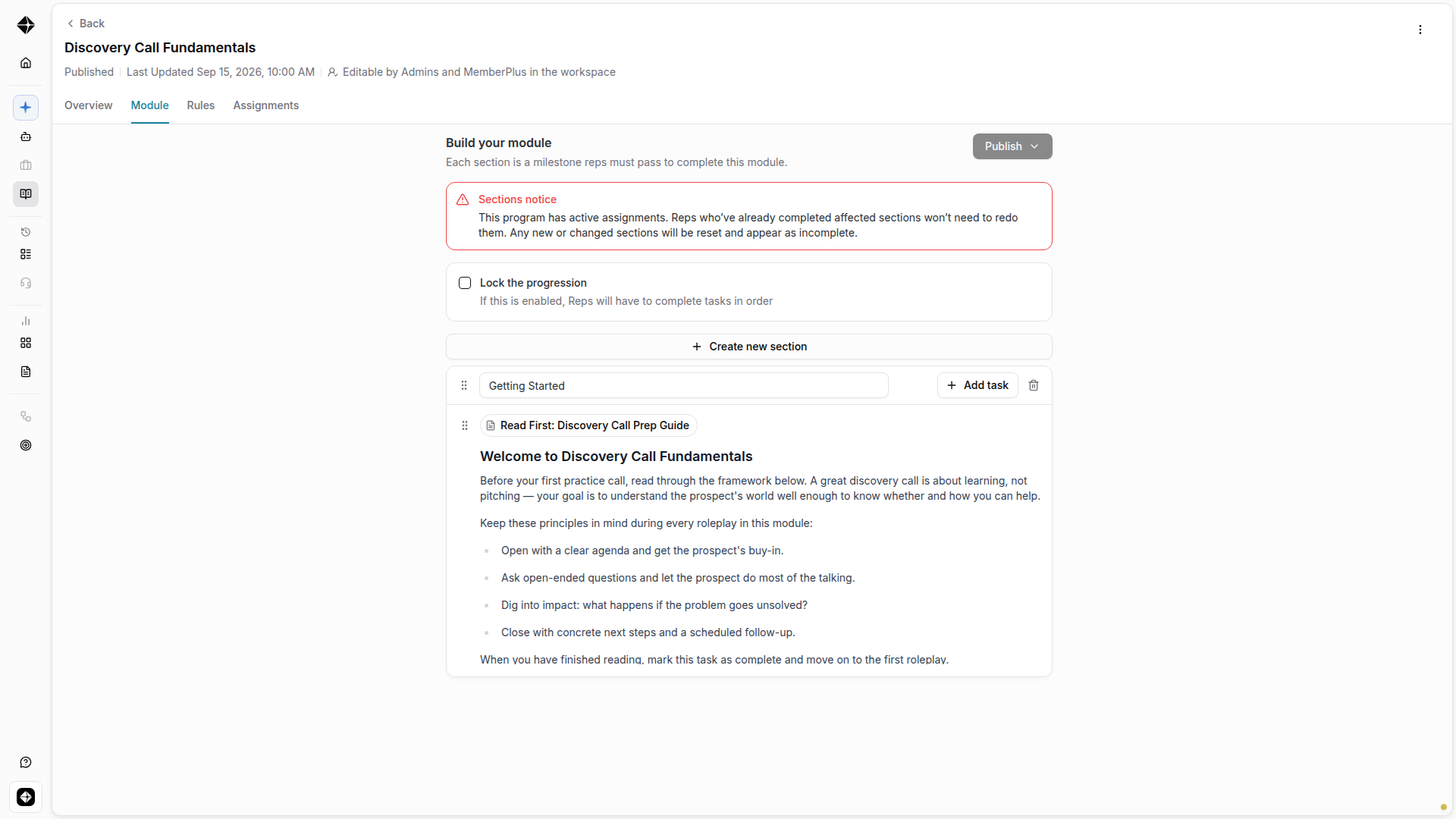
Publish the module to make your changes live.
What reps see
Reps see the block's title and formatted content in their module. When they finish reading, they click Mark as complete. A completed text block shows a Completed pill.
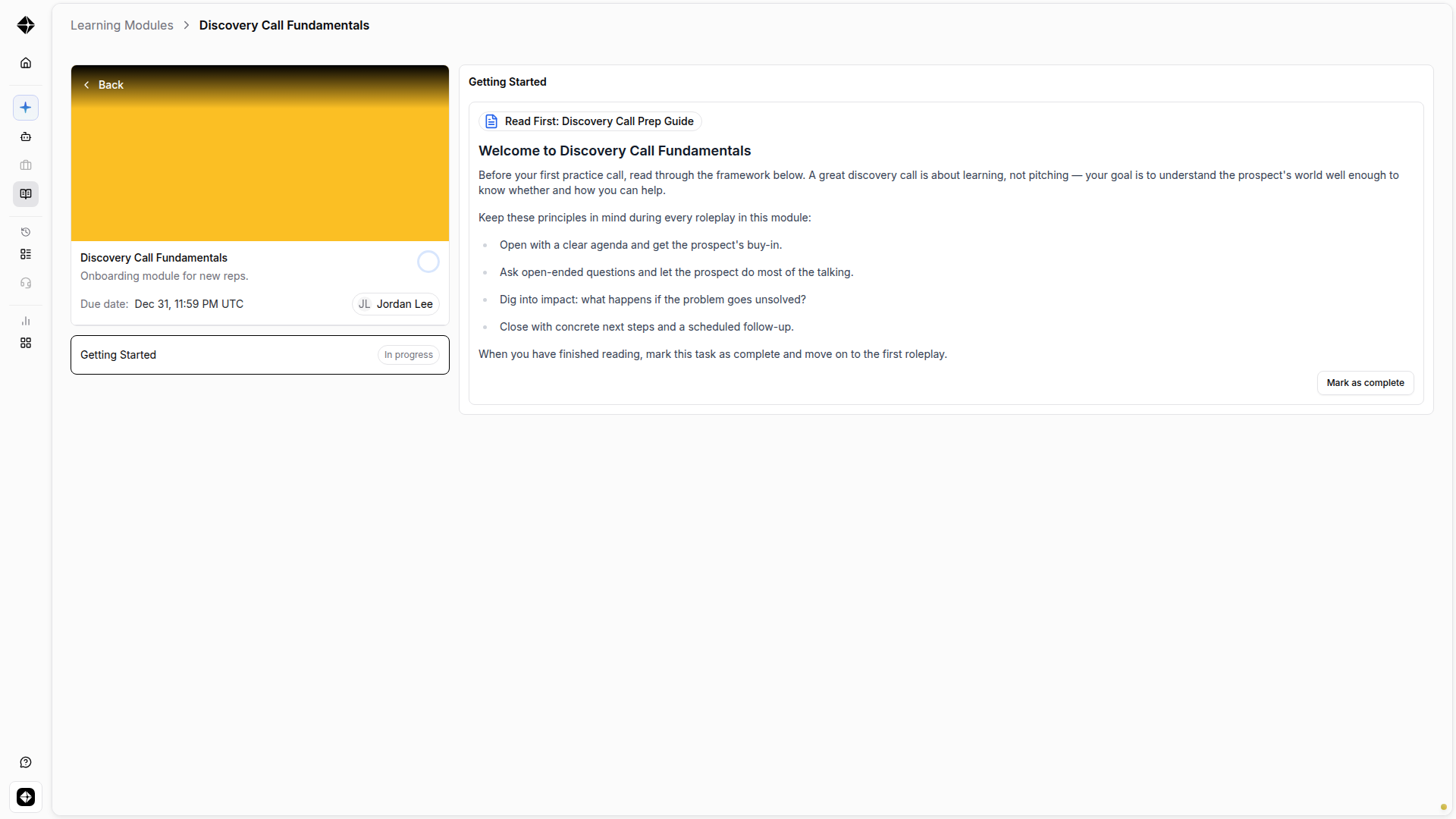
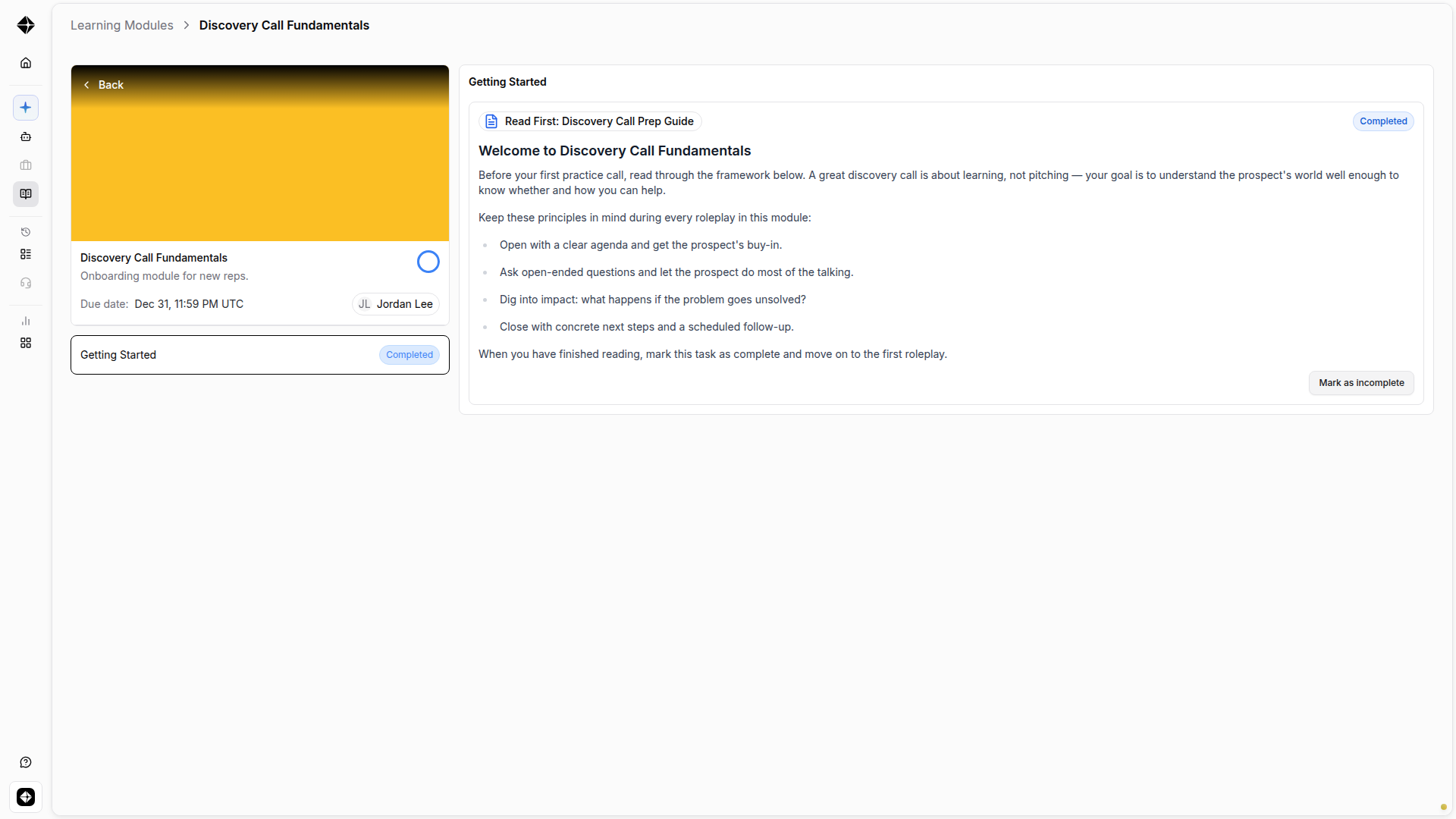
Reps can click Mark as incomplete to undo completion. Text blocks count toward module progress like any other task.
Progress and locking
A text block counts as one task in the section. If Lock the progression is enabled, reps must mark the text block complete before moving to the next section.
Still have questions, reach out to support@hyperbound.ai