Sharing a Kota chat
Last updated: July 20, 2026
Share any Kota AI chat with teammates so they can see the same answers, insights, and analysis without rerunning the conversation.
Summary
Every Kota chat can be shared as a view-only conversation. You can share it with specific people or teams, or open it to everyone in your organization. People you share with can read the full chat but can't edit it, reply, or share it further.
How to share a chat
Open the chat you want to share in Kota AI.
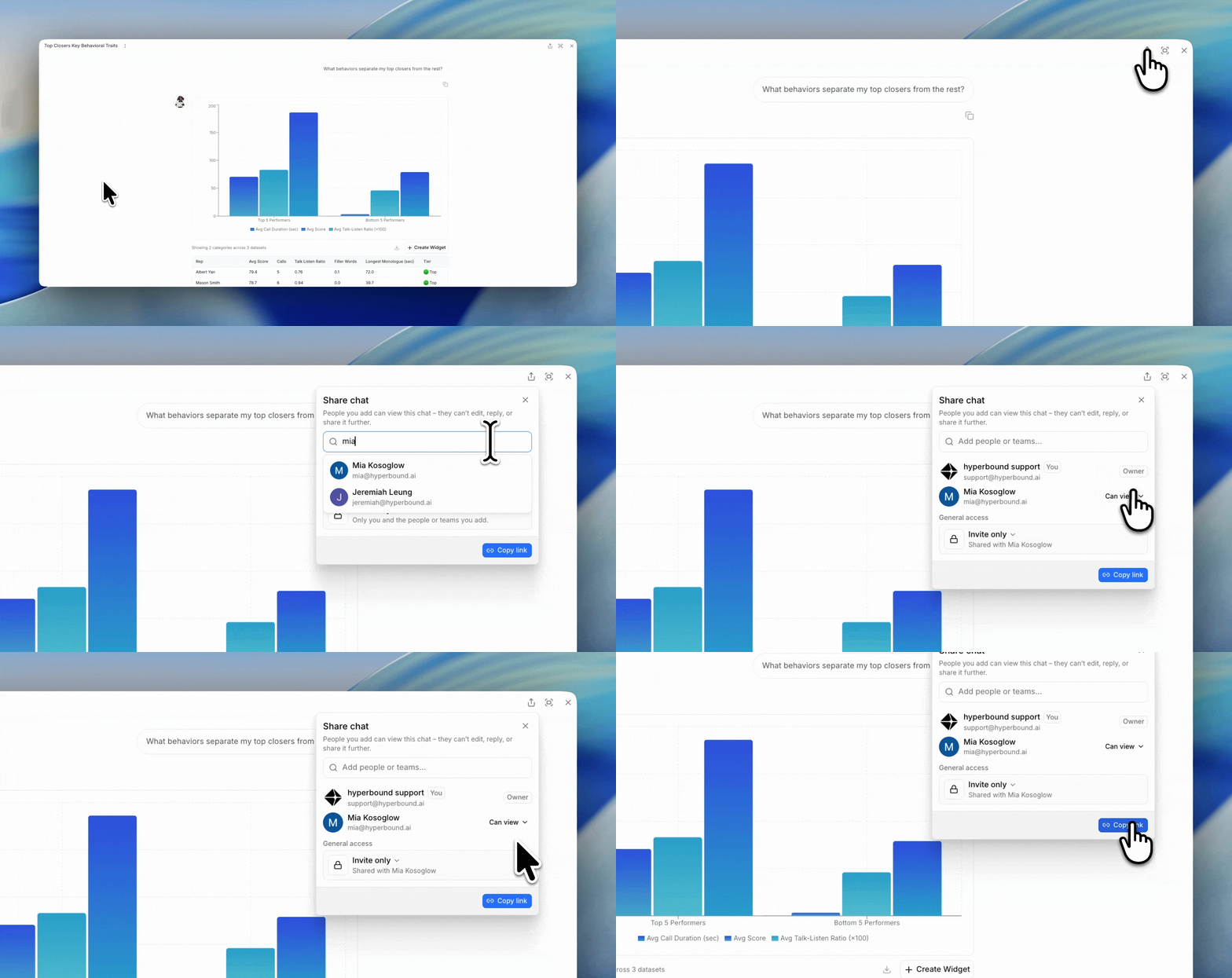
Click the share icon in the top-right corner of the chat. The Share chat panel opens. Show Image
To share with specific people or teams, type a name into Add people or teams and select them. They'll be added with view-only access.
To set who else can see the chat, use the General access dropdown and choose one of:
Invite only – Only you and the people or teams you add can view the chat.
Everyone at [your organization] – Anyone in your organization can view the chat.
Copy Link - Copy the link and share it!
What people you share with can do
Shared access is view-only. People you add can read the full chat, including Kota's responses. They can't edit the chat, send new messages in it, or share it with anyone else.
Notes
The chat owner keeps full control and can change access or remove people at any time.
Changing General access to Invite only limits the chat to just you and the people you've added.