How To: Create Bots and Scorecards Using Kota
Last updated: September 4, 2026
Kota is Hyperbound's built-in AI data analyst and performance coach. Beyond analyzing your team's call data, Kota can create AI roleplay bots and scorecard configurations for you directly from a conversation. Instead of filling out long forms manually, you simply describe what you need and Kota builds it.
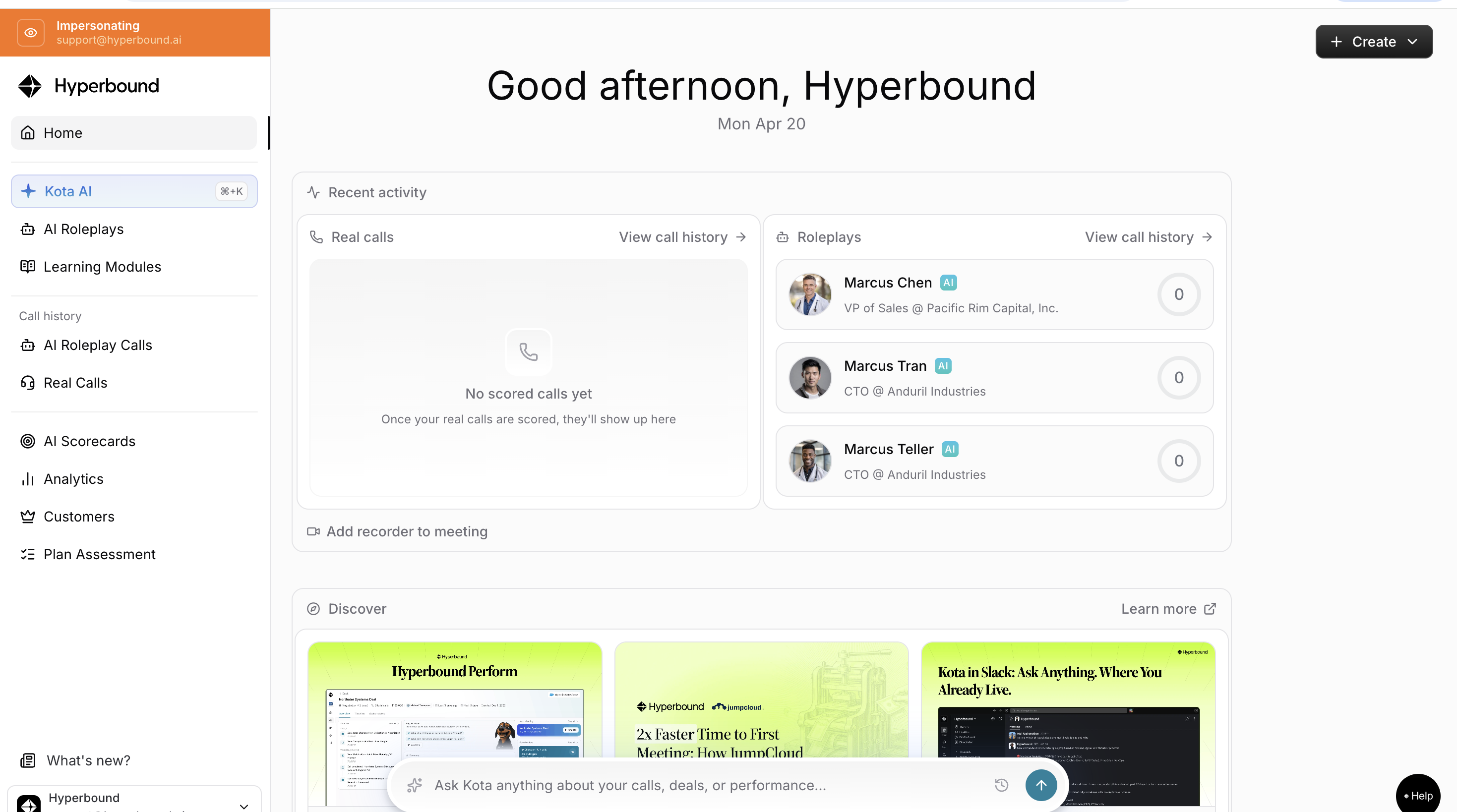
To open Kota, click the KOTA AI button in the navigation menu or click cmd+k
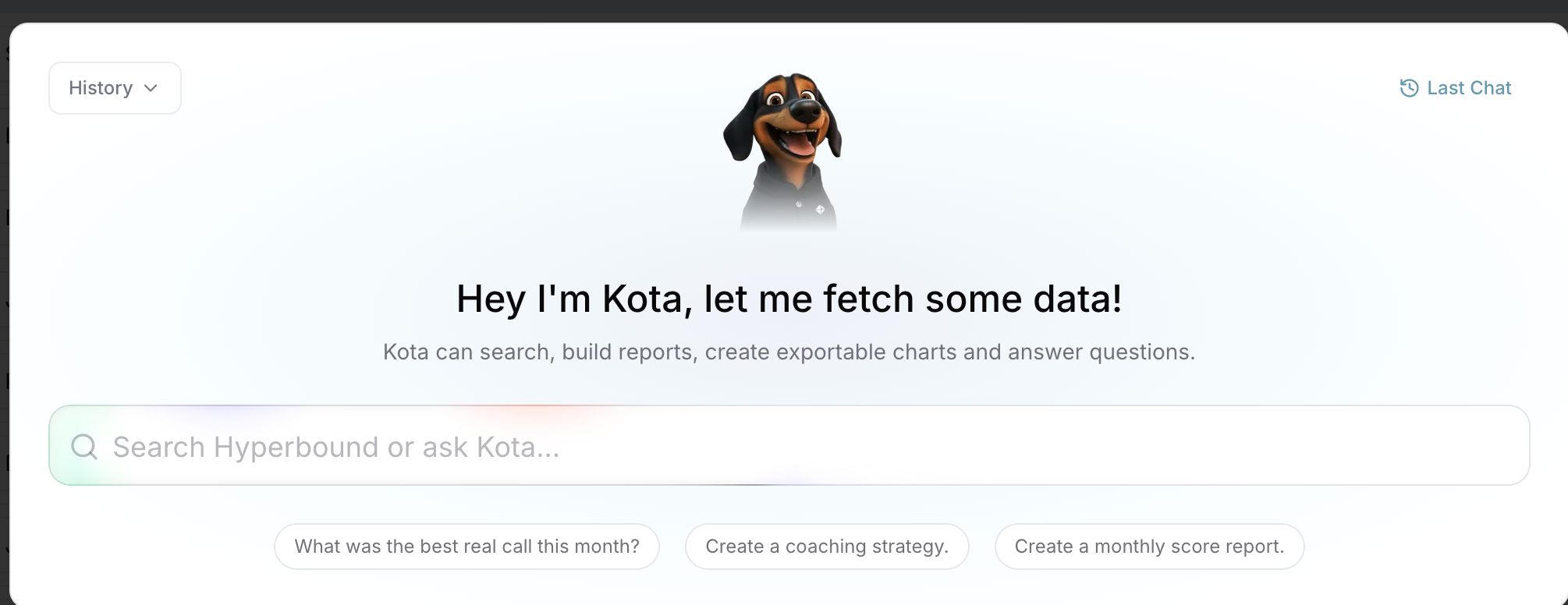
Part 1 - Creating Bots (AI Roleplay Agents)
A bot is an AI buyer persona that your sales reps can practice calls with. Each bot has a name, job title, company, emotional state, personal details, goals, opinions, and a set of realistic objections. Reps talk to the bot live, and every practice session is automatically scored.
Example Prompts for Kota
Prompt 1 - Cold call bot, skeptical prospect
▎ Create a cold call bot for a VP of Sales at a 200-person SaaS company in the logistics space. They are currently using Salesloft and are happy with it but open to hearing alternatives. They ask a lot of smart questions and push back on ROI claims. We are selling Hyperbound, an AI sales training platform that helps reps improve through roleplay and real call scoring.
Prompt 2 - Discovery call bot, pre-existing champion
▎ Create a discovery call bot for a Director of Revenue Operations at a mid-market fintech company. She already has an internal champion who told her about us, so she came in curious but wants to validate the fit. The rep booked this call after a warm intro. We sell Hyperbound AI-powered sales coaching with scorecard-based call evaluations and AI roleplay practice.
Prompt 3 - Demo call bot, competitor user
▎ Create a demo call bot for a Chief Revenue Officer at a 500-person B2B software company. They currently use Gong for call recording and Chorus for coaching. They are skeptical that we offer anything meaningfully different. The demo was booked after a 15-minute discovery call where they showed some interest in AI roleplay. We are selling Hyperbound.
Wait for Kota to think. After you submit your prompt, Kota will process the request and draft a full bot configuration. This usually takes a few seconds you'll see a loading/thinking indicator while it works. Don't refresh or navigate away during this step.
Review the information Kota generated. Kota will return a draft bot with fields filled in name, job title, company, emotional state, personal details, goals, opinions, and objections. Scan each section to make sure it matches what you described. If anything is off, you can either edit the fields inline or ask Kota to revise in a follow-up message (e.g., "Make them more skeptical about pricing" or "Change the company size to 50 people").
Assign a Scorecard. Select the scorecard you want to use to evaluate reps who practice with this bot. The scorecard defines the criteria reps will be graded on (e.g., discovery questions asked, objection handling, next-step commitment).
Assign a Folder. Choose the folder where this bot should live. Folders keep bots organized by team, use case, or campaign, and control who on your team can see and practice with the bot.
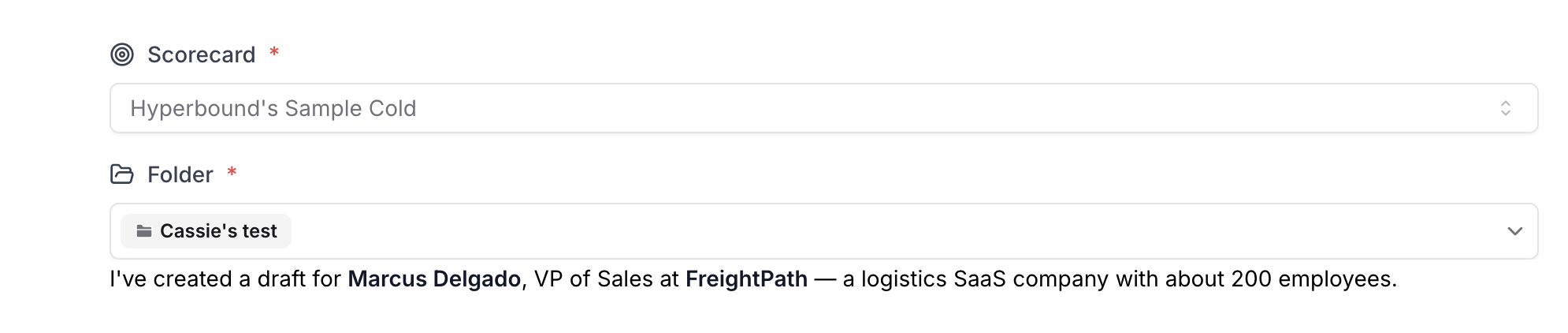
5. Click "Create Agent." Once the details look right and the scorecard and folder are set, click Create Agent. Kota will save the bot and it will appear in your bot library, ready for reps to practice with.
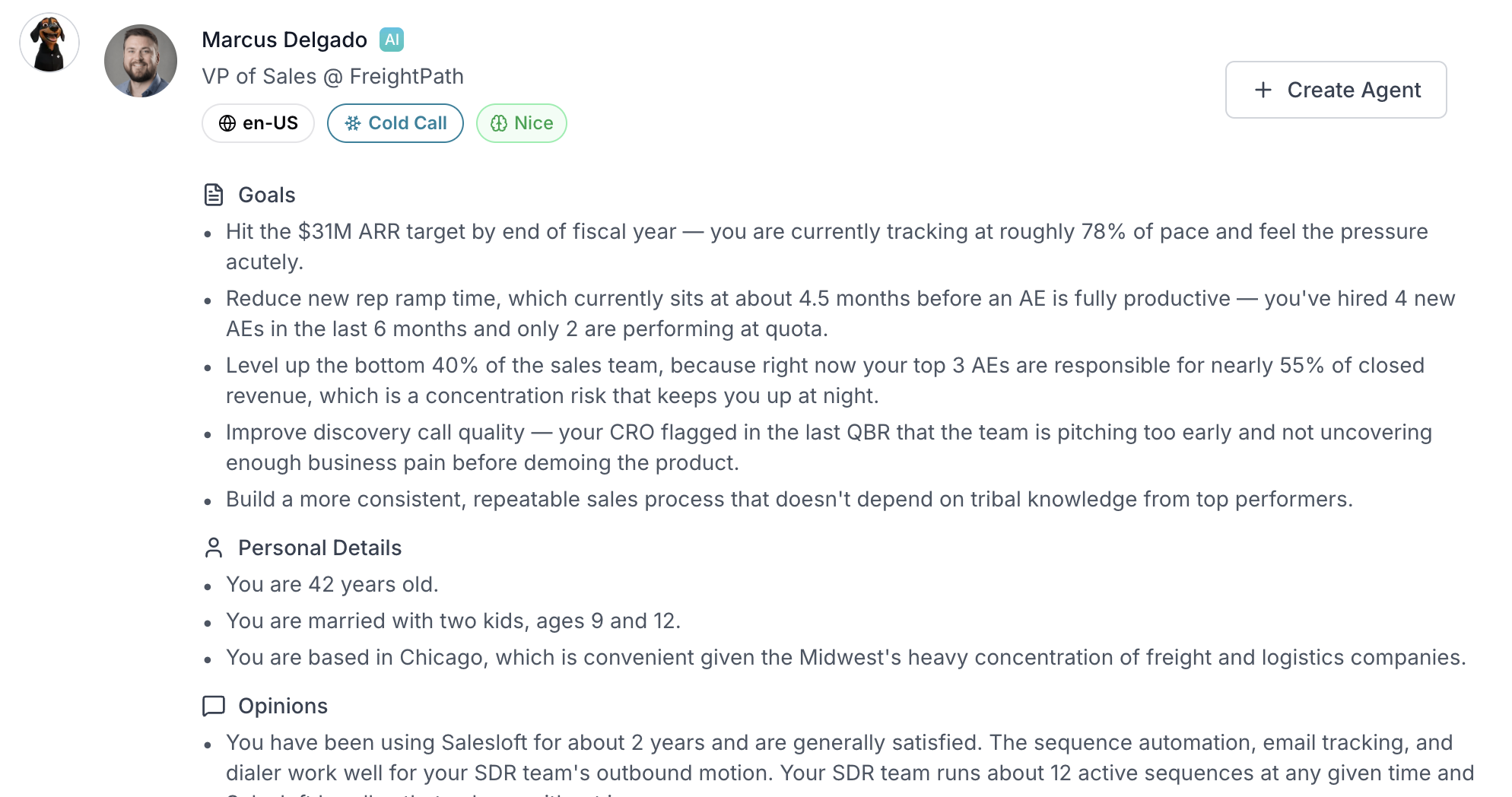
After the Bot Is Created
Once the bot is created, you can start using it right away:
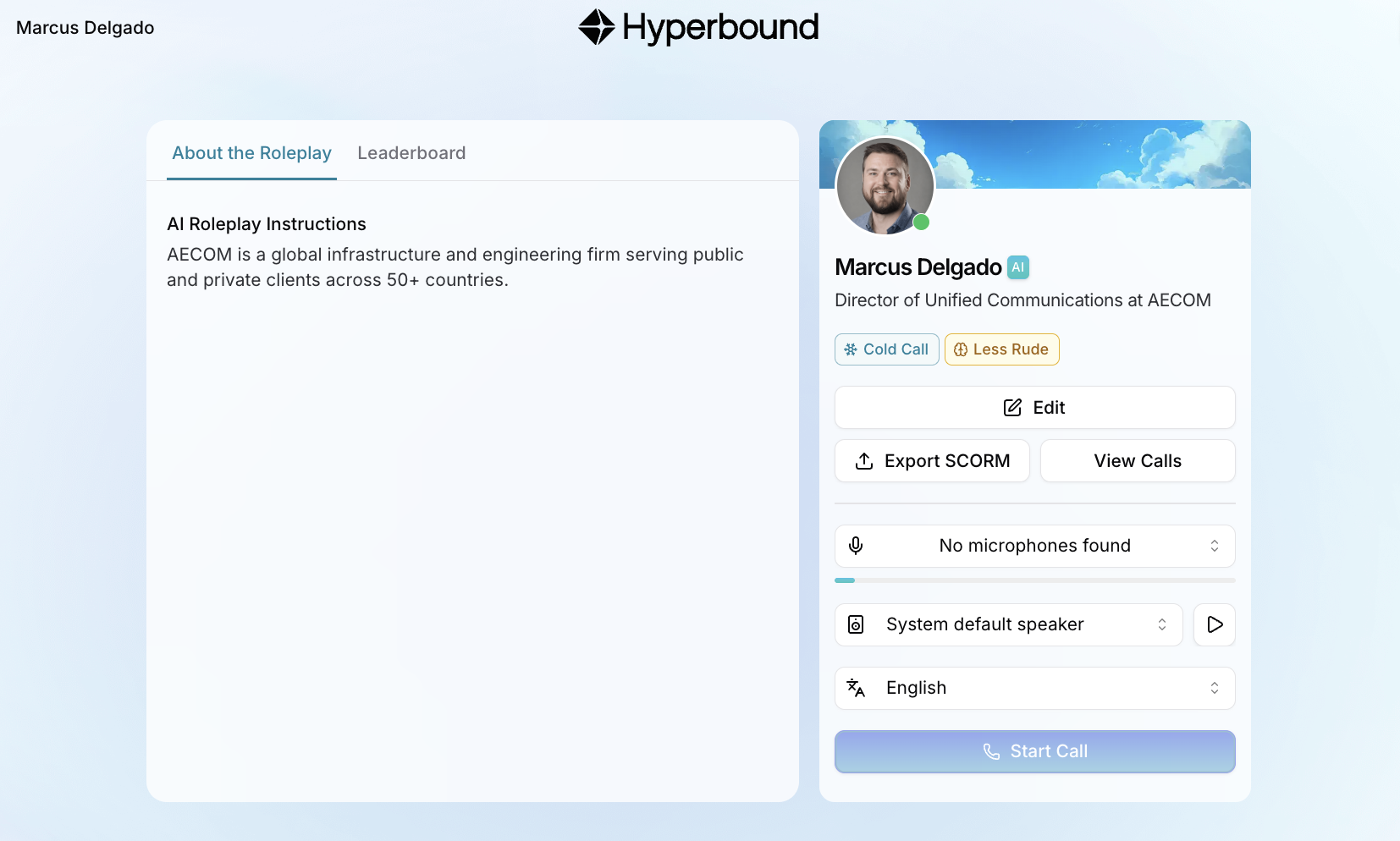
Make calls to the bot. The bot is live and ready for your reps to practice with. Open it from the AI Roleplay page to start a call.
Edit the bot. You can update the bot's details at any time in one of two ways:
Click the Edit button directly on the bot card, or
Select the bot from the AI Roleplay page and edit from there.
+