How To: Set Up Battlecards and Playbooks for Live Call Coaching
Last updated: October 9, 2026
You can’t sit in on every call, and reps forget most of what they learn in training. Battlecards and playbooks put your guidance in front of reps during the call, when they actually need it.
Rep hears an objection? The battlecard you wrote shows up on their screen.
Want reps to follow your process? Playbook items check off as reps cover each step, so they know what they missed before they hang up.
No time to write it all? Generate cards with AI, or turn an existing scorecard into a playbook in one click.
Not sure what’s missing? When reps hit a topic you don’t have a card for, Hyperbound drafts one for you to review.
How call types work
Each call runs one call type. Reps get that call type's battlecards and playbook, plus everything in Every call.
Every call holds content reps see on every call, whatever the call type. Good for competitors and common objections.
Call types (Cold Call, Discovery Call, Renewal Call, and so on) hold content specific to that kind of call. Good for the steps of a discovery call or the questions to ask on a renewal.
Choose the starting call type
Calls start as sets the call type every call begins with. It is one setting for your whole org.
Reps can switch call type mid-call. Switching resets the cards and the playbook.
If you choose Every call, reps get only the Every call content until they switch.
Call types marked Routing rule are your custom call types
To add or edit call types, click Manage call types.
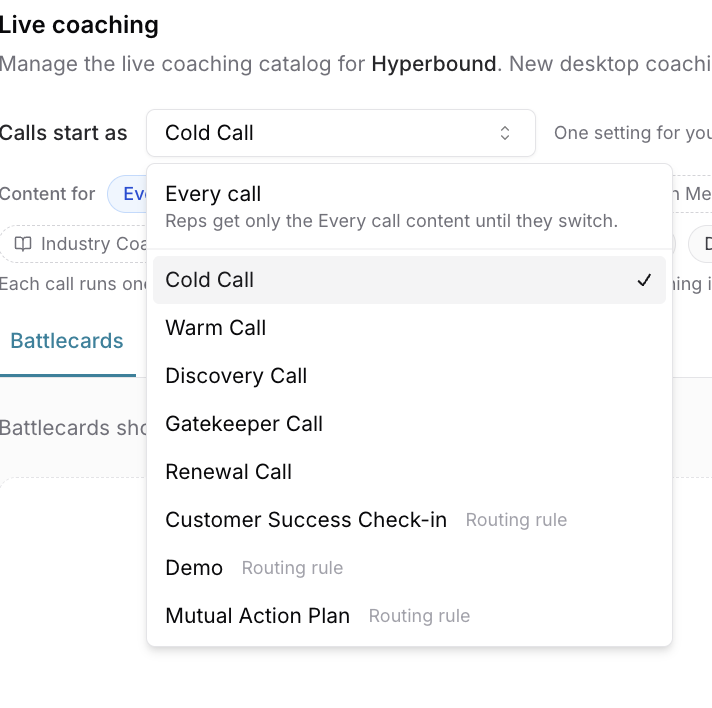
Pick what you are editing
Use Content for to pick the call type you are building for. Everything on the Battlecards and Playbook tabs below applies to that call type only.
Add a call type to the catalog
Call types with a + are not in the catalog yet. Click one to add it.
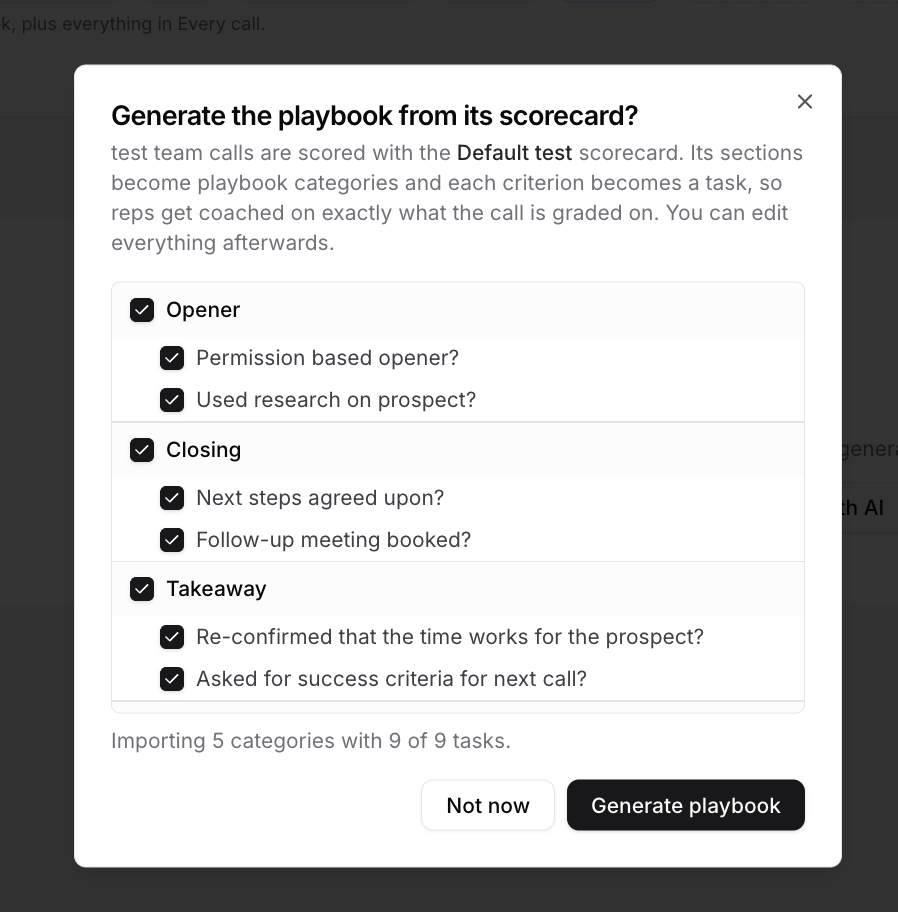
If that call type is scored with a scorecard, Hyperbound offers to build its playbook from it:
Review the sections and criteria. Each section becomes a playbook category. Each criterion becomes a task.
Uncheck anything reps do not need to see live.
Click Generate playbook, or Not now to start from scratch. [VERIFY: does Not now still add the call type]
You can edit everything afterwards. This way reps get coached on exactly what the call is graded on.
Part 1: Battlecards
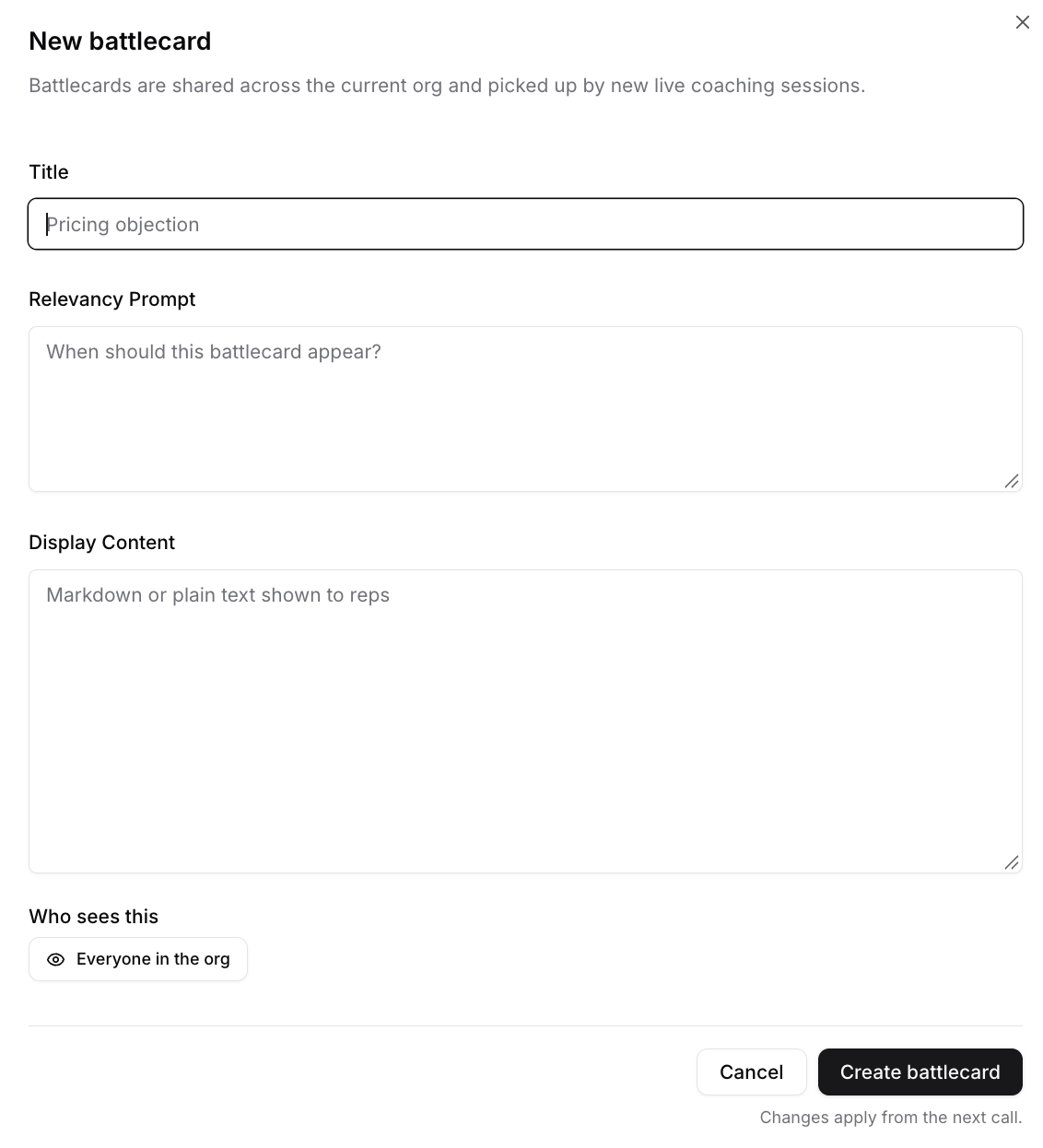
A battlecard has two jobs. Its Relevancy Prompt tells Hyperbound when to show it. Its Display Content is what the rep reads.
Create a battlecard
Pick a call type under Content for, or Every call.
Open the Battlecards tab and click New battlecard.
Fill in the fields and click Create battlecard.
Writing battlecards that work
Relevancy Prompt: describe what the prospect says.
Weak | Better |
|---|---|
Pricing | The prospect says we are too expensive, asks for a discount, or compares our price to another tool. |
Competitor X | The prospect mentions they use or are evaluating Competitor X. |
Display Content: keep it short. The card sits on the rep's screen during a live conversation. They have a few seconds to read it.
Lead with what to say or ask next.
Two to four bullets is plenty.
Cut background the rep already knows.
Tip: if a card is long, paste it into Create with AI and ask for a shorter version.
Good to know: a battlecard shows once per call. If the topic comes up again, the same card does not reappear.
Part 2: Playbook items
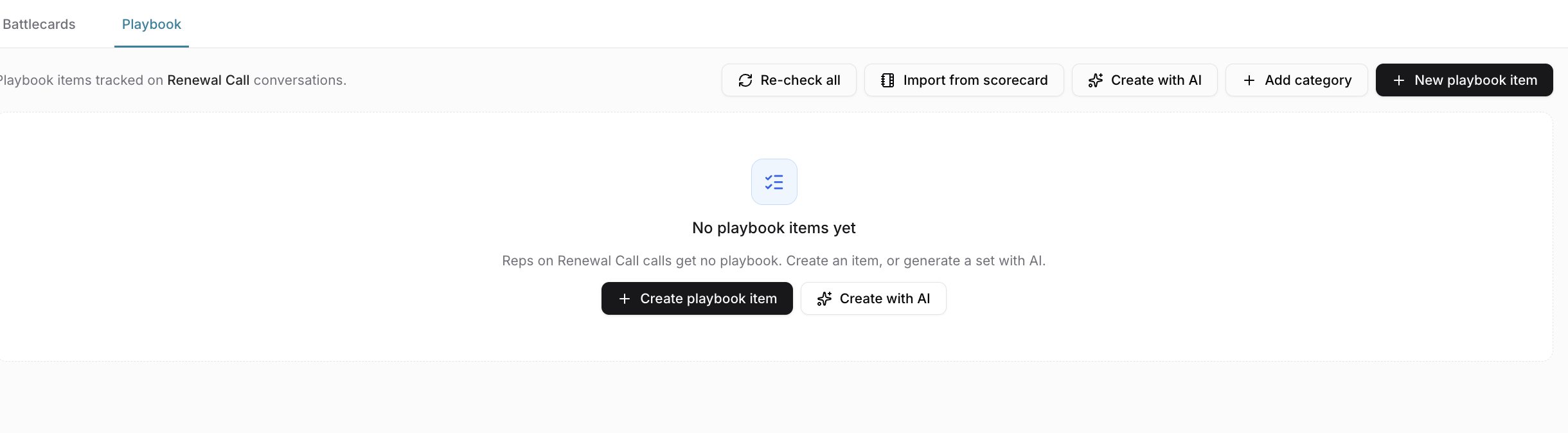
Playbook items are the steps a rep should cover on a call type, like "Confirm the decision maker" or "Set an agenda." They tick off on the rep's screen as the rep covers them.
Create a playbook item
Pick a call type under Content for.
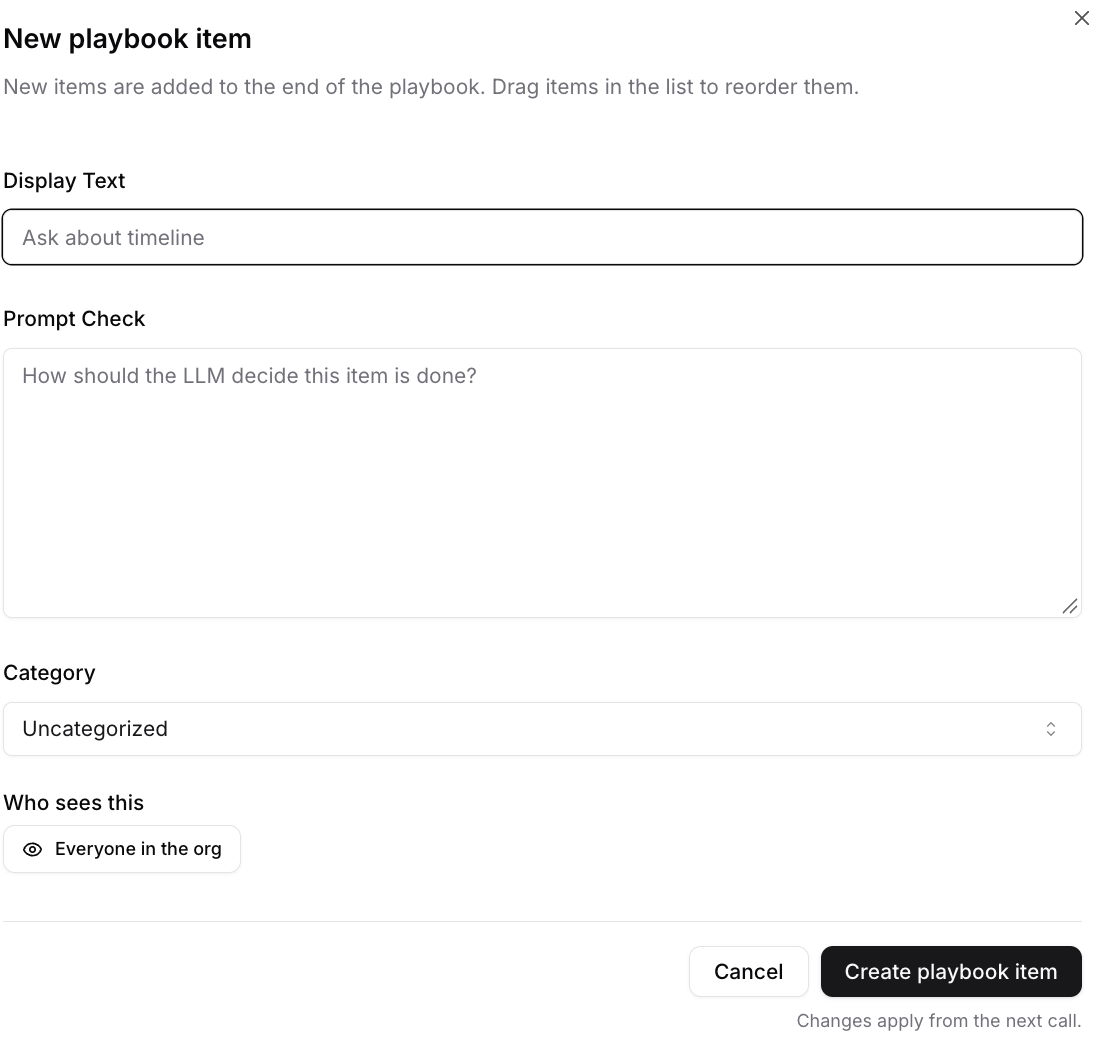
Open the Playbook tab and click New playbook item.
Fill in the fields:
Field | What to put |
|---|---|
Display Text | What the rep sees on their checklist, for example "Ask about timeline." Keep it to a few words. |
Prompt Check | How Hyperbound decides the item is done. Describe what the rep has to say or do. |
Category | The group this item belongs to. Defaults to Uncategorized. |
Who sees this | Defaults to Everyone in the org. |
Import from a scorecard
Already have a scorecard for this call type? Turn it into a playbook.
On the Playbook tab, click Import from scorecard.
Choose a scorecard.
Click Import.
Tip: this keeps what reps practice and what they are coached on live in sync.
Create with AI
You do not need to start from a blank page. Create with AI drafts cards or playbook items for you to review before saving. It is on both tabs.
Give it as much context as you have. All fields are optional except one way of describing
Click Generate, review the drafts, edit anything that is off, then save. Saving applies to the call type you have selected.make
Suggested from calls
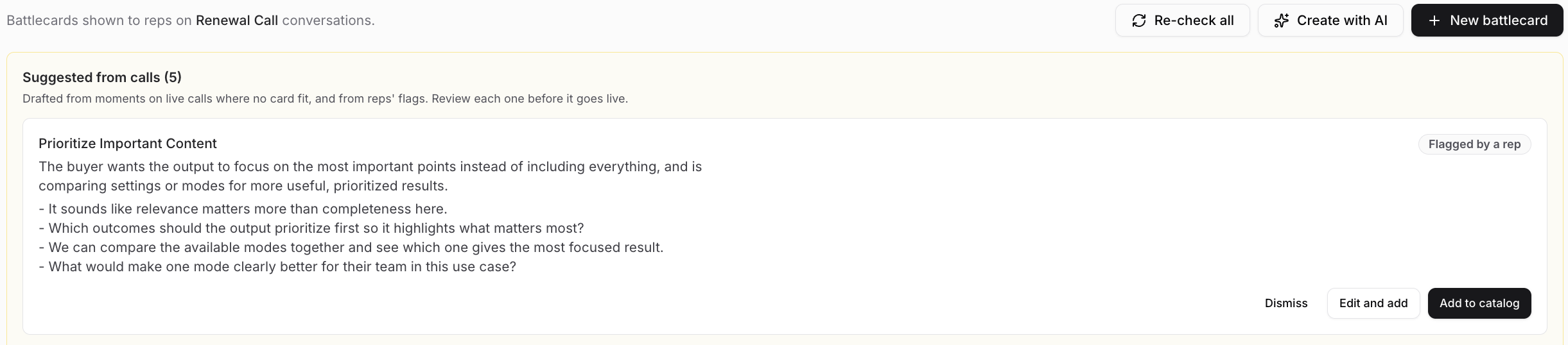
When a topic comes up on a live call and no card fits, or a rep flags a missing card, Hyperbound drafts a battlecard and shows it under Suggested from calls. Drafts flagged by a rep are tagged Flagged by a rep.
Nothing goes live until you review it. For each suggestion:
Add to catalog to publish it as is.
Edit and add to change it first.
Dismiss to remove it.
Preview as rep
Click Preview as rep at the top right to see the catalog the way a specific rep will.
Best practices
Put shared content in Every call. Competitors and common objections come up on every kind of call.
One topic per card. If the Relevancy Prompt needs an "or" for two unrelated topics, make two cards.
Import your scorecard for playbooks, then trim to what a rep can act on mid-call.
Troubleshooting
What you see | What to do |
|---|---|
A card never shows up on calls | Check its status. If it will not fire on normal phrasing, apply the suggested wording. Confirm it is under the right call type, or Every call. |
Two cards fire for the same moment | Look for an overlap status. Merge them or tighten each Relevancy Prompt. |
Reps see no playbook | That call type has no playbook items yet. Add some, or import from a scorecard. |
Reps get the wrong cards | Check Calls start as. Reps may need to switch call type at the start of the call. |
Edits are not showing on a call in progress | Changes apply from the next call. |
Related articles
[LINK: How To: Download and Set Up Live Call Coaching]
[LINK: How To: Take Calls with Live Call Coaching]
[LINK: How To: Read Live Call Coaching Analytics] (managers)
Have more questions? Reach out to help@hyperbound.ai