How To: Use Live Call Coaching as a Rep
Last updated: October 9, 2026
Most coaching happens after the call, when it's too late to use. Live Call Coaching gives it to you while you're still talking.
Prospect pushes back? Your team's battlecard shows up on screen. No trying to remember what enablement said three weeks ago.
Not sure what's left to cover? Your playbook checks itself off as you go.
Conversation goes off script? Click Help. It suggests what to say next based on what's been said so far.
Not set up yet? See 📄 How To: Download and Set Up Live Call Coaching (MacOs)
Start coaching
From the prompt: when a meeting starts, click Start coaching at the top right of your screen.
From the app: on Home, click Join with coaching
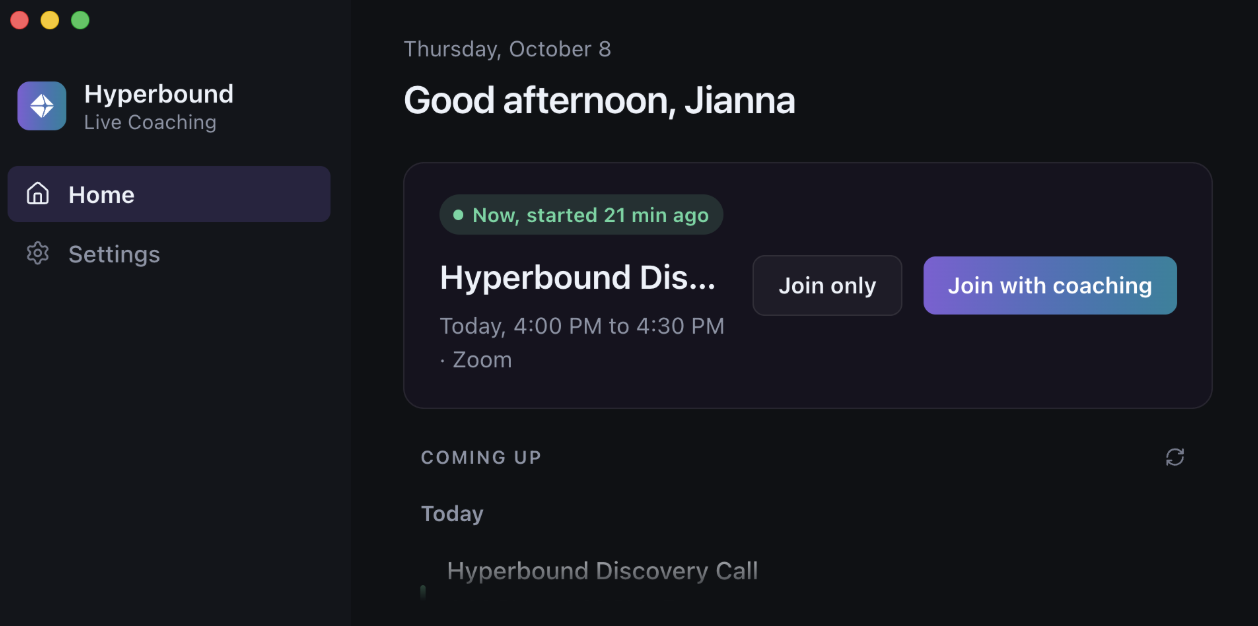
Tip: check the call type at the top of the panel. If it is wrong, switch it early. Switching resets your cards and playbook.
During the call
Battlecards pop up when a topic comes up, like an objection. Each shows once per call. Rate it with thumbs up or down.
AI suggestions have a dashed border. They cover topics your team has no card for. Too many? Set Settings > Coaching > Suggestion Frequency to Less
Help button suggests what to say when you are stuck.
Playbook items tick off as you cover them.
Active Notes build as you talk.
Ask Kota answers questions mid-call.
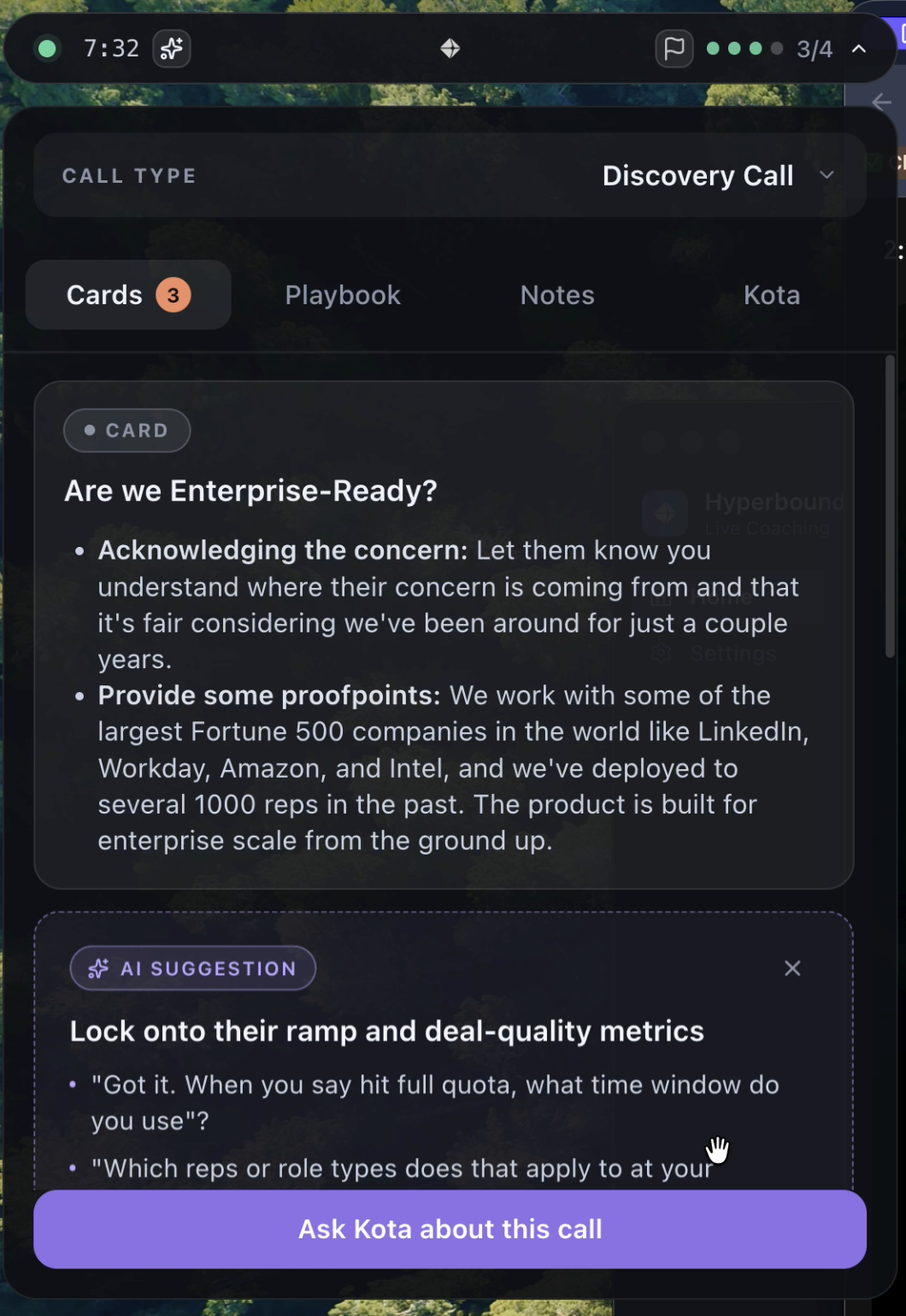
Click Stop to end coaching. If you leave the meeting, it ends on its own.
After the call
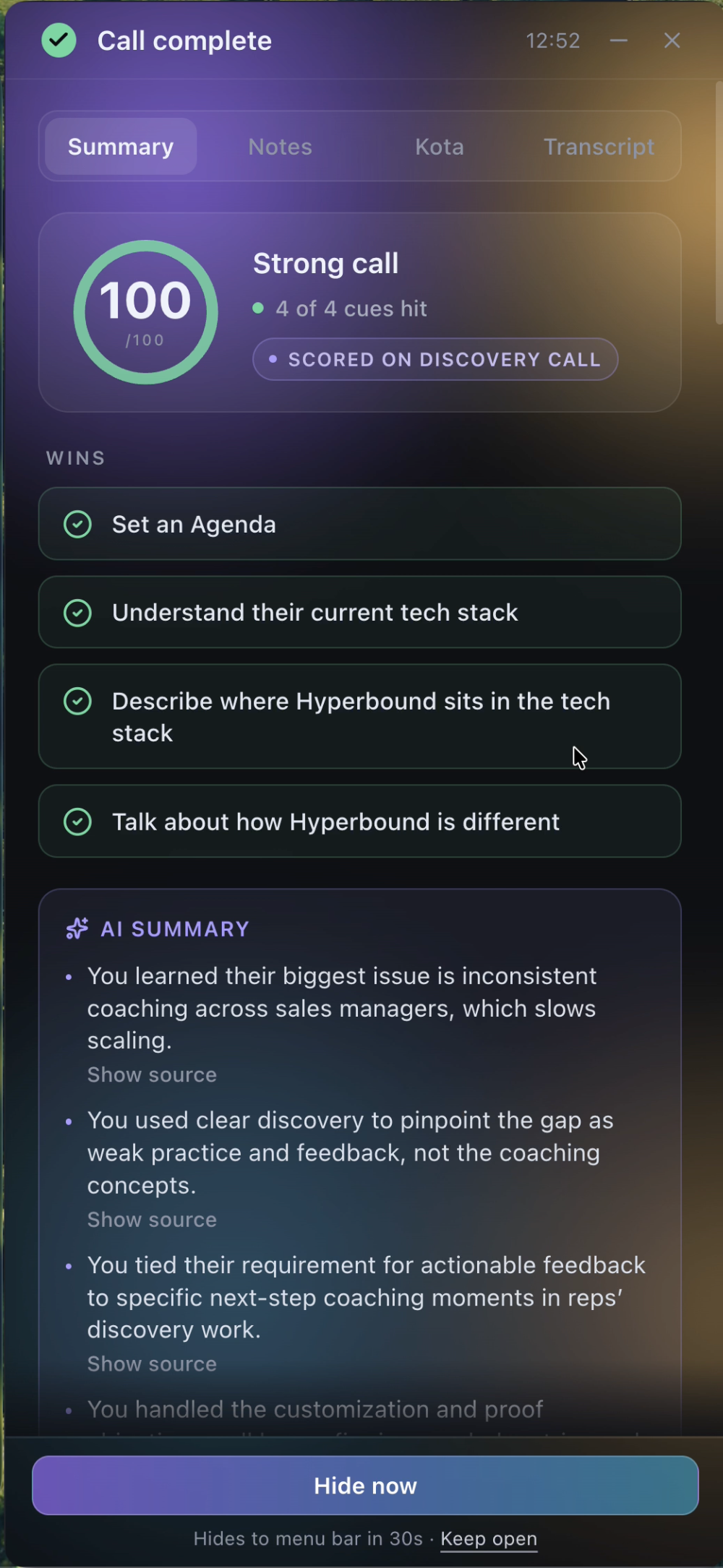
The Call complete screen shows your recap.
Summary: your score, the playbook items you hit, an AI summary, and next steps. Click Show source to see where a point came from.
Notes: your call notes, grouped by topic.
Kota: anything you asked Kota.
Transcript: the full call.
Click Keep open to stop it hiding to the menu bar, or Hide now when you are done.
Questions? Reach out to your SE team or help@hyperbound.ai