Kota Memory: Kota remembers how you like to work
Last updated: November 23, 2026
Kota Memory saves how you like Kota to work, so you don't have to repeat it in every chat. Tell Kota once that "my team" means East, or that you want answers short, and every new chat starts with that already in place.
Your memory is private to you. It changes how Kota answers, never what you can see or do. All screenshots below are sample data.
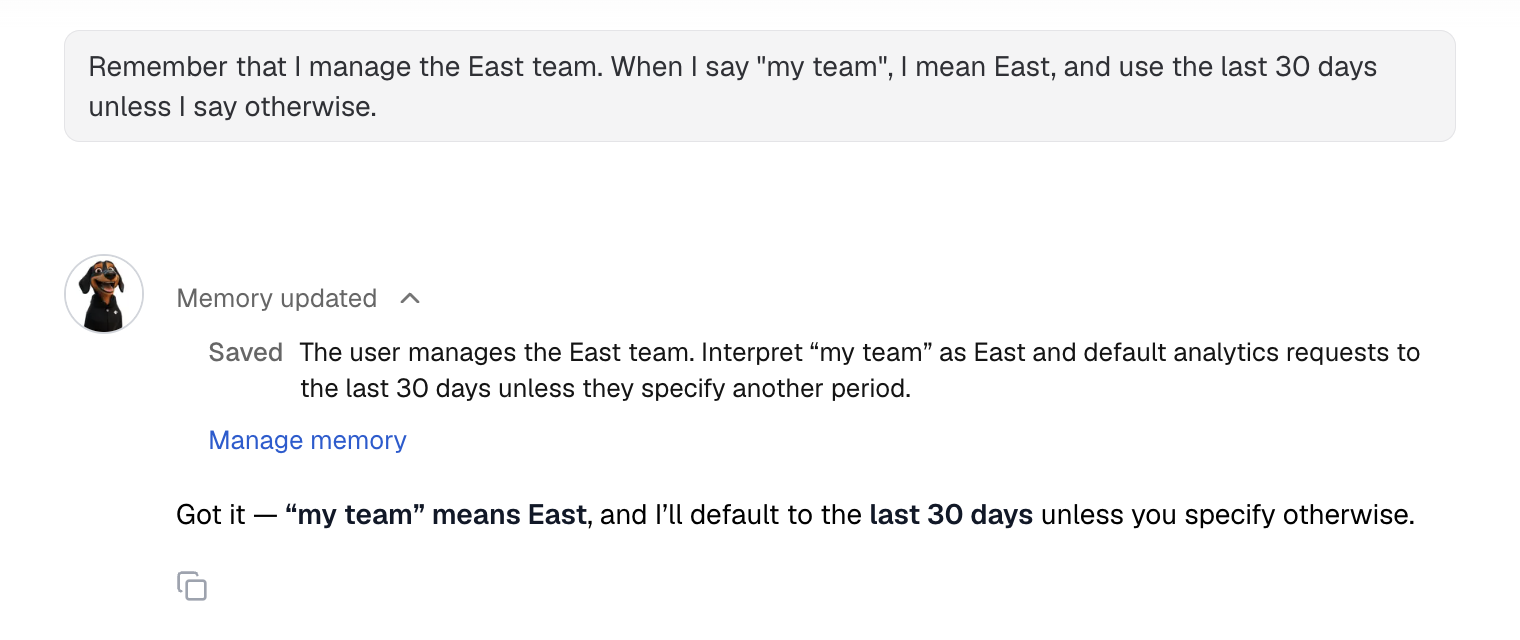
What Kota remembers
Kota saves preferences: lasting choices about how you want it to work. Some examples:
How answers look: "Keep answers short", "Put numbers in a table", "Answer in Dutch"
Your defaults: "My team means East", "Use the last 30 days unless I say otherwise"
How recurring work is structured: "For call feedback, start with what went well, then two improvements with quotes"
Your role and focus: "I manage the East team", "I care most about discovery calls"
You can save up to 25 preferences, each up to 300 characters. If you ask Kota to remember something longer, it shortens it or splits it into separate preferences. If it still doesn't fit, Kota tells you and offers a shorter version.
How it works
Tell Kota a preference in a normal chat. Say it outright ("Remember that...") or mention it in passing ("I read this on my phone, keep it short").
Kota saves it and shows Memory updated above its answer. Open it to see exactly what was saved or removed.
Every new chat starts with your saved preferences, so Kota follows them without being told again.
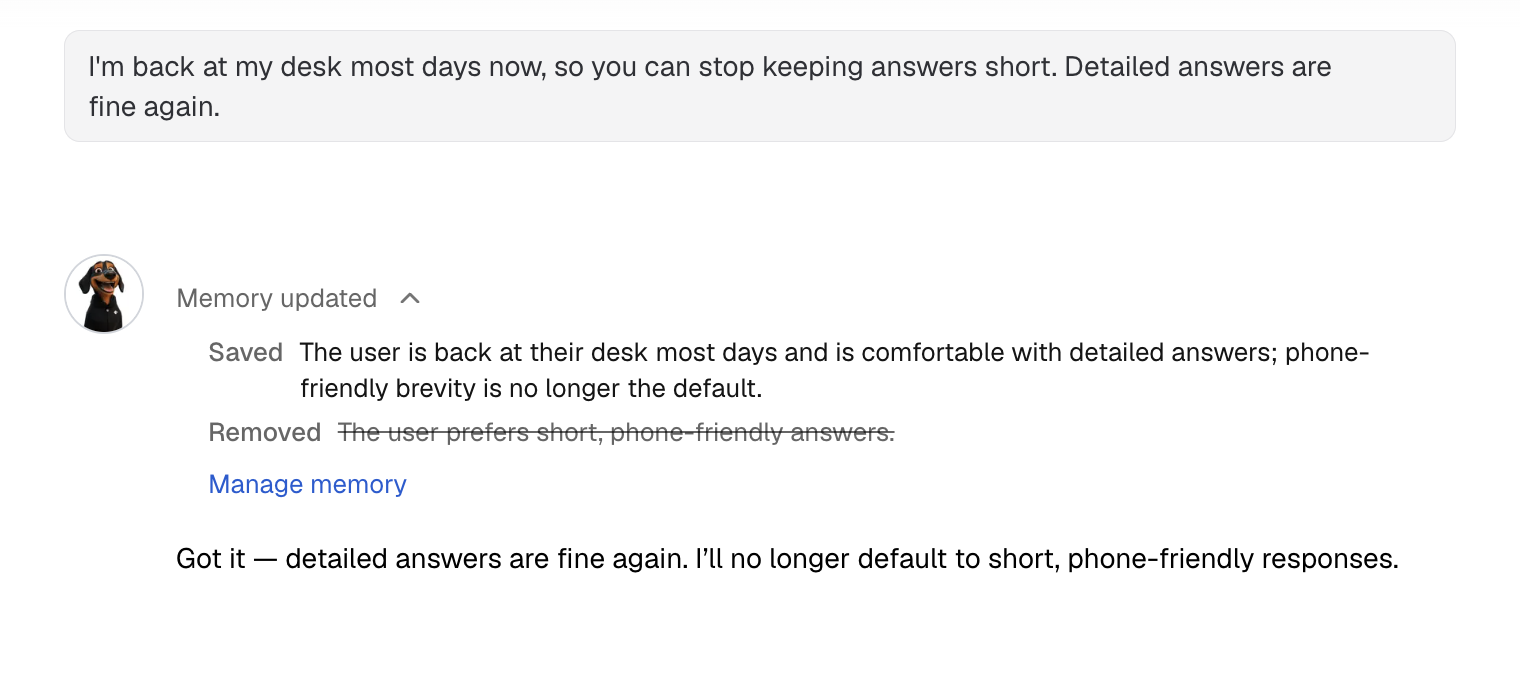
To change or forget one, ask Kota, like "Detailed answers are fine again". You can also delete preferences in Settings.
Examples
Set your defaults once
Tell Kota which team you mean and which period to use. Later, in a new chat, ask "How is my team doing on roleplay calls?" and Kota answers for the East team over the last 30 days without asking which team or period.
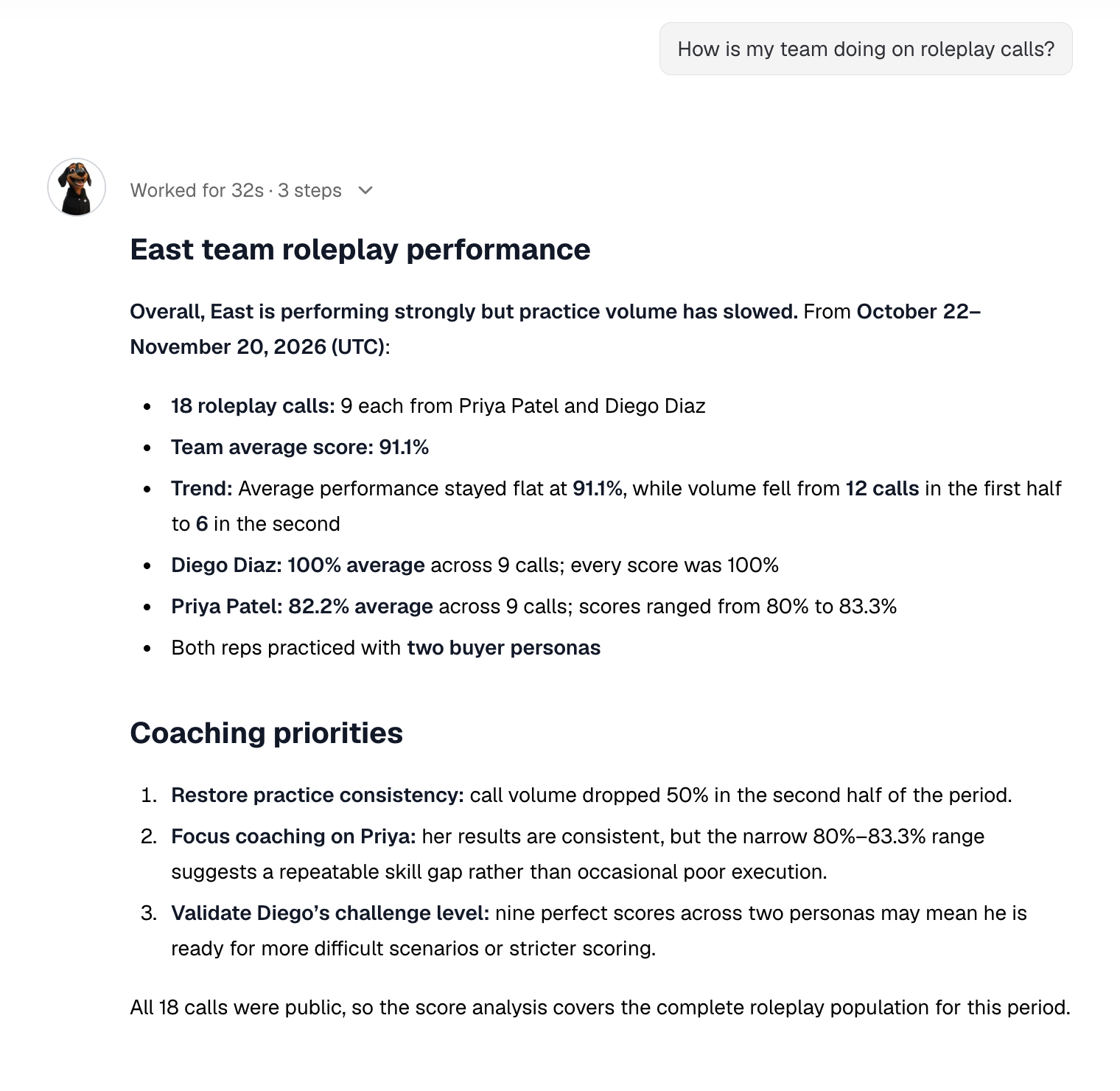
Kota picks it up in passing
You don't have to say "remember". Mention that you read answers on your phone between meetings, and Kota saves that while it answers. The answer comes back short and still uses the East team and the last 30 days. Preferences stack.
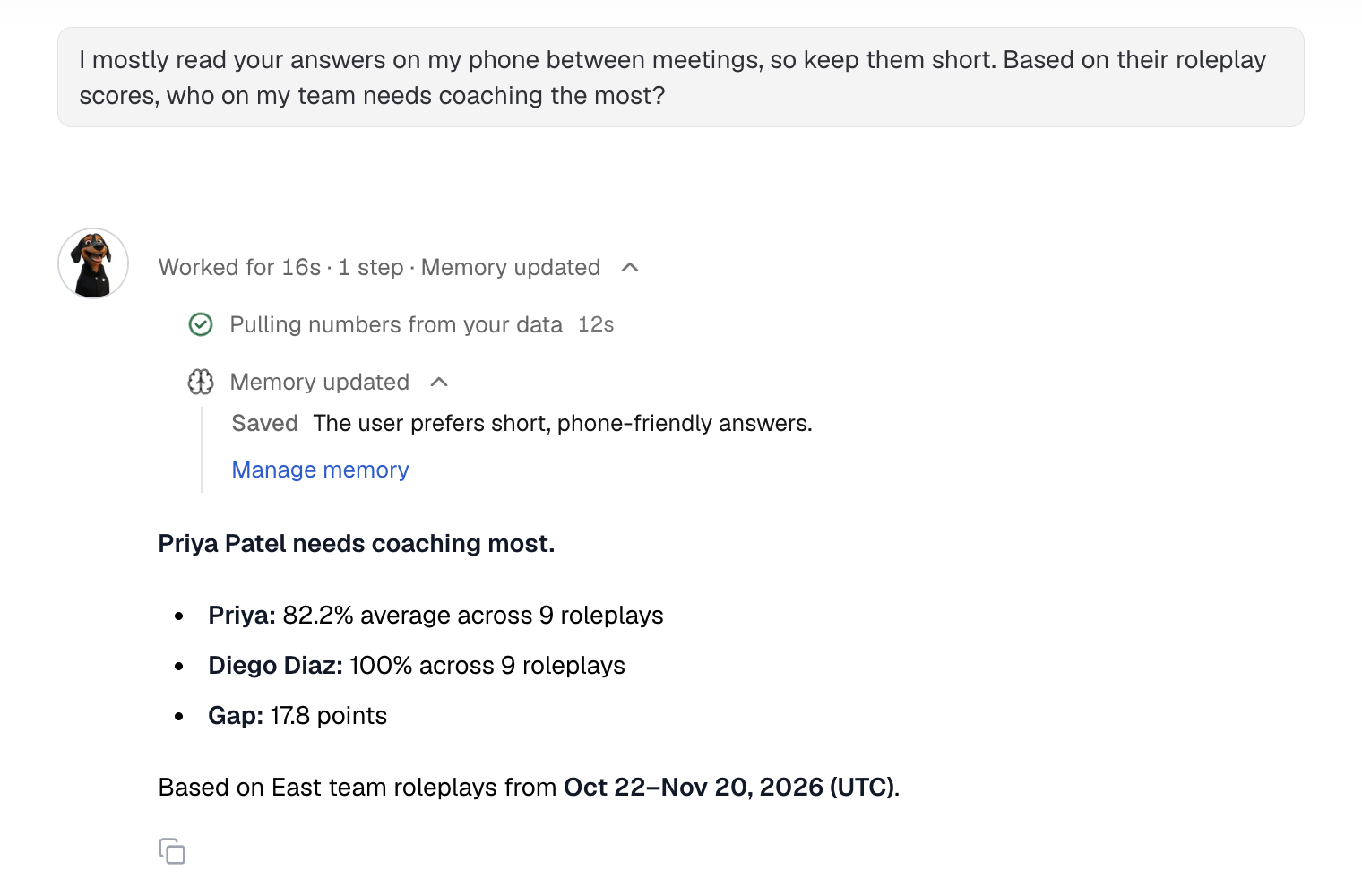
The same structure every time
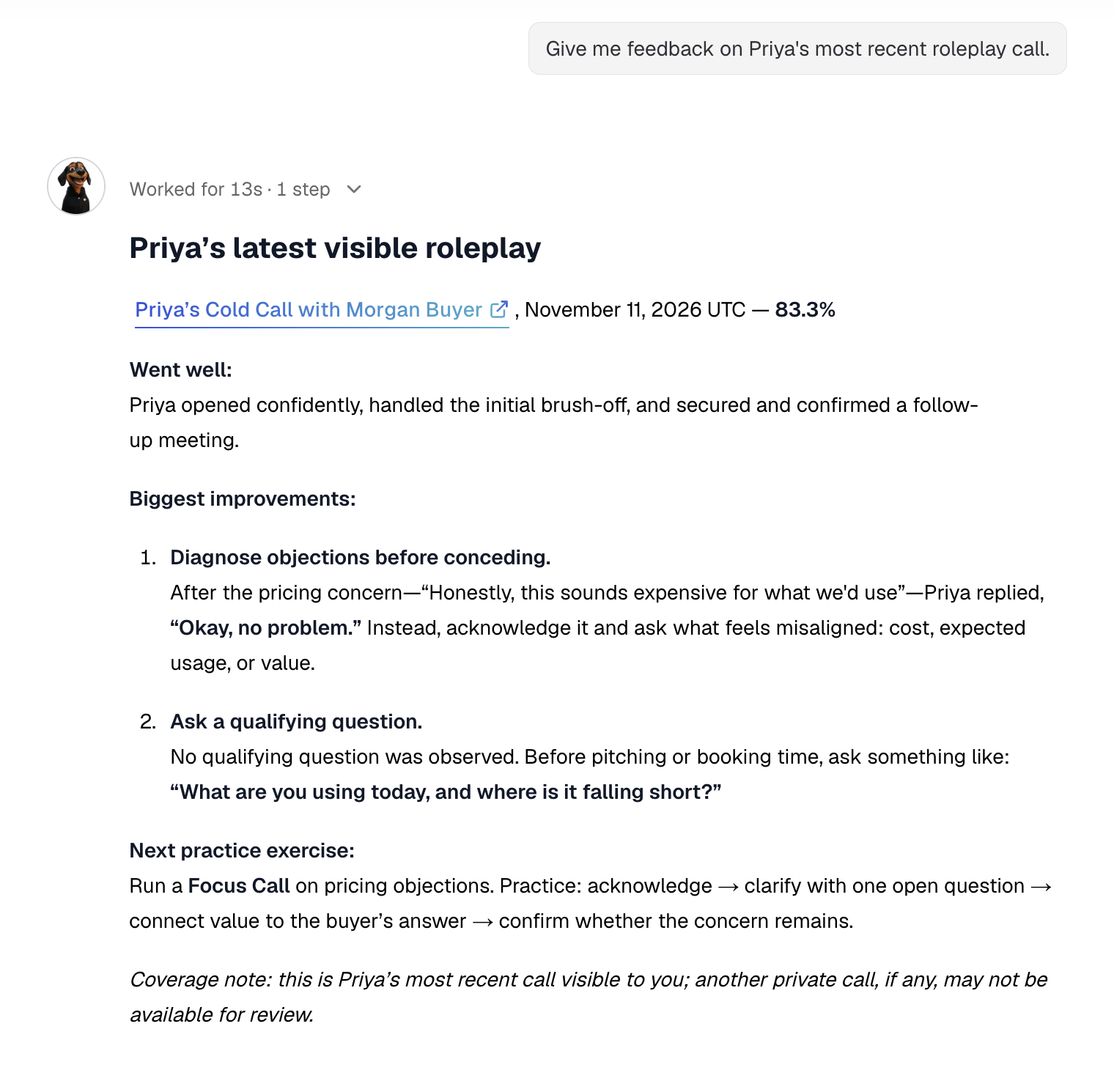
If you coach with a fixed format, tell Kota once how you want call feedback laid out.
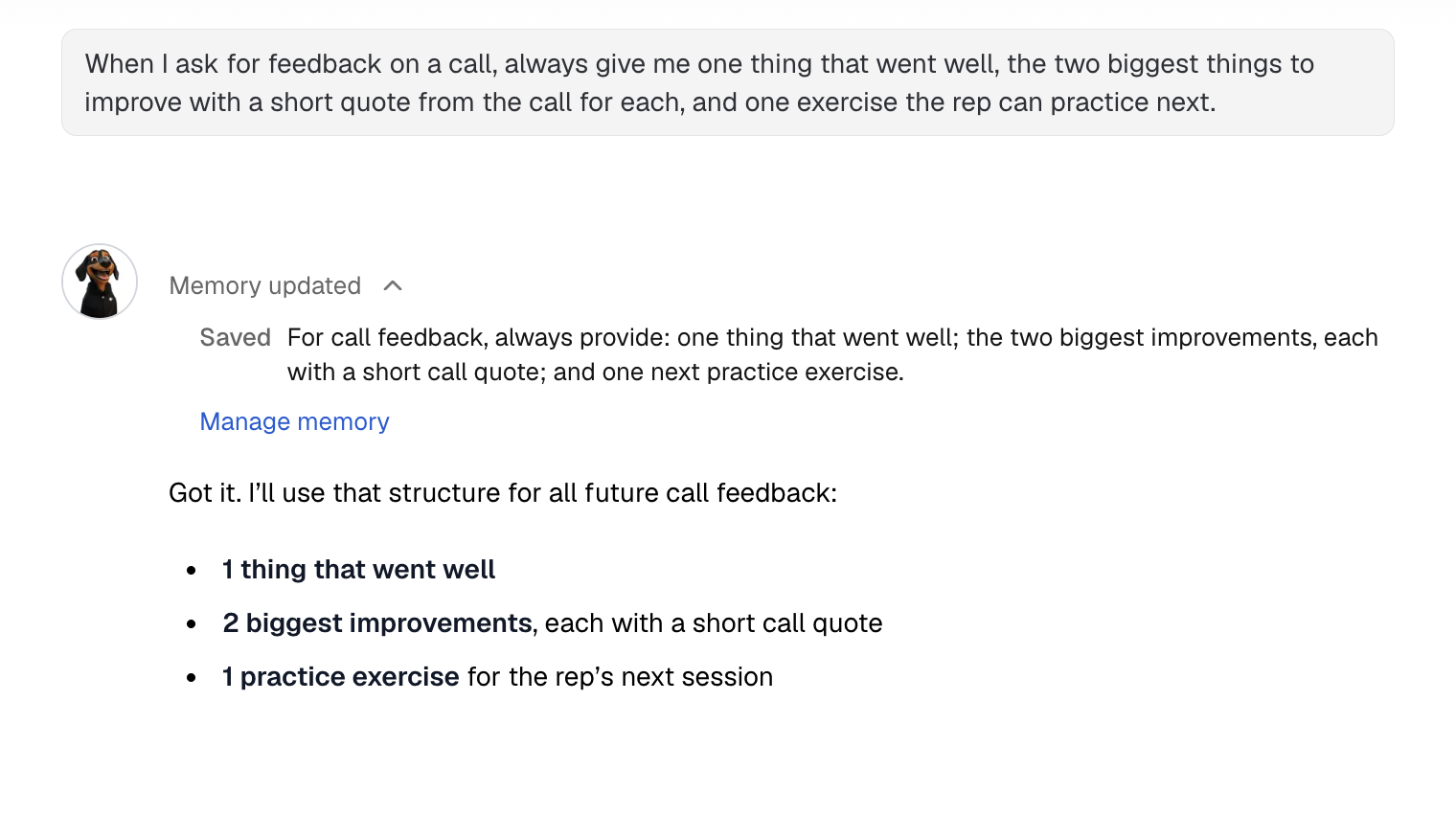
In a new chat, ask "Give me feedback on Priya's most recent roleplay call." Kota uses the same format without you repeating it, so every review comes back in the same shape and is easy to compare across reps.
Change it by asking
When something changes, just say so. Kota replaces the old preference and shows what it removed.
Manage your memory in Settings
Go to Settings > Account > Kota Memory. You'll see every saved preference and the date it was saved. From here you can:
Delete one preference
Delete all of them
Switch memory off
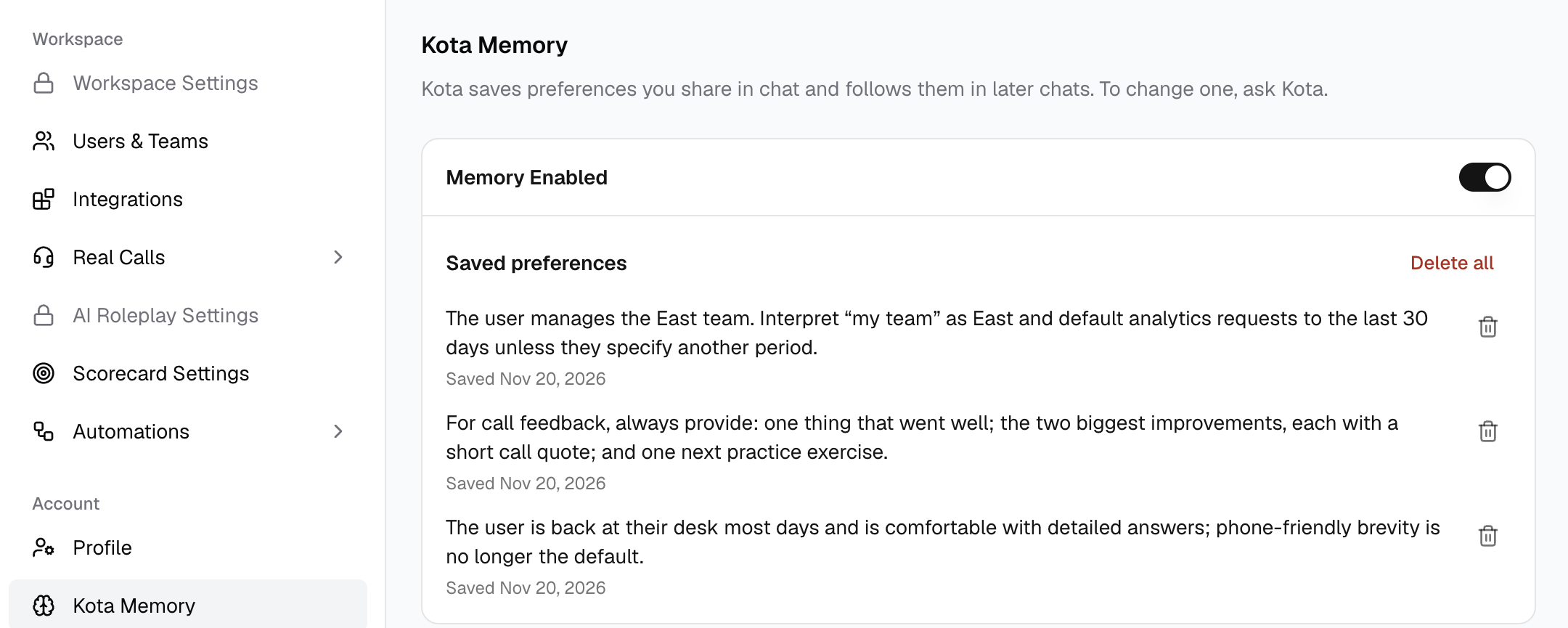
Settings doesn't edit the text of a preference. To change one, ask Kota in a chat, so every change stays visible.
With memory switched off, Kota doesn't save or use preferences. If you ask it to remember or forget something, it tells you memory is off and points you to this page. Your saved preferences stay until you delete them.
What memory can and can't do
Preferences can | Preferences can't |
|---|---|
Change the format, length, tone and language of answers | Change your permissions, what data you can see, or which tools Kota can use |
Set defaults, like "my team" or a time period | Override what you ask right now. Your current message always wins, and a newer preference wins over an older one |
Set the structure of recurring work, like call feedback or deal reviews | Tell Kota to search, fetch, send or share content |
Tell Kota about your role and focus | Hold links, email addresses, passwords or other secrets |
Store one-off requests or facts about other people, like a rep's performance |
Privacy and security
Only you write your memory. Kota saves preferences only from your own messages, never from files, web pages, call transcripts or anything else it reads.
Private to you. Admins and teammates can't see your memory. People you share a chat with don't see what was saved. Hyperbound support can view your Kota Memory page but can't change it.
Audited. Every save, removal and on/off switch is recorded in the audit log, without the text of the preference.
Deleted when you leave. Your memory is deleted when you leave your organization, and all memory is deleted if your organization's workspace is deleted.
Good to know
Memory works in Kota on the web, both full page and side panel. Kota in Slack doesn't use it yet.
Kota writes each preference in its own words, so the saved text can read a little differently from what you typed. You can always see exactly what was saved in the chat and in Settings.
Kota decides what counts as a lasting preference, and now and then it may miss one said very casually. Say "remember that" to be sure.
Questions people ask
I don't see Kota Memory in Settings.
Kota Memory is turned on per organization. Ask your Hyperbound contact to turn it on. Once it's on, memory is on by default for everyone, and each person can switch theirs off.
Can my manager or admin see what Kota remembers about me?
No. Your memory is visible only to you.
Can a preference give me access to data I can't normally see?
No. Memory only changes how Kota answers. Your permissions stay the same.
What if my preference conflicts with what I'm asking?
What you ask in the current message wins. If you usually want short answers but ask for a detailed breakdown, you get the detailed breakdown.
Does Kota remember things from my calls or files?
No. Kota saves preferences only from what you type to it.
Still need help? Reach out to support@hyperbound.ai