RingCentral
Last updated: August 11, 2026
Learn how to connect RingCentral to Hyperbound so you can automatically import and score your real sales calls.
Ensure RingCentral is enabled in your Workspace, if not, reach out to your SE team
Prerequisites: Real Call Scoring Settings
Before the integration is set up, ensure you have the right Call Routing and Privacy settings for the workspace. Learn more about it here:
Create the Integration in Hyperbound
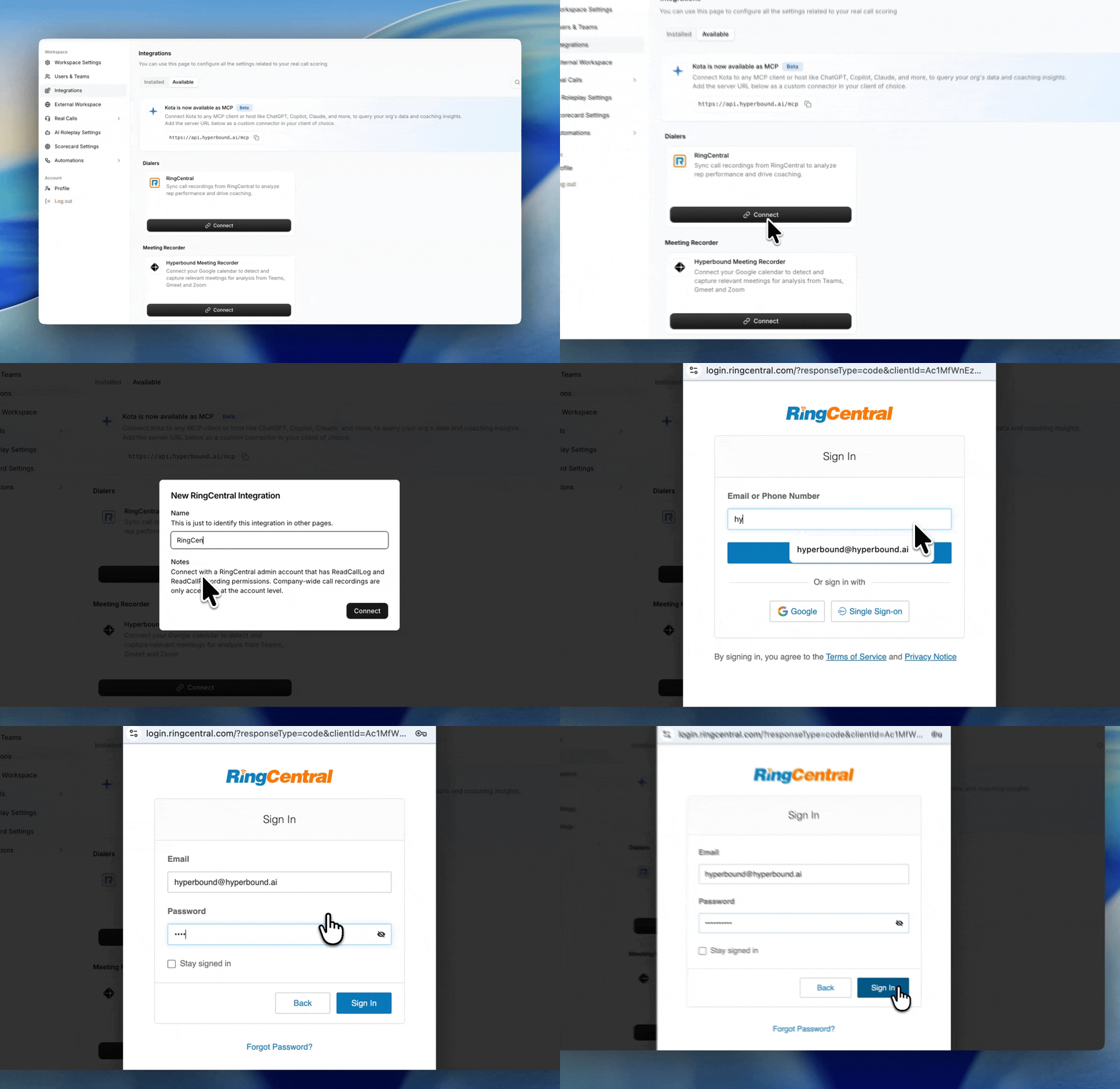
Go to Workspace Settings > Integrations
In the Available tab, find RingCentral and click Connect
Enter a name for the integration (e.g. "RingCentral x Hyperbound")
Sign In using your preferred Method
Click Save
Hyperbound will verify your credentials. If any crediential is "invalid" you will see an error. Double check you login method and that you are using the right sign on (SSO, Google, or username and password).
Managing Your Integration
From the Integrations page you can:
Pause: temporarily stop importing calls
Resume: restart a paused integration
Disconnect: remove the integration entirely
FAQs
How quickly are calls available in Hyperbound?
After RingCentral finishes processing the recording, Hyperbound will pick it up on the next sync cycle (approximately every 2 hours) and score it within a few minutes.
Do speaker names carry over?
Yes. RingCental imports include participant identification from the original call.
Other Limitations
RingCental calls without a recording are not imported
The integration does not backfill your full RingCentral history. It only imports calls within the sync window going forward
If a call is deleted in Hyperbound, it will not be re-imported
Still need help?
Contact support@hyperbound.ai