How To: Track Performance of a Learning Module
Last updated: June 15, 2026
Track completion and scores, send reminders, and mark reps complete, all from one place.
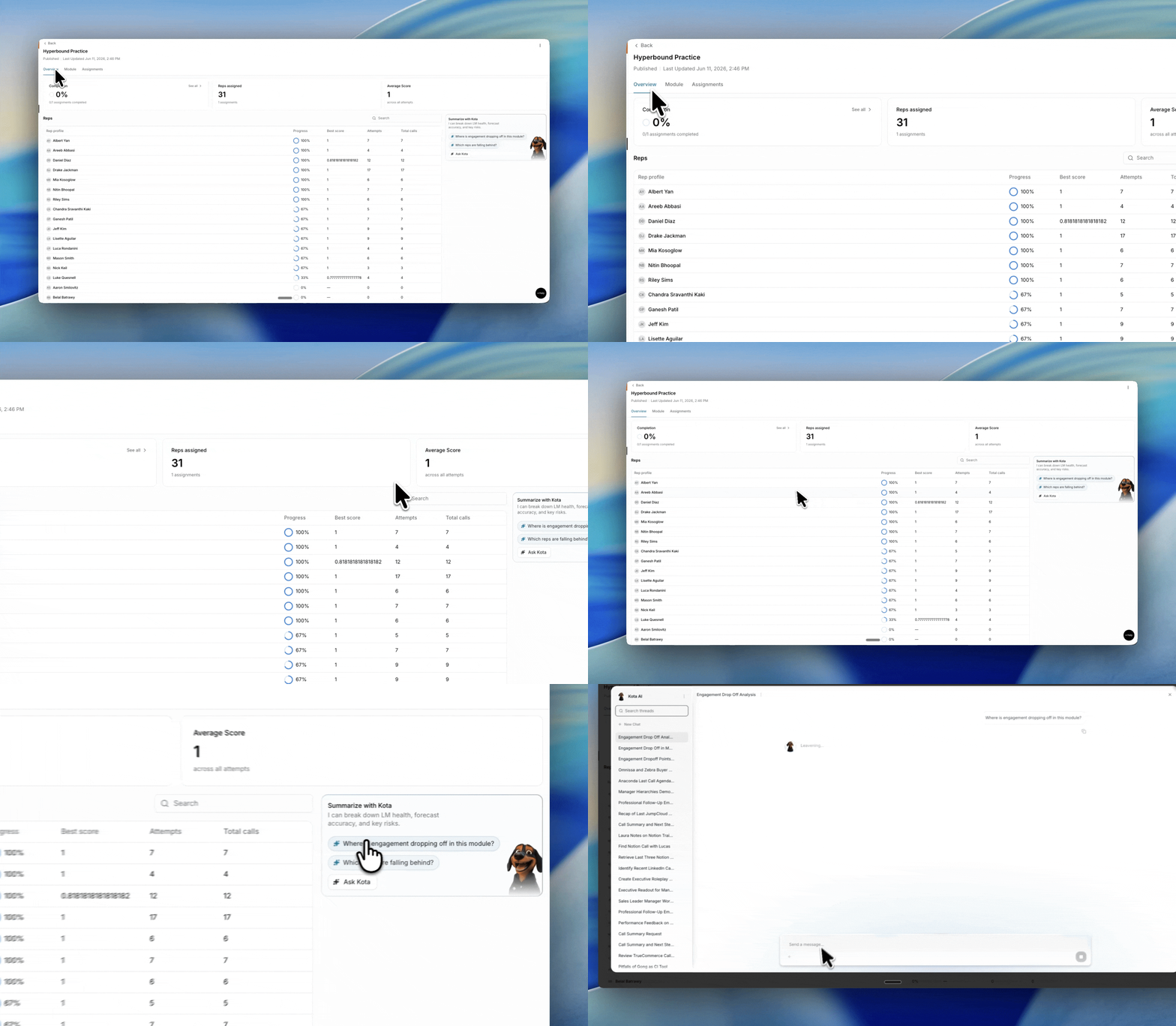
The Overview tab
Track how a module is performing after it's been assigned. It gives you a quick read on engagement, progress, and scores.
What you'll see
At the top, three cards summarize the module at a glance:
Completion: the percentage of assignments completed, plus the raw count (for example, 0/1).
Reps assigned: how many reps the module is assigned to.
Average Score: the average across all attempts. This shows a dash until reps start scoring.
Below that, the Reps table breaks performance down by person, with each rep's progress, best score, attempts, and total calls. Use the search bar to find a specific rep.
Summarize with Kota
Use the Kota panel on the right to get a fast read on module health. Ask it where engagement is dropping off, which reps are falling behind, or type your own question with Ask Kota.
Tracking a specific assignment
Click an assignment from the Assignments tab to open its detail view. This is where you monitor progress rep by rep, send reminders, and review results at the section level.
The left panel shows the assignment's name, description, due date, and an Edit assignees button. Use it to switch between Overall progress and stats and each individual section.
Overall progress and stats
Filter by status using the tabs at the top: All, Completed, In Progress, and Not Started, each with a live count.
Three summary cards show overall task progress, the best performing rep, and the least performing rep.
The table breaks results down by rep, with attempts, average score, completed tasks, start date, completion time, and teams. Expand a rep to see their progress section by section.
Use Filters to narrow by team, roles or status; or the search bar to find a specific rep.
Reviewing a section
Select a section from the left panel to see task-level detail. Choose an assignee to view their attempts against the task's requirements, such as required successful attempts and minimum scorecard score.
Sending reminders
Click Remind to open a pre-filled email to everyone in the assignment, with the subject and a link to the module already filled in.
Use Export to CSV to pull the results into a spreadsheet.
Marking a rep as complete
You can manually complete a module for a rep, for example if they finished the work outside Hyperbound.
In the reps table, find the rep's row and click the checkmark on the right.
A Mark Module as Complete window opens, showing the rep, the assignment, and how many items will be affected.
Click Mark as Complete to confirm, or Cancel to back out.
Need Help?
If you have questions, reach out to support@hyperbound.ai