Chorus
Last updated: March 17, 2026
Learn how to connect Chorus by ZoomInfo to Hyperbound so you can automatically import and score your real sales calls.
Ensure if Chorus is enabled in your Workspace, if not, reach out to your SE team
Prerequisites: Real Call Scoring Settings
Before the integration is set up, ensure you have the right Call Routing and Privacy settings for the workspace. Learn more about it here:
1. Generate Your Chorus API Token
Go to Chorus and log in with your account.
Click your profile icon > Personal Settings
Scroll to the API Access section and click Generate API Token
Copy the token, you'll need it in the next step.
If you don't see the API Access section, your Chorus role doesn't have API permissions. Ask your Chorus admin to enable it under Admin > Users > Roles.
2. Create the Integration in Hyperbound
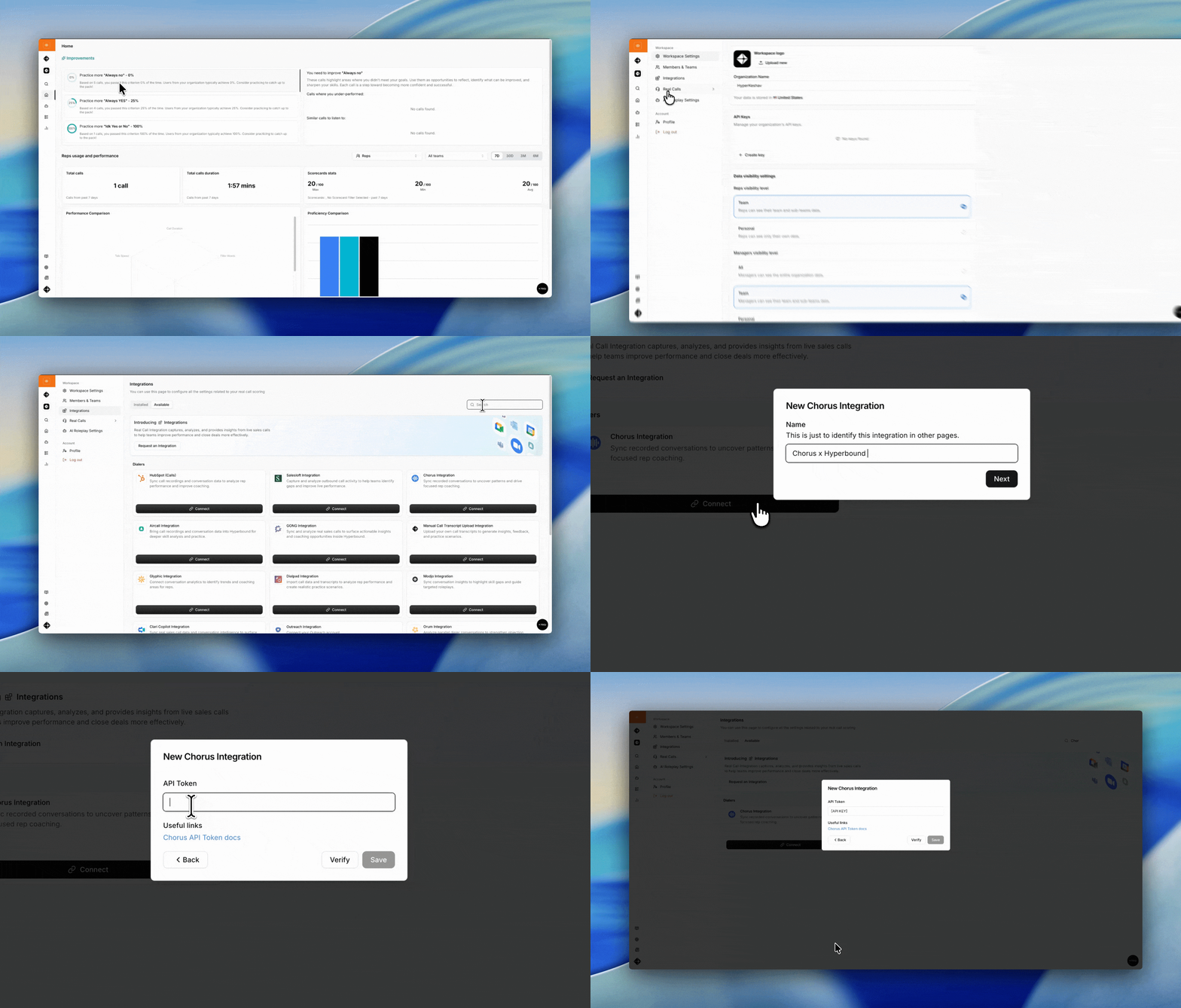
Go to Workspace Settings > Integrations
In the Available tab, find Chorus and click Connect
Enter a name for the integration (e.g. "Chorus x Hyperbound")
Paste your API Token from Step 1
Click Save
Hyperbound will verify your token. If it's invalid, you'll see an "Invalid API key" error. Double check the token and that your Chorus role has API access.
Managing Your Integration
From the Integrations page you can:
Pause: temporarily stop importing calls
Resume: restart a paused integration
Disconnect: remove the integration entirely
FAQs
How quickly are calls available in Hyperbound?
After Chorus finishes processing the recording, Hyperbound will pick it up on the next sync cycle (approximately every 2 hours) and score it within a few minutes.
What if my API token stops working?
Disconnect the integration, generate a new token in Chorus and reconnect.
Do speaker names carry over?
Yes. Chorus imports include participant identification from the original call.
Other Limitations
Chorus calls without a recording are not imported
The integration does not backfill your full Chorus history. It only imports calls within the sync window going forward
If a call is deleted in Hyperbound, it will not be re imported
Still need help?
Contact support@hyperbound.ai