How To: Update Deal Stage from Hyperbound
Last updated: July 28, 2026
Change a deal's stage directly in Hyperbound and it syncs back to your CRM automatically. No more switching tabs!
What it does
Two-way stage sync — Update a deal's stage from Hyperbound and it writes back to your connected CRM (Salesforce, HubSpot, or Microsoft Dynamics).
Deal prep refresh — Moving a deal to a new stage automatically updates the AI deal prep bots for that deal, so prep stays relevant to where the deal actually is.
Update stage from List view
Go to Deals in the left-hand navigation.
Find the deal you want to update.
Click the Deal Stage dropdown in that row.
Select the new stage.
The stage updates immediately and syncs to your CRM in the background.
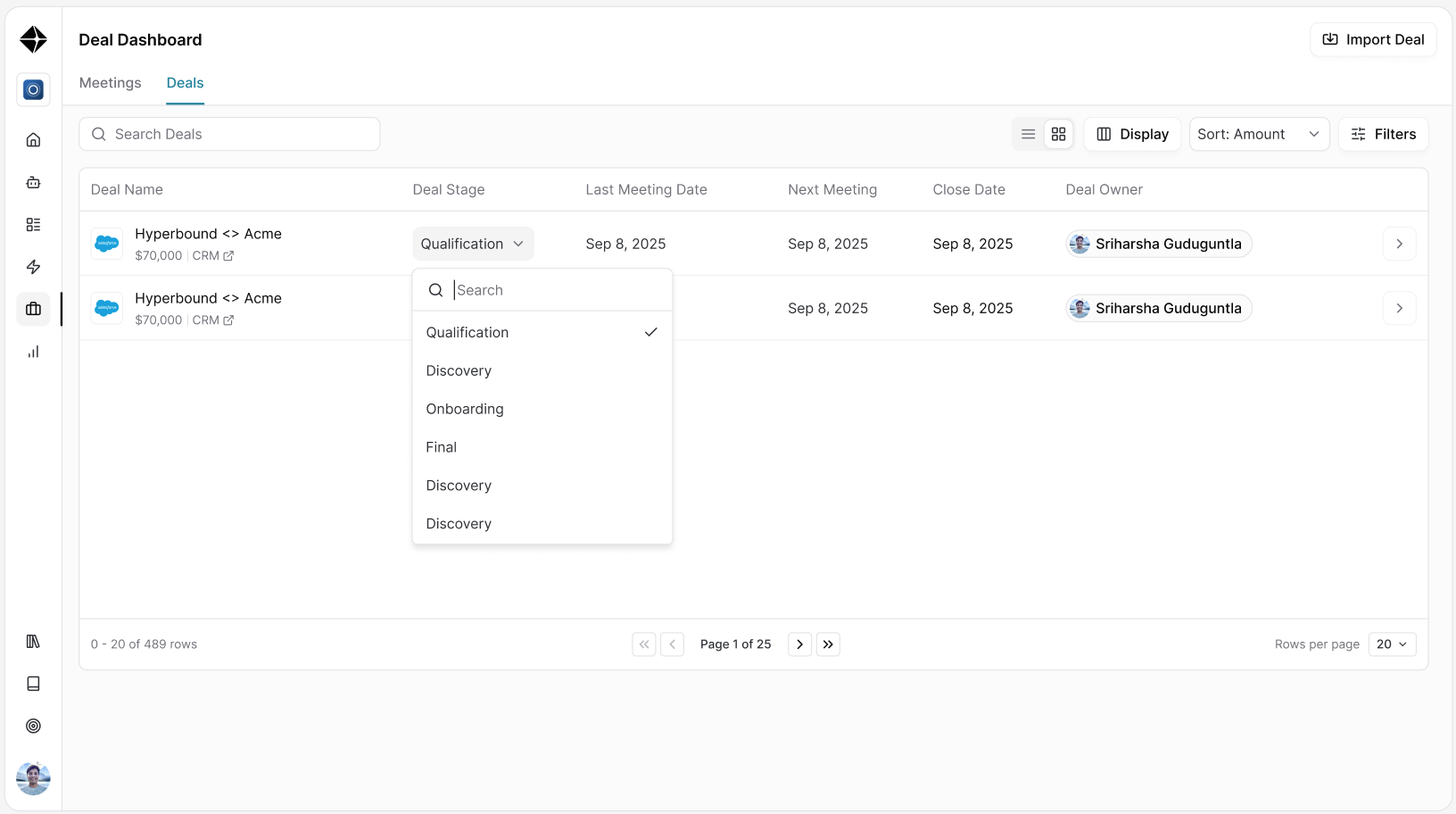
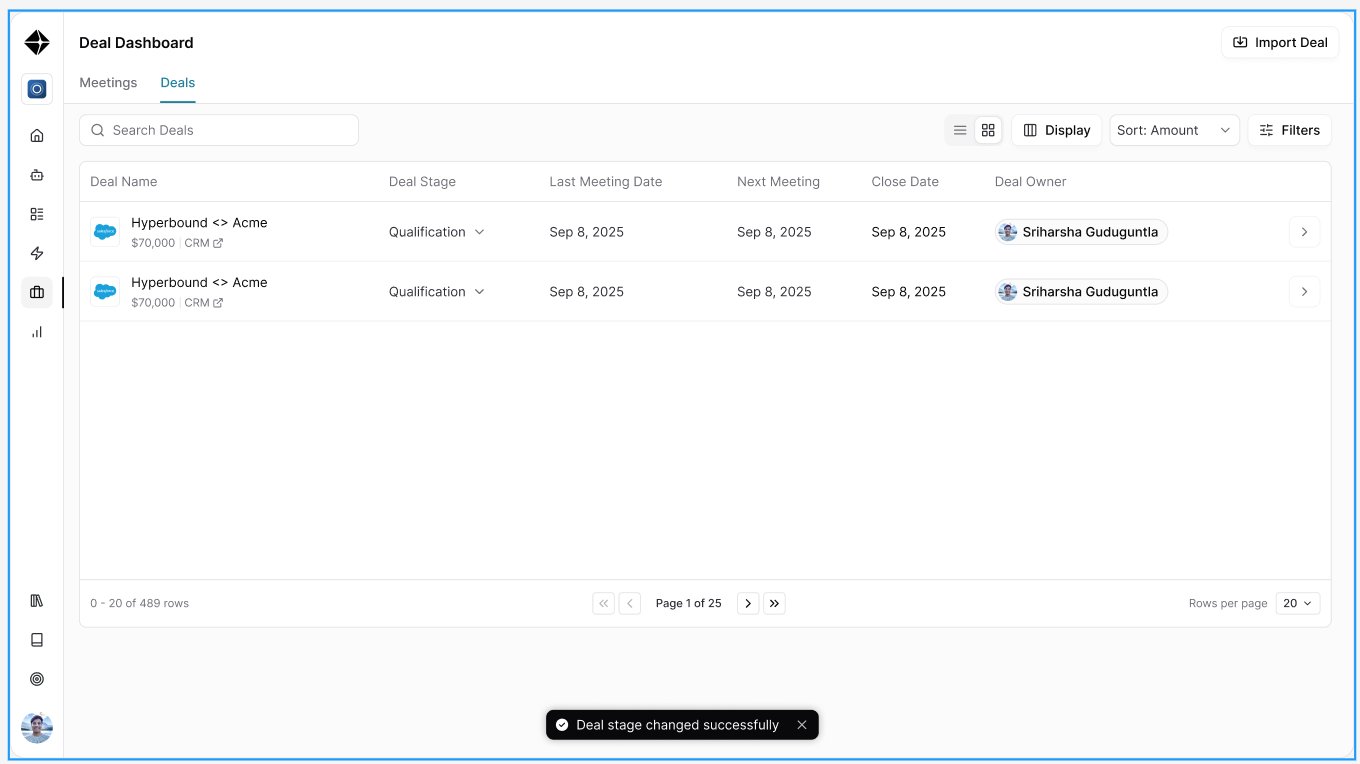
If you have a stage filter applied and change a deal to a stage outside that filter, the deal will drop out of your current view. This is expected.
Update stage from Card view
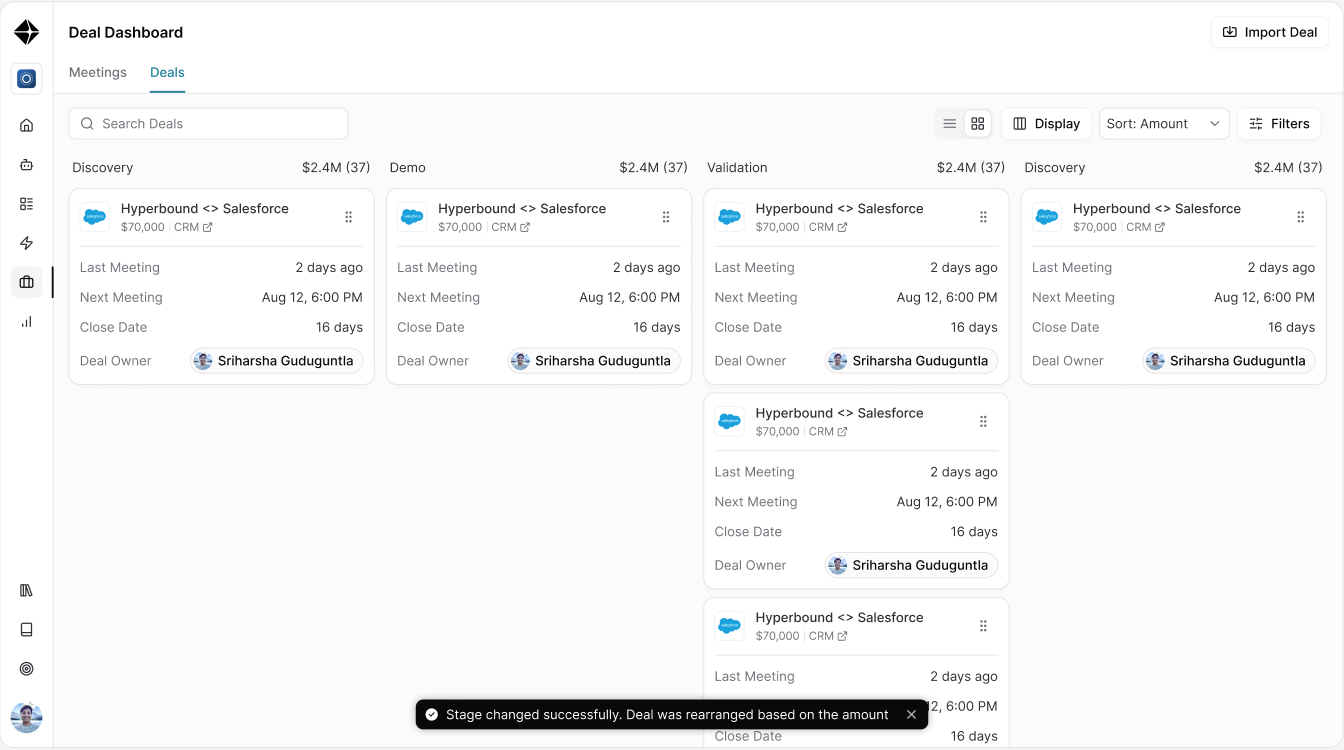
Switch to Card view from the view toggle at the top of the Deals page.
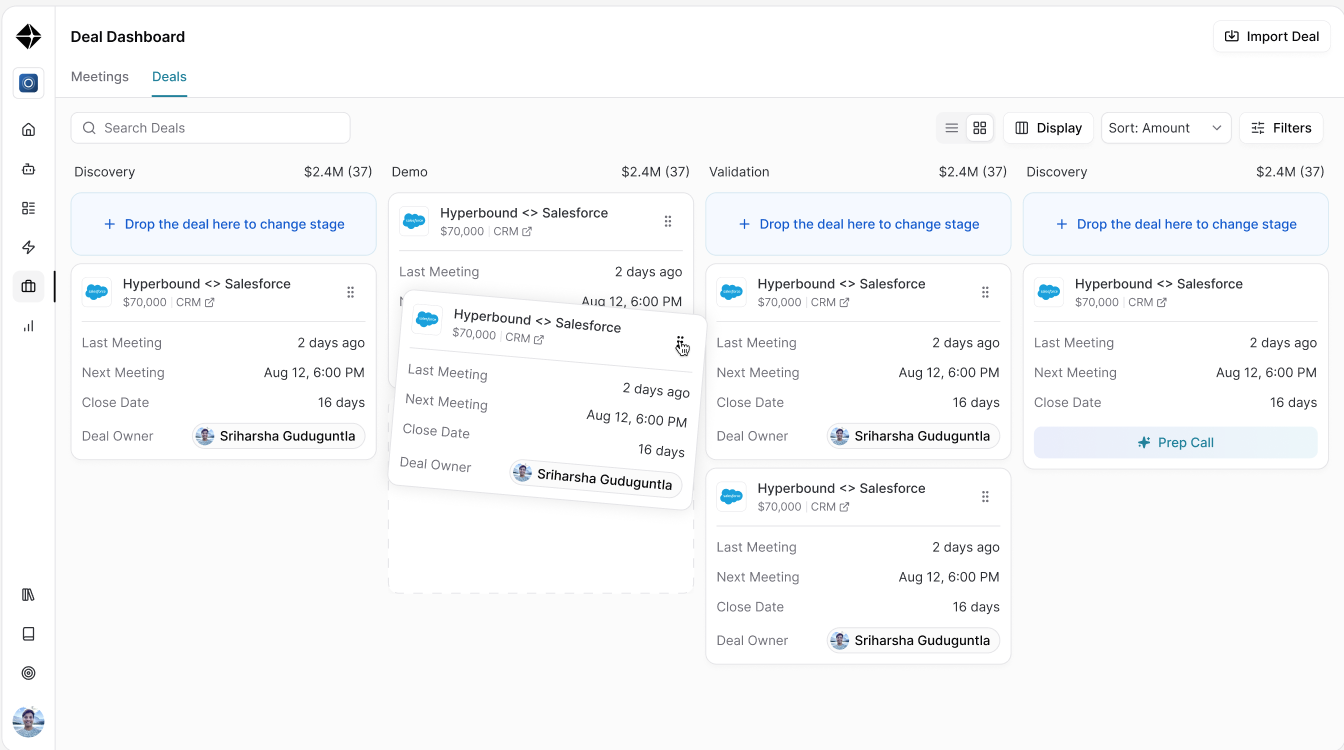
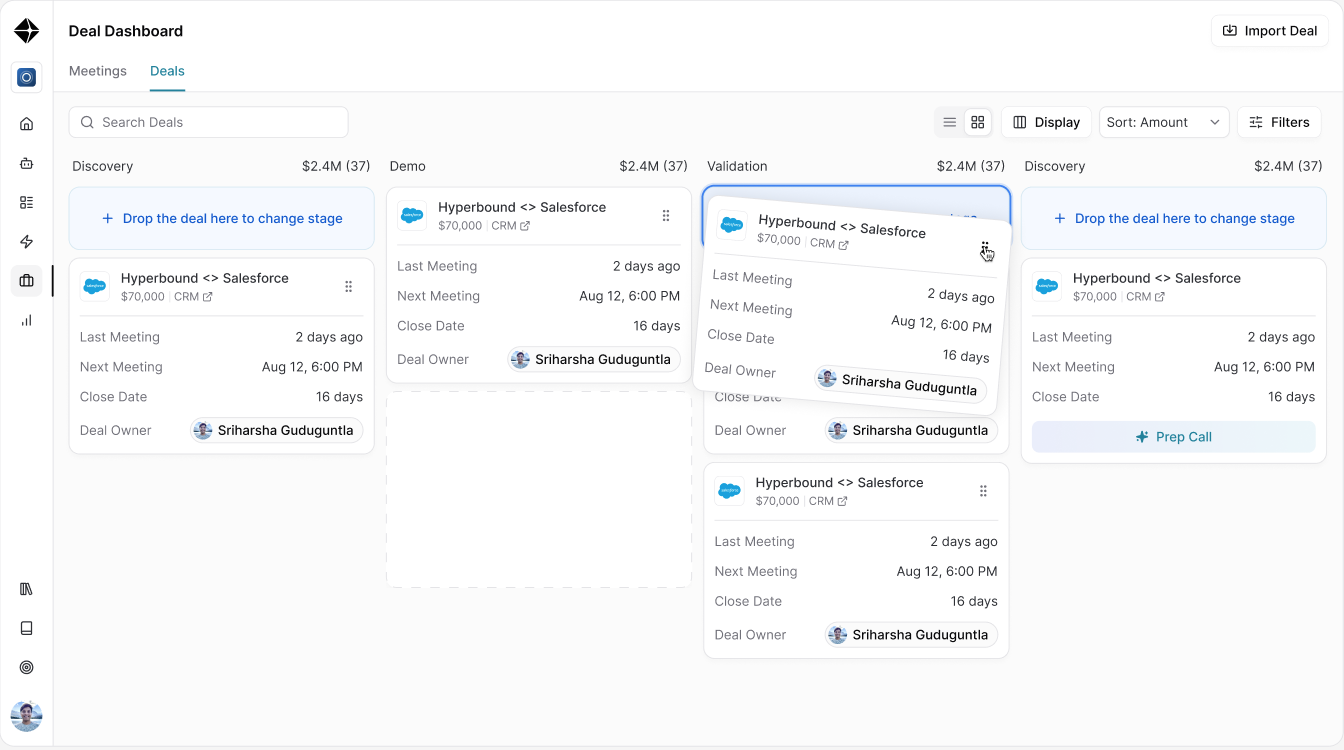
Drag the deal card into the column for its new stage.
Drop it at the top of that column.
Note: The drop zone is only at the top of each stage column. If you drop a card lower in the list, Hyperbound will still register the stage change, it just won't land where you dropped it, sorting will move it into place. You'll see this reflected via the confirmation toast.
What syncs where
Your CRM | Stage change syncs back? |
|---|---|
Salesforce | Yes |
HubSpot | Yes |
Microsoft Dynamics | Yes |
If the sync fails (for example, a permissions issue on the CRM side), you'll see an error toast. Try the update again, and reach out to support if it keeps failing.
Need Help?
If you have questions, reach out to support@hyperbound.ai