Microsoft Dynamics
Last updated: November 20, 2026
Connect Microsoft Dynamics 365 to bring your opportunities into Hyperbound's Deals pages, update deal stages from Hyperbound, and use CRM Autofill.
Note: Dynamics 365 must be enabled in your Workspace. If you don't see it, reach out to your SE team.
Before you start:
You need to be a Hyperbound admin.
You need your Dynamics 365 instance URL, for example
https://contoso.crm.dynamics.com, and a Microsoft account with access to it.Install the Hyperbound app in your Dynamics 365 environment from the Microsoft Marketplace listing. Hyperbound connects to it automatically once it's installed. You may need your Dynamics admin to do this step.
Connect Dynamics 365
Go to Workspace Settings > Integrations.
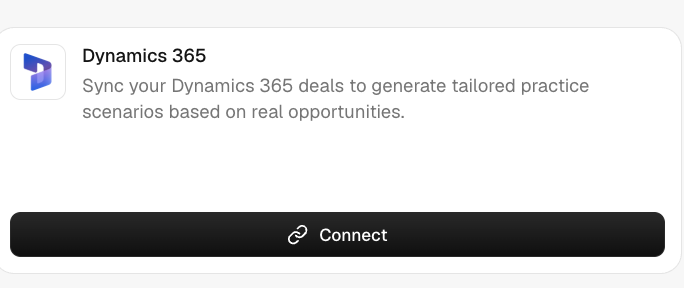
In the Available tab, find Dynamics 365 under CRMs and click Connect.
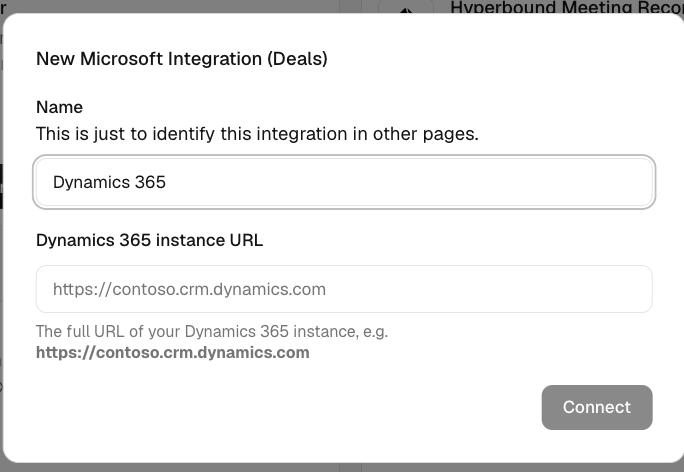
Keep or change the Name (it starts as "Dynamics 365").
Enter your Dynamics 365 instance URL. It must start with
https://and be on thedynamics.comdomain.Click Connect, sign in with your Microsoft account in the window that opens, and approve access.
If Hyperbound can't reach the URL, you'll see "Could not connect to Dynamics 365 at …". Check the URL and that your account has access to that environment.
What syncs
First sync: your open opportunities that changed in the last 180 days.
After that: the Hyperbound app in Dynamics tells us whenever something on the deal changes — the opportunity itself, its business process flow stage, or any note, phone call, email, appointment or task logged against it. Linking or unlinking a contact also triggers a refresh. Work your team does in Dynamics shows up in Hyperbound without waiting for a scheduled sync.
For each deal, Hyperbound reads the opportunity, its business process flow stage, its account, its owner, the contacts connected to the opportunity in Dynamics, and its activities (phone calls, emails, appointments and tasks) and notes.
What Hyperbound writes back
Deal stage. When someone changes a deal's stage in Hyperbound, the active stage of the deal's business process flow updates in Dynamics. See How To: Update Deal Stage from Hyperbound.
CRM Autofill fields, if your team uses CRM Autofill. Agree which fields it may write before turning it on.
Stakeholders as contacts. If your team turns on Deal Stakeholder CRM Sync, Hyperbound creates a contact in Dynamics for each new stakeholder it finds on a deal and links it to the opportunity as a Stakeholder connection. When a contact with that email already exists, Hyperbound links the existing record instead of creating a duplicate. This is off unless your team enables it.
Troubleshooting
"This deal has no active business process in Dynamics, so its stage cannot be changed from Hyperbound." The opportunity isn't in a business process flow. Add one in Dynamics, then try again.
"Insufficient permissions to update this record in Dynamics." The connected account can't edit that record. Give it access in Dynamics.
"Dynamics connection is no longer authorized. Has the Hyperbound app been disabled from your CRM?" Reconnect from the Dynamics 365 card on the Installed tab.
Managing your integration
From the Installed tab you can open Settings, Pause or Resume the integration, or click Remove Integration.
Still need help? Contact support@hyperbound.ai