How To: Set Up Teams in Hyperbound
Last updated: June 17, 2026
Summary
In this module you will learn how to create and manage teams within Hyperbound so that users can be grouped logically (e.g., by region or department) and assigned specific roles (e.g., admin or member).
🛠 Tools Required
• Hyperbound admin access
• User emails for assigning to teams
Step 1: Navigate to “Manage Teams”
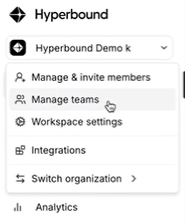
1. Log into your Hyperbound dashboard.
2. Go to your organization settings.
3. Click on “Manage Teams.”
Step 2: Create a New Team
1. Click the “New” button to start team creation.
2. Enter a Team Name (e.g., “APAC,” “Sales Team,” or “Support”).
3. Begin adding users to this team.


Step 3: Assign Admin Roles
1. When adding users, you can choose to give Admin access.

2. Toggle or click the Admin checkbox/button next to the appropriate user.
Step 4: Save the Team
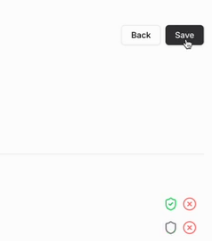
Once the users are added and roles assigned, click “Save.”
The newly created team will now appear in the team list.
📝 Notes
• You can update teams anytime via Manage Teams.
• Admins in a team may have higher-level permissions than members.
• Teams help in streamlining reporting, scorecard assignments, and permissions.
If you have any other questions, feel free to reach out to the HyperBound team, either via the chat button, or email us at help@hyperbound.ai.