How To: Configure Visibility Settings
Last updated: June 15, 2026
Summary
This article covers how to configure visibility settings for your org and how to control access to folders and bots.
Before you start
Admin access required
Manager Hierarchy needs to be enabled for your workspace.
Before configuring visibility, make sure your team hierarchy is set up: 📄 How to: Set Up a Team Hierarchy
Role visibility settings
Visibility controls what calls a user can see. It is set at the org level, not per user or team level.
These Changes take effect immediately for all users in that role
Pro Tip: All admins share the same visibility level. If you need different admins to see different data, put them on different teams.
How to set visibility
Log into Hyperbound as an admin
Click your company name in the bottom left
Select Manage and Invite Members
Go to Visibility Settings on top right, set the visibility level for Admins and Members separately
Click Save
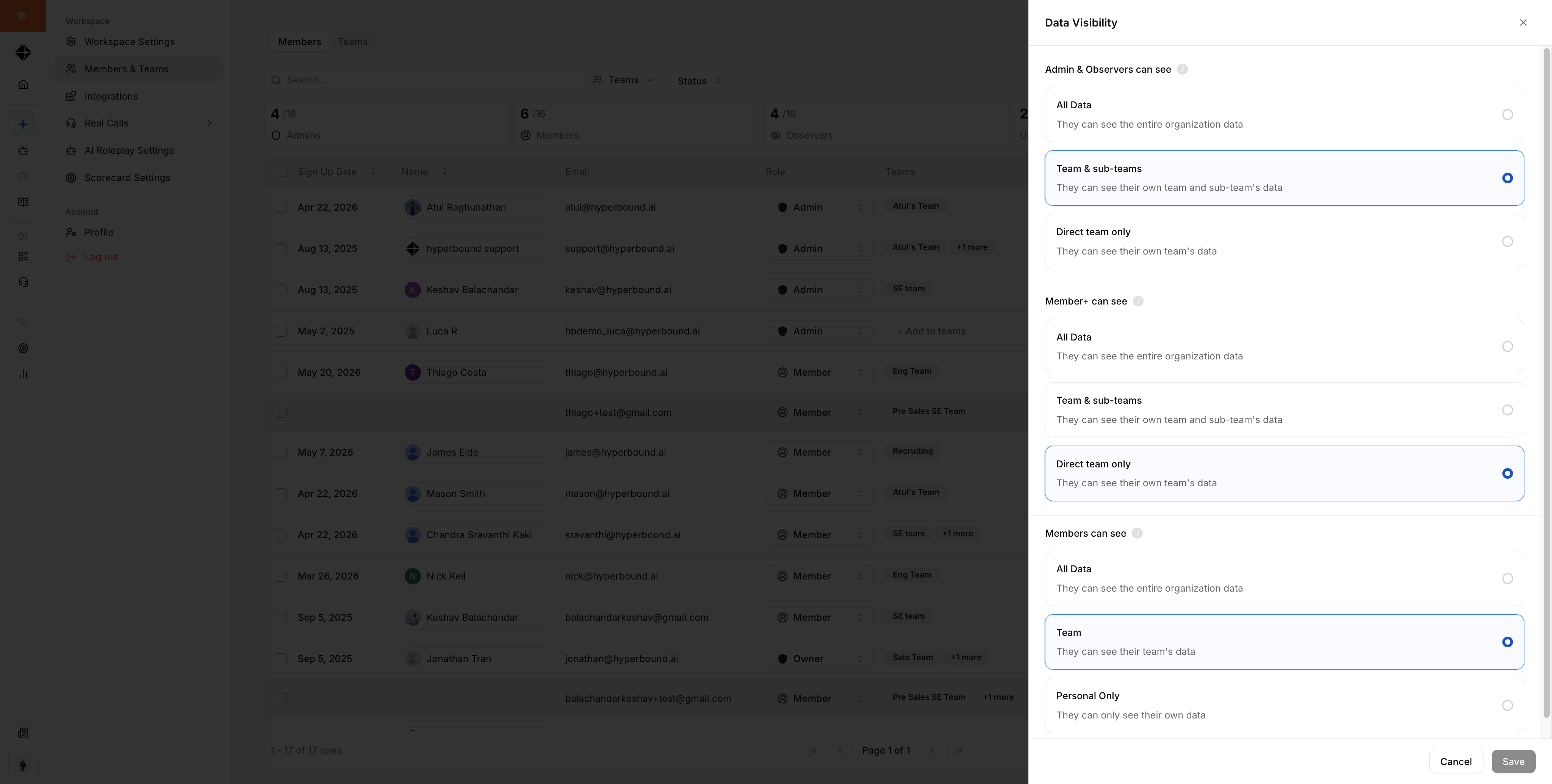
Admin, Observer, Member+ visibility options
Admin roles are best for enablement team, Workspace Admins.
Observer roles are best for managers, leadership who wants visibility
Member+ roles are best for either mangers who also wants to be able to build bots, scorecards or someone like a program Administrator.
Setting | What admins see | Best for |
|---|---|---|
All data | All folders, bots and calls across the entire org, regardless of team | Smaller orgs, where all admins want visibility on everything that's happening in Hyperbound. |
Team + sub-teams | Folders, bots and calls for their team and all teams nested below it. | Bigger orgs where team level visibility is required. A Sales admin sees AE and BD data too. Does not include other branches like CS. But the AE and BD admin, will be able to see their own team's data. |
Direct team only | Folders, bots and calls for their direct team only; no sub-teams | Team leads who should only see their direct reports |
Member visibility options
Setting | What members see | Best for |
|---|---|---|
All data | All folders, bots and calls across the entire org re | Small orgs where reps want to learn across teams! |
Teams | Folders, bots and calls for their teams only | Reps who need visibility into the entire team |
Personal only | Their own calls only. They still see folders and bots shared to their team. | Reps who should not see peer's data |
What's next
Learn about 📄 How to: Manage Folder and Bot Access
Need help?
Reach out via the chat button or email support@hyperbound.ai.