How To: Manage Folder and Bot Access
Last updated: May 25, 2026
Prerequisites
Must be an Admin
Must have Manager Hierarchies enabled for the workspace
Refer to 📄 How to: Configure Visibility Settings to learn about visibility settings.
Folder sharing
Important: Folder sharing and visibility settings are two separate systems. Visibility controls what call data a user sees. Folder sharing controls what training content (folders and bots) they can access. Both apply at the same time — changing one does not affect the other.
Folder sharing controls which teams can access each folder in AI Roleplays.
Sharing options
Option | Who can access the folder |
|---|---|
Everyone in the Workspace | All users, no restrictions |
My team | Only members of the admin's own team |
Selected teams | Only members of the teams you explicitly choose |
How to set folder sharing
Go to AI Roleplays
Click the three-dot menu -> Select Folder Settings
Under Who is this folder for, choose your sharing option
If you select Selected teams, use the team picker to choose which teams have access
Click Save
Sub-folder and bot access
You do not need to set access on every bot and sub-folder individually. Access is inherited automatically.
Sub-folders inherit access from their parent folder. When creating a sub-folder, the sharing setting is read-only — it matches the parent automatically.
Bots inherit access from the folder they live in. To see a bot's access settings:
Go to AI Roleplays
Open the folder the bot lives in
Click on the bot, then click Edit
The Bot Access field is read-only and shows which teams can see this bot based on its folder
If a bot lives in multiple folders, it is visible to a user if any one of those folders is accessible to them.
How users see their own visibility
Users can see what data they're currently looking at in two places:
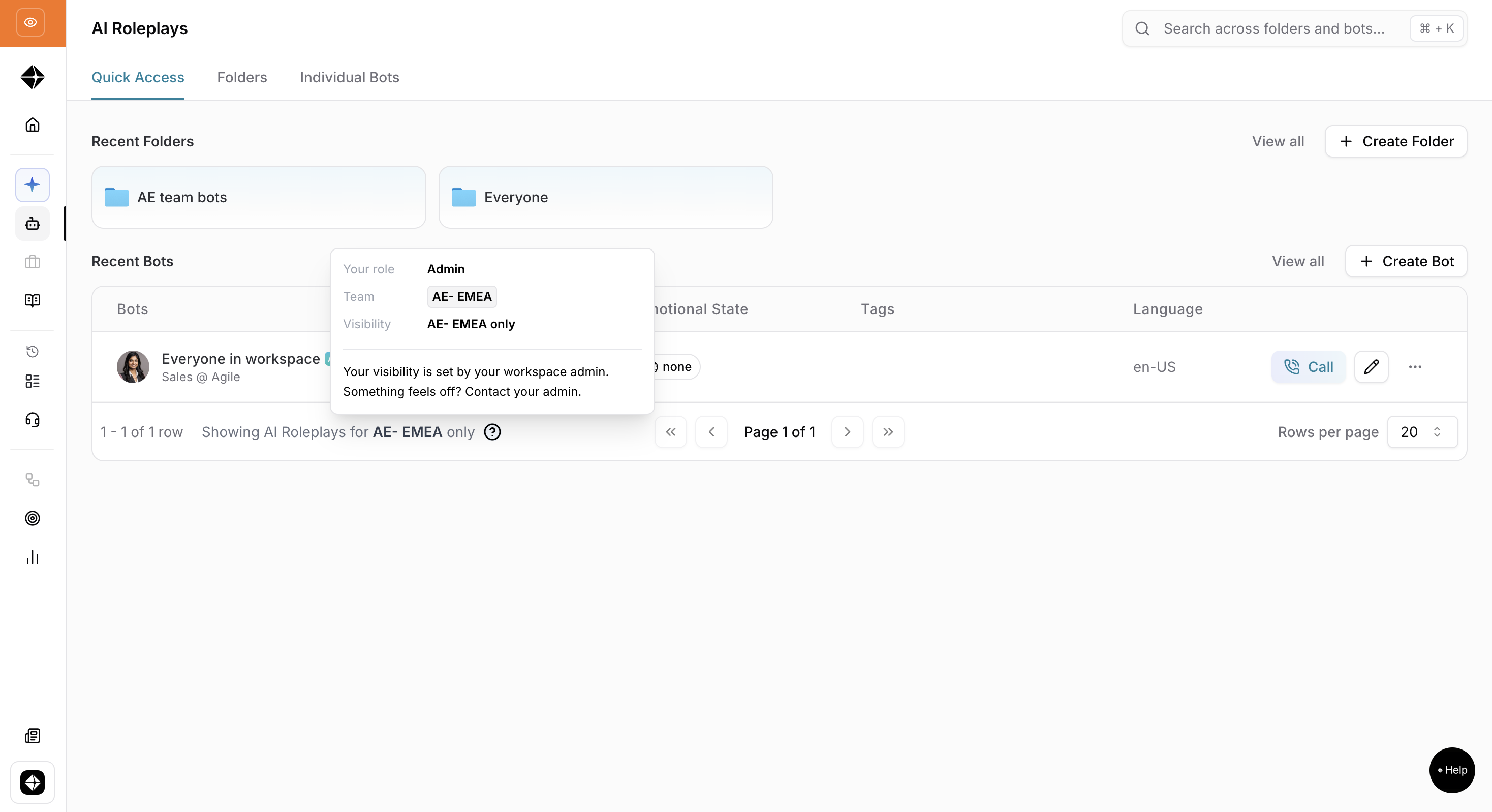
On the Call History pages and AI Roleplay pages, a label at the bottom left of the table shows the current scope. Examples:
"Showing calls for AE only"
"Showing calls across AE + sub teams"
"Showing calls across all teams"
Hovering the ? icon next to the label shows the user their role, team, and visibility setting, and a note to contact their admin if something seems wrong.
User detail panel; admins can check any user's visibility by going to Members, clicking on any user's name to open their detail panel, and looking at the Data Visibility card. It shows their current scope in plain language, for example: "Can see: their team and sub-teams data."
Need help?
Reach out via the chat button or email support@hyperbound.ai.