Ho To: Setting Up Routing Settings
Last updated: September 14, 2026
Welcome to Real Call Scoring!
Routing rules determine how Hyperbound processes your synced calls.
Accessing Routing Settings
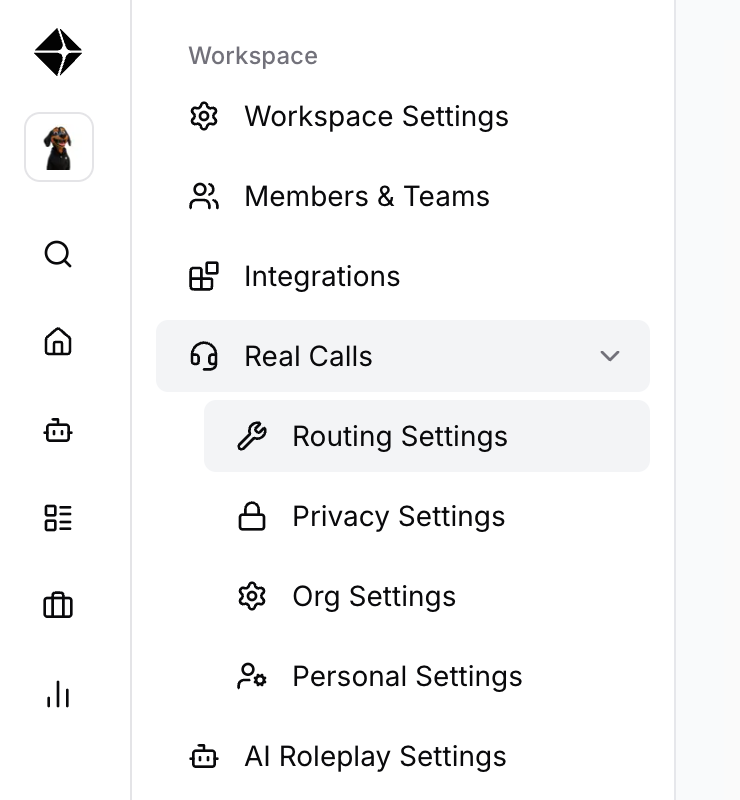
1. Click on Workspace Settings in the sidebar
2. Expand Real Calls
3. Click on Routing Settings
Routing Levels
You can configure routing rules at three levels:
Organization - Applies to all calls across the entire organization
Team - Applies to calls for a specific team
Users - Applies to calls for individual users
Setting Default Behavior
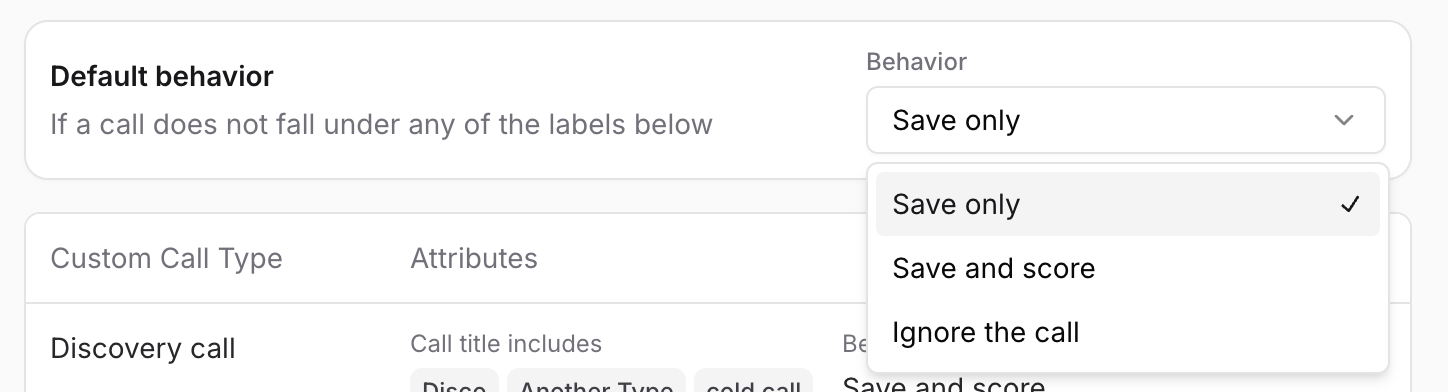
The Default behavior determines what happens when a call doesn't match any of your routing rules.
Ignore the call: Call is not saved or scored
Save: Call is saved but not scored
Save and score: Call is saved and scored with a default scorecard
Creating a New Routing Rule
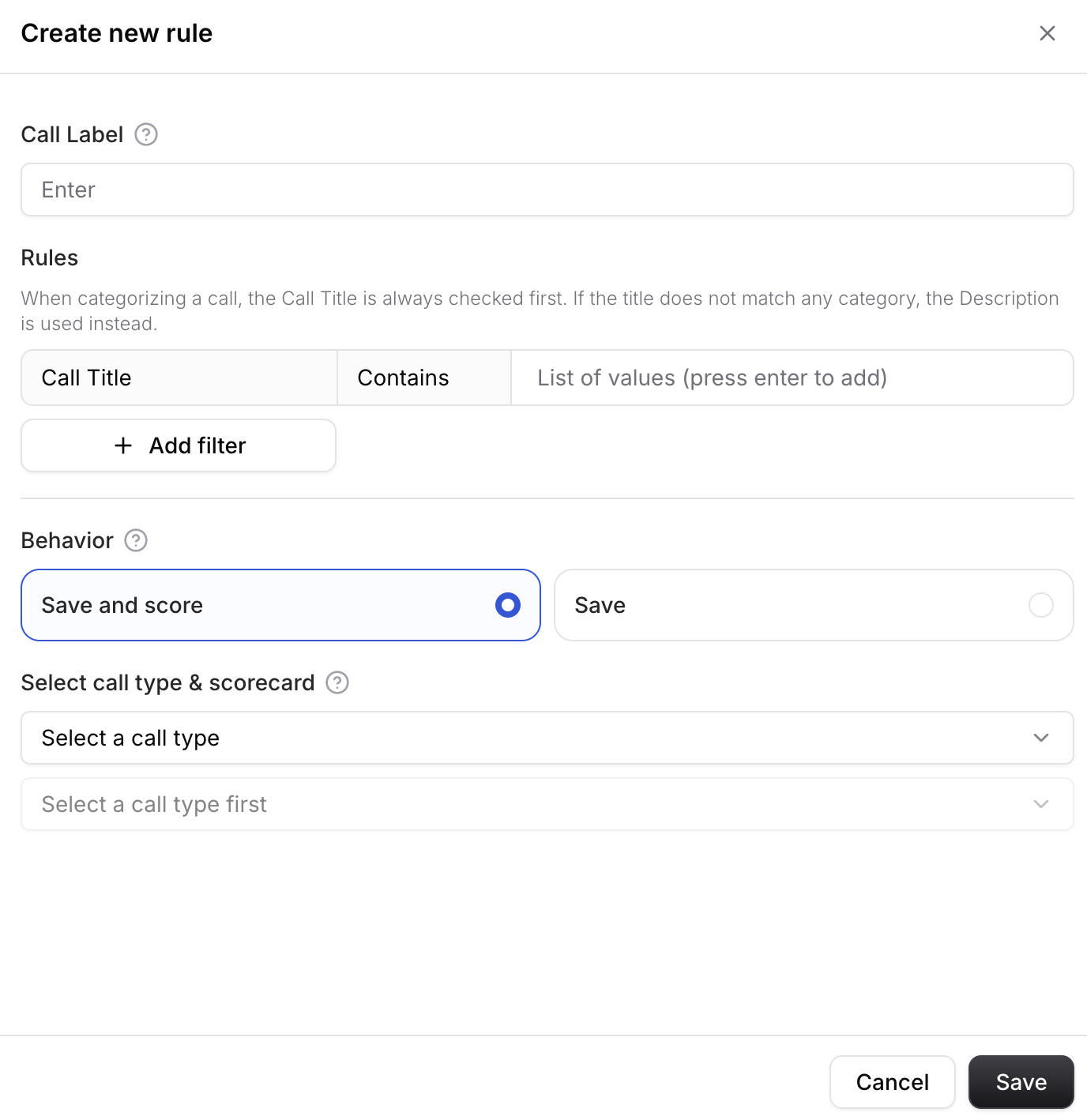
1. Click + New rule in the top right corner
2. Fill in the rule details
3. Click Save
Call Label | Enter a name to classify the call type as |
Rules | Define matching criteria that the AI uses to classify the call |
Behavior | Choose how the calls should be handled |
Select call type & Scorecard | If you select Save and Score, select Call Type from the dropdown and select a Scorecard that should be used for scoring that call type |
Tip: When categorizing a call, the Call Title is always checked first. If the title does not match any category, the Description is used instead.
Best Practices
Start with Organization-level rules for common call types
Use Team-level rules for team-specific scorecards
Use User-level rules for individual rep coaching
Keep your keyword lists focused to avoid false matches
Regularly review unmatched calls to refine your rules