How T: Setup Privacy Settings
Last updated: September 14, 2026
Privacy Settings help you control which meetings get automatically imported and scored in Hyperbound. Use privacy rules to include or exclude calls based on meeting title keywords, attendees, and call duration.
This is useful when you want to:
Exclude internal meetings (standups, 1-on-1s, team syncs)
Only score calls that match your criteria (for example, prospect calls)
Keep sensitive conversations from being analyzed
Who can manage Privacy Settings
Only Admins can create, edit, or delete privacy rules.
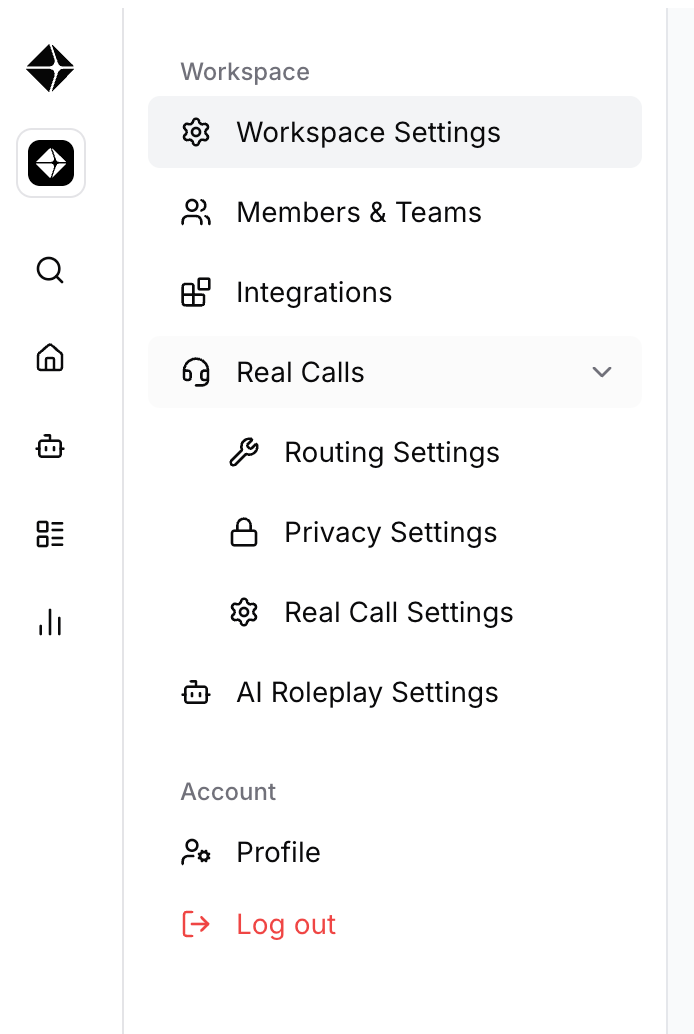
Where to find Privacy Settings
Go to Settings
Select Integrations
Open the Privacy Settings tab
How privacy rules work
Rule hierarchy (priority order)
If multiple rules could apply, Hyperbound checks rules in this order and stops at the first match:
Priority Level Applies to | |
User | Calls made by a specific user |
Team | Calls made by members of a specific team |
Organization | All calls across your organization |
Example: If a call matches both a User rule and an Organization rule, the User rule wins.
Set your Default Behavior first
Default Behavior controls what happens to calls that do not match any rule.
Default BehaviorWhat happens to calls with no matching rule | |
Import the call (Default) | Calls are imported and scored normally |
Ignore the call (Whitelist Mode) | Calls are ignored unless a rule explicitly imports them |
Tip: Most teams start with Import the call, then add a few rules to ignore internal meetings.
Create your first privacy rule
Step 1: Click “Create a Rule”
On the Privacy Settings page, click Create a Rule.
Step 2: Choose the scope
Pick where the rule should apply:
Organization: applies to everyone
Team: applies to one team
User: applies to one user
Step 3: Add filters
All filters you set must match for the rule to apply (AND logic).
Filter: Call Title
Match keywords in the meeting title.
Enter keywords (partial matches count)
Example input:
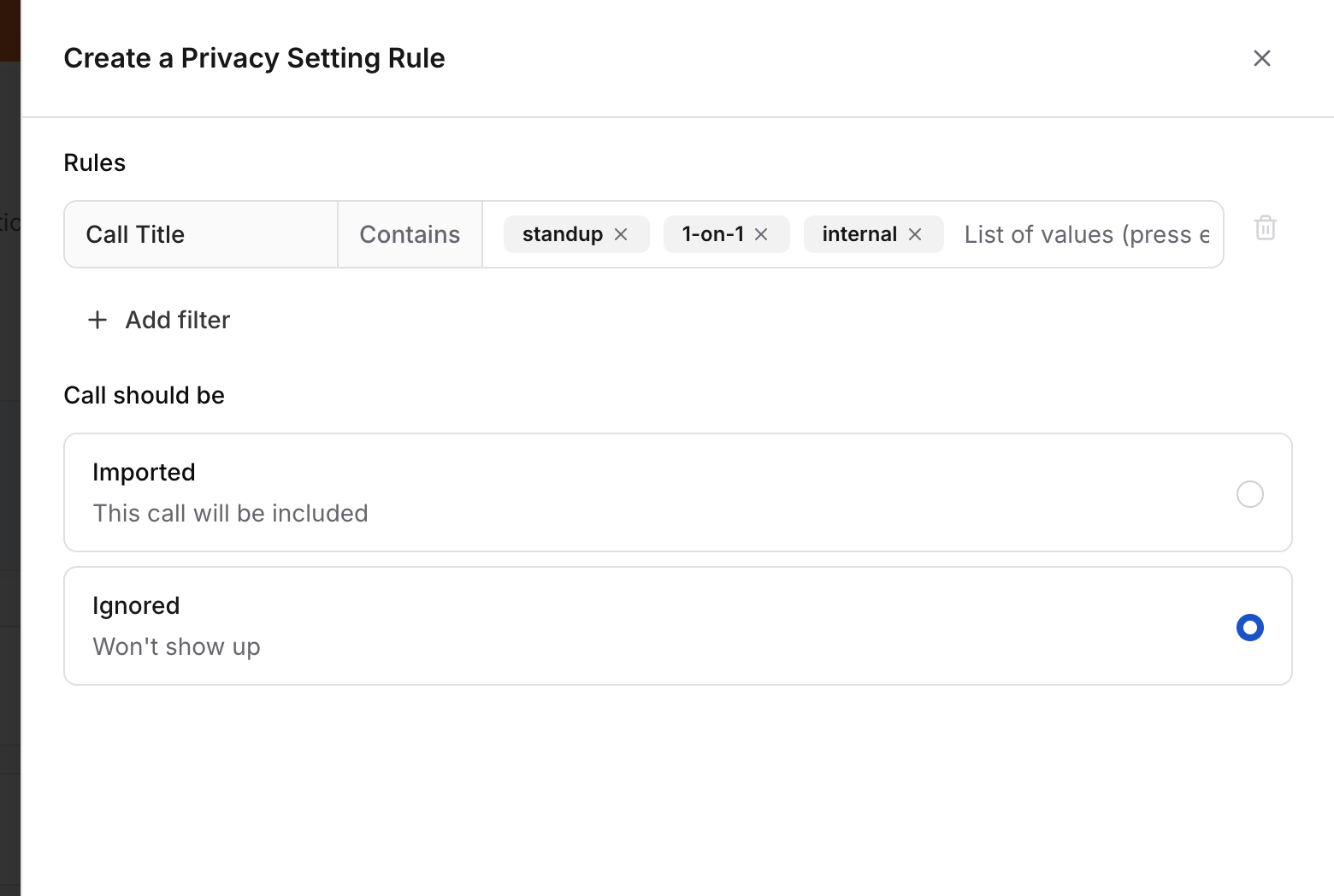
Matches titles like:
“Daily Standup”
“Manager 1-on-1”
“Internal Team Sync Meeting”
Filter: Attendees
Match calls that include all selected participants.
Select one or more users from the dropdown
The call must include every selected person to match
Filter: Call Duration
Match calls based on length (seconds).
Minimum Duration: match calls longer than this
Maximum Duration: match calls shorter than this
Use both for a range
Step 4: Choose the outcome for matched calls
Pick what happens when the rule matches:
Outcome Result | |
Ignored | Call is hidden and not scored |
Imported | Call is imported and scored normally (common in Whitelist Mode) |
Step 5: Save
Click Save. The rule applies immediately to new incoming calls.
Use Cases and Examples
1) Exclude internal meetings
Goal: Prevent internal meetings from being scored
Scope: Organization
Call Title:
standup, 1-on-1, sync, internal, team meeting, all-handsOutcome: Ignored
2) Exclude short calls (test calls, quick check ins)
Goal: Ignore calls under 2 minutes. Usually for a cold call, good quality conversations last over atleast a minute.
Scope: Organization
Maximum Duration:
120Outcome: Ignored
3) Whitelist Mode: only score likely customer calls
Goal: Only import calls you expect to be sales calls
Set Default Behavior to Ignore the call
Create this rule:
Scope: Organization
Minimum Duration:
600Outcome: Imported
This ignores everything by default, but imports calls over 10 minutes.
4) Exclude a specific user’s 1-on-1s
Goal: A leader wants their 1-on-1s excluded
Scope: User (select the user)
Call Title:
1-on-1, 1:1, one-on-oneOutcome: Ignored
What you will see when calls match a rule
If a call is Ignored
Saved in the database for audit purposes
Hidden from your dashboard
Not scored
No summary emails are sent
If a call is Imported
Visible in your dashboard
Scored normally
FAQ
Do privacy rules apply to existing calls?
No. Rules apply only to new incoming calls.
Can I see which rule matched a call?
Ignored calls are hidden from the dashboard. Matches are logged internally for audit purposes.
What if multiple rules could match a call?
The first match wins based on priority: User, then Team, then Organization.
Can non admins create privacy rules?
No. Only Admins can create, edit, or delete rules.
What’s the difference between “Ignored” and not importing at all?
Ignored calls are still saved (hidden), which supports audit trails and potential future reprocessing. They just are not scored or shown in the dashboard.
Need help?
If you have questions about configuring privacy rules or want help with a specific setup, contact Hyperbound Support.