Setting up Hyperbound's Meeting Recorder
Last updated: August 17, 2026
Hyperbound's Meeting Recorder joins your Zoom, Google Meet, and Microsoft Teams calls and captures them for analysis. To enable it, you just need to connect your calendar — one connection covers all three meeting platforms. Setup only takes a few minutes.
Step 1: Go to Integrations
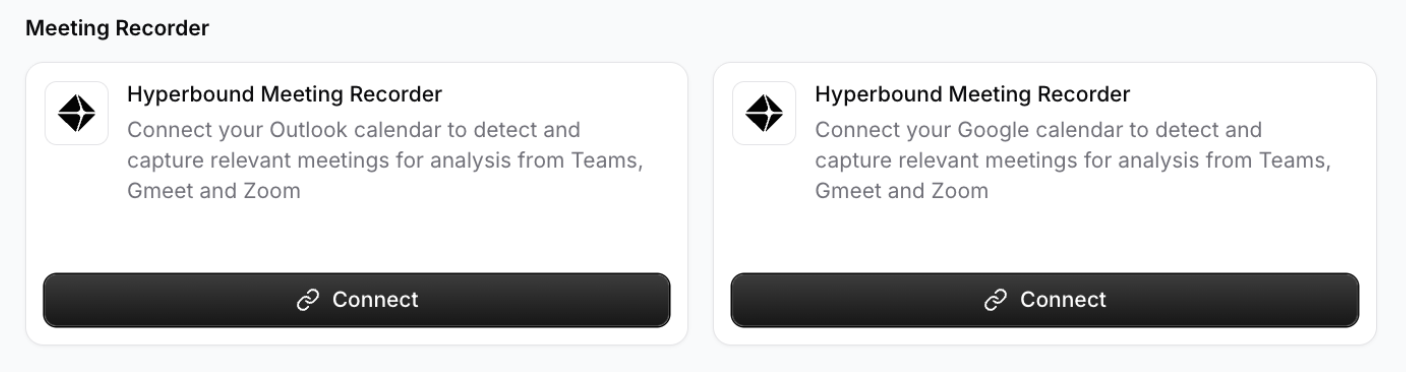
Navigate to Workspace Settings → Integrations. On the Available tab, scroll down to the Meeting Recorder section. You'll see two Hyperbound Meeting Recorder cards — one for Outlook calendars and one for Google calendars.
Step 2: Connect your calendar
Click Connect on the card that matches your calendar provider (Google or Outlook).
You'll be redirected to Google or Microsoft to sign in and approve calendar access, which lets Hyperbound see your scheduled meetings.
Once you approve, you're brought back to the Installed tab, where the recorder now appears as an installed integration named Hyperbound Meeting Recorder.
That's the whole connection — there's no separate setup per meeting tool. Once your calendar is connected, the recorder can join Zoom, Google Meet, and Microsoft Teams calls automatically.
Step 3: Choose which meetings get recorded
By default, the recorder joins every meeting on your calendar that has a supported meeting link. To fine-tune this, click View Calendar on the installed integration card:
Rules tab — add rules to exclude meetings you don't want recorded (for example, by meeting name or attendee). You can also adjust the Bot Join Shift to control how many seconds before or after the start time the recorder joins.
Calendar tab — preview your upcoming meetings and see whether the recorder is set to join each one. You can override the decision for any individual event.
Step 4: You're all set!
Hyperbound will now automatically detect meetings from your calendar, record supported calls, and make them available for review and scoring — no manual steps needed before each call.
Recording a single meeting on demand
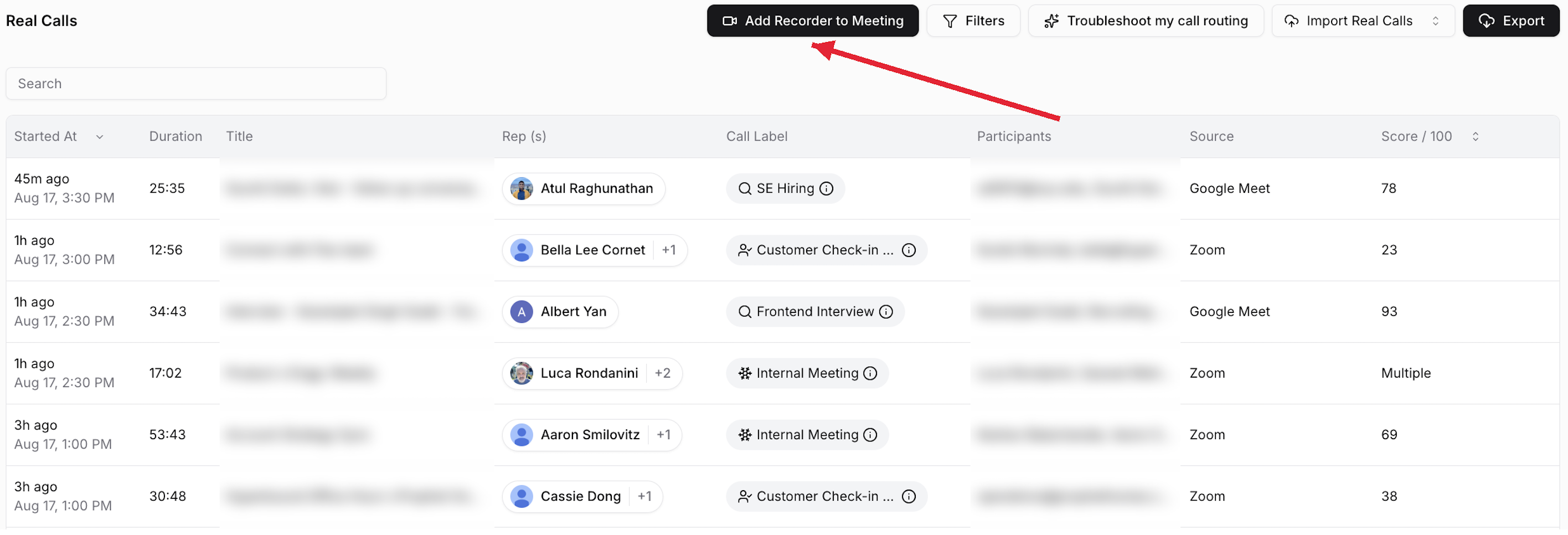
Need to record a meeting without setting up your calendar?
Use Add Recorder to Meeting from the Real Calls page: paste the Zoom, Google Meet, or Microsoft Teams link and the recorder will join that one meeting.
Managing your Meeting Recorder
From the Installed tab, use the menu on the integration card to Rename, Pause/Resume, or Remove the recorder. If Hyperbound loses access to your calendar (for example, after a password change), a Re-connect button appears on the card — click it to re-authorize.
Need help?
Reach out to our support team via chat or email us at support@hyperbound.ai