How To: Save and Manage Draft Bots
Last updated: July 29, 2026
When you're building a bot in the Bot Builder, you don't have to finish and publish it in one sitting! Save as Draft lets you pick up right where you left off, without losing any of your work.
How It Works
Save your progress as a draft
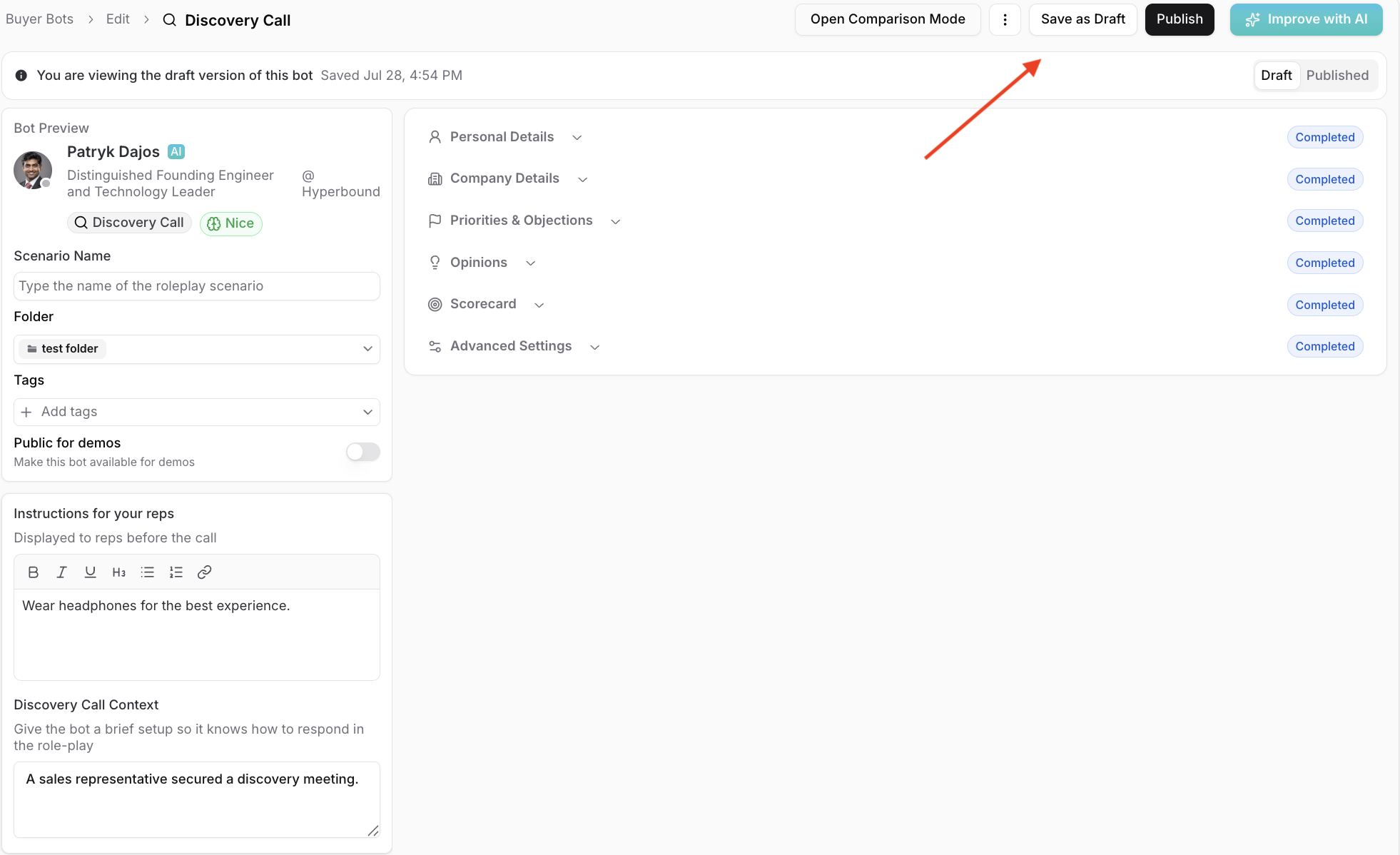
While building a bot, click Save as Draft in the top right of the Bot Builder.
This works whether you're creating a brand new bot or editing one that's already published.
Leave the page without losing work
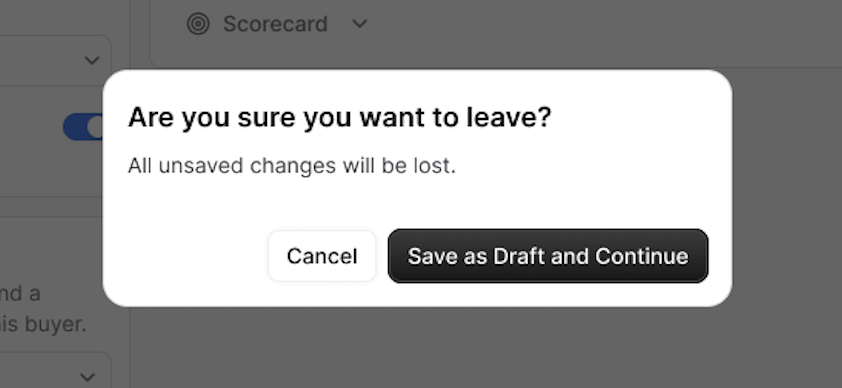
If you try to navigate away with unsaved changes, you'll see a prompt asking if you want to leave.
Choose Save as Draft and Continue to save your progress before leaving, or Cancel to stay on the page.
Pick up where you left off
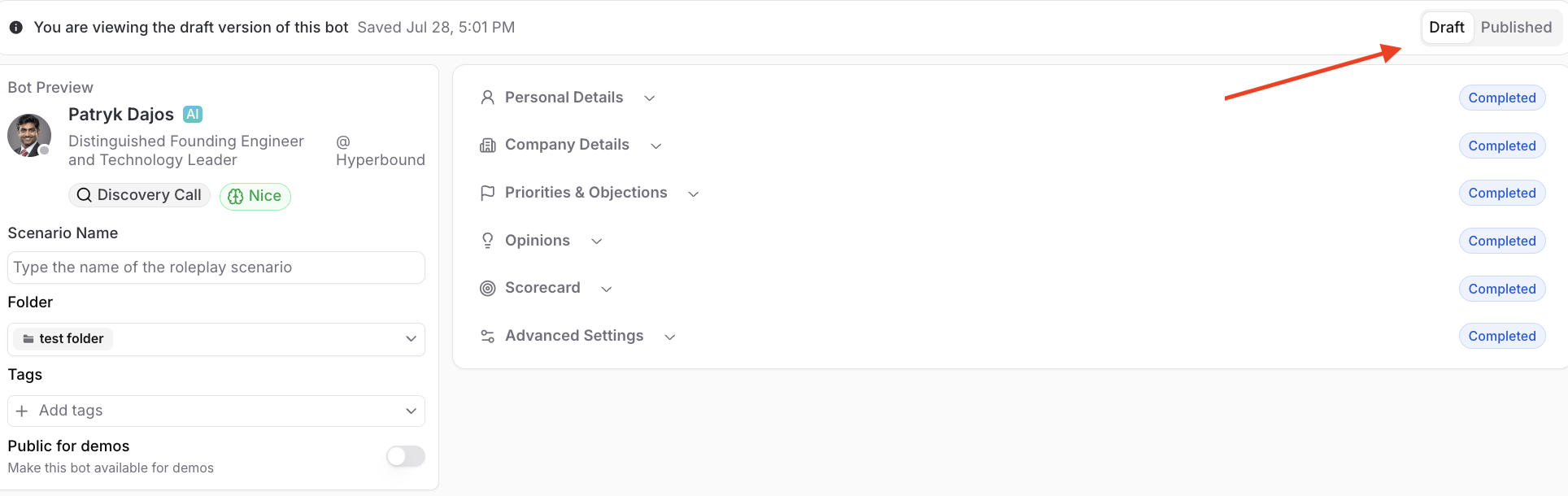
Open the bot again and you'll land directly on the draft version, with all your fields exactly as you left them.
A banner at the top confirms you're viewing the draft version and shows when it was last saved.

Understanding Bot States
A bot can be in one of three states:
Draft only: The bot hasn't been published yet. It isn't visible to reps and can't be used in calls or added to a Learning Module.
Published only: The bot is live and available across Hyperbound.
Draft + Published: The bot is live, and someone has since made unsaved edits to it that haven't been published yet.
If a bot has both a draft and a published version, you'll land on the draft version by default when you open it. Use the Draft / Published toggle in the top right of the Bot Builder to switch between the two versions.
Comparing Draft and Published Versions
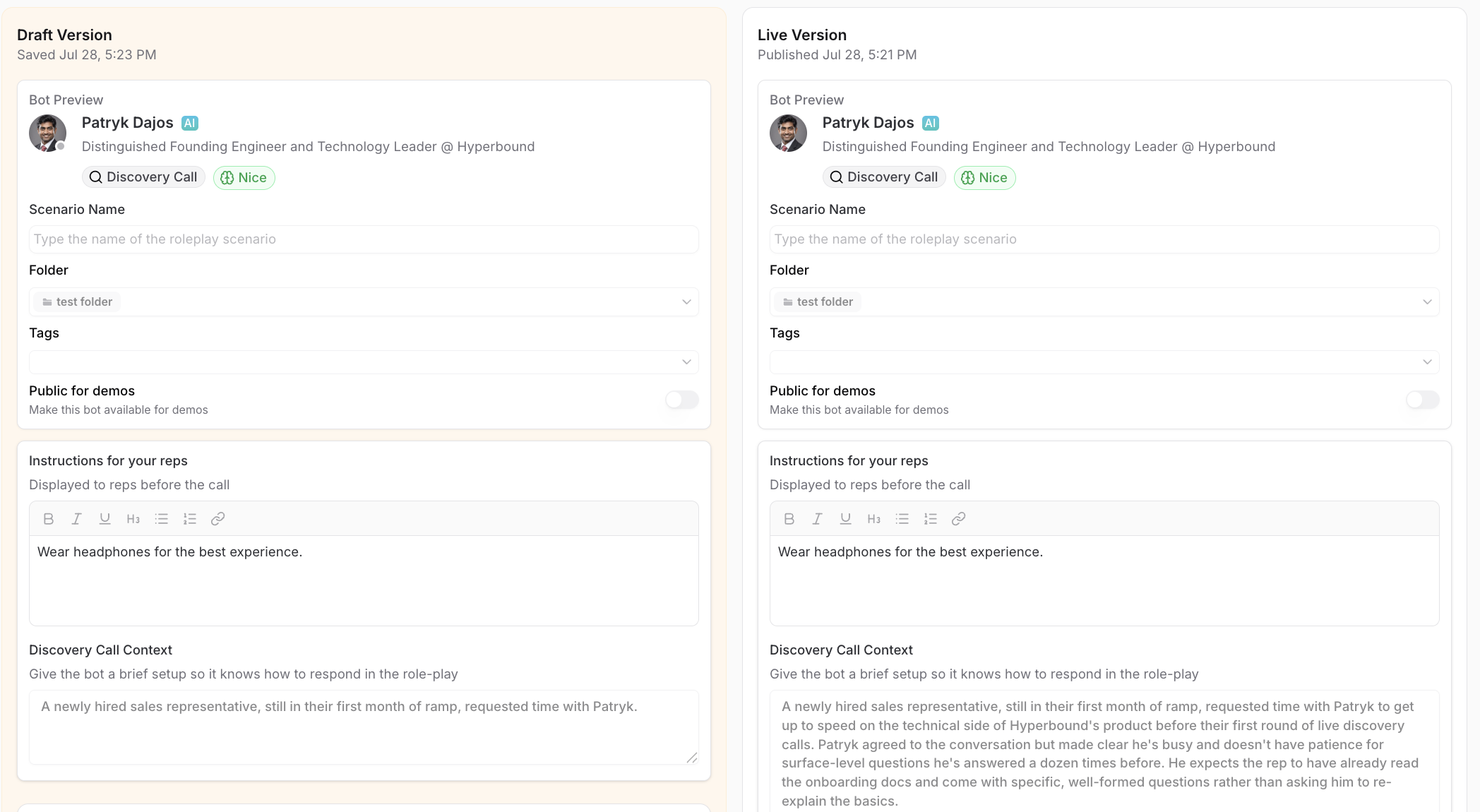
If a bot has both a draft and a published version, click Open Comparison Mode in the top right of the Bot Builder to see them side by side.
Why? This is useful when you want to review exactly what's changed before publishing, especially if the draft edits were made by someone else on your team.
Comparison mode shows both versions of every section so you can spot differences at a glance.
Where Draft Status Shows Up
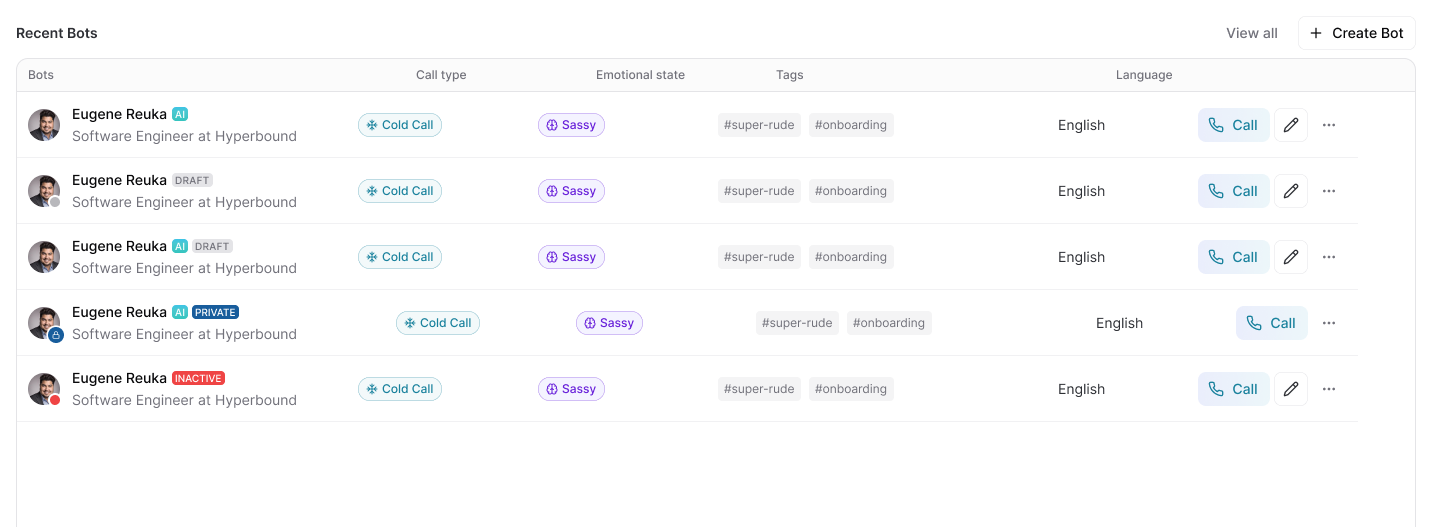
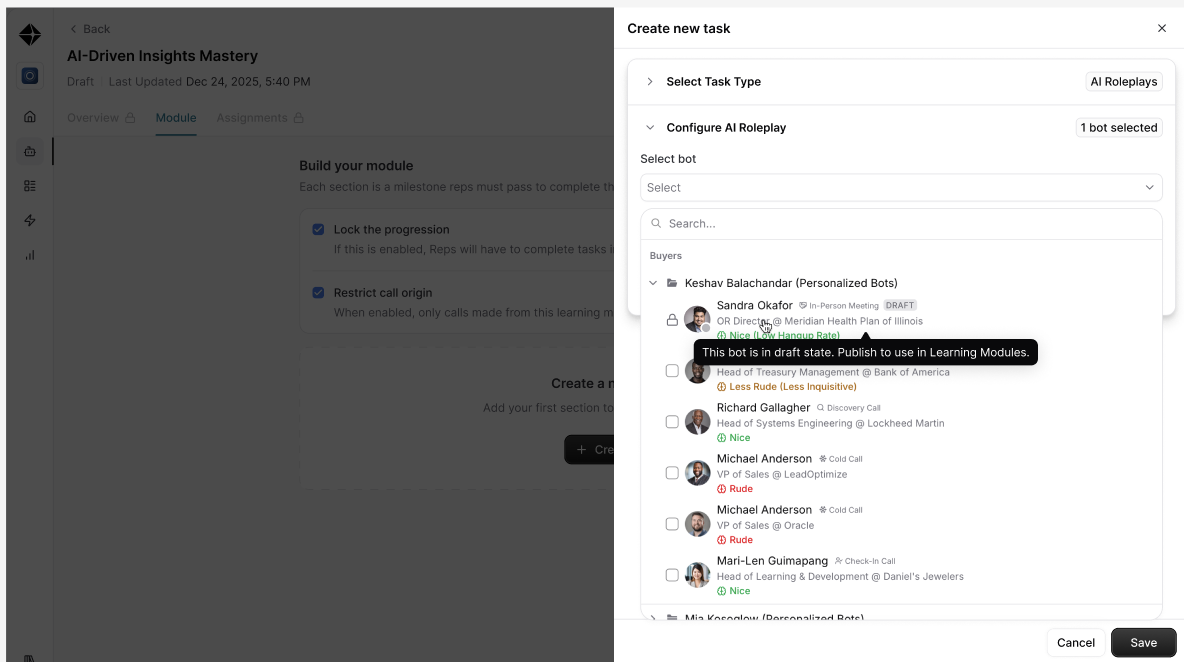
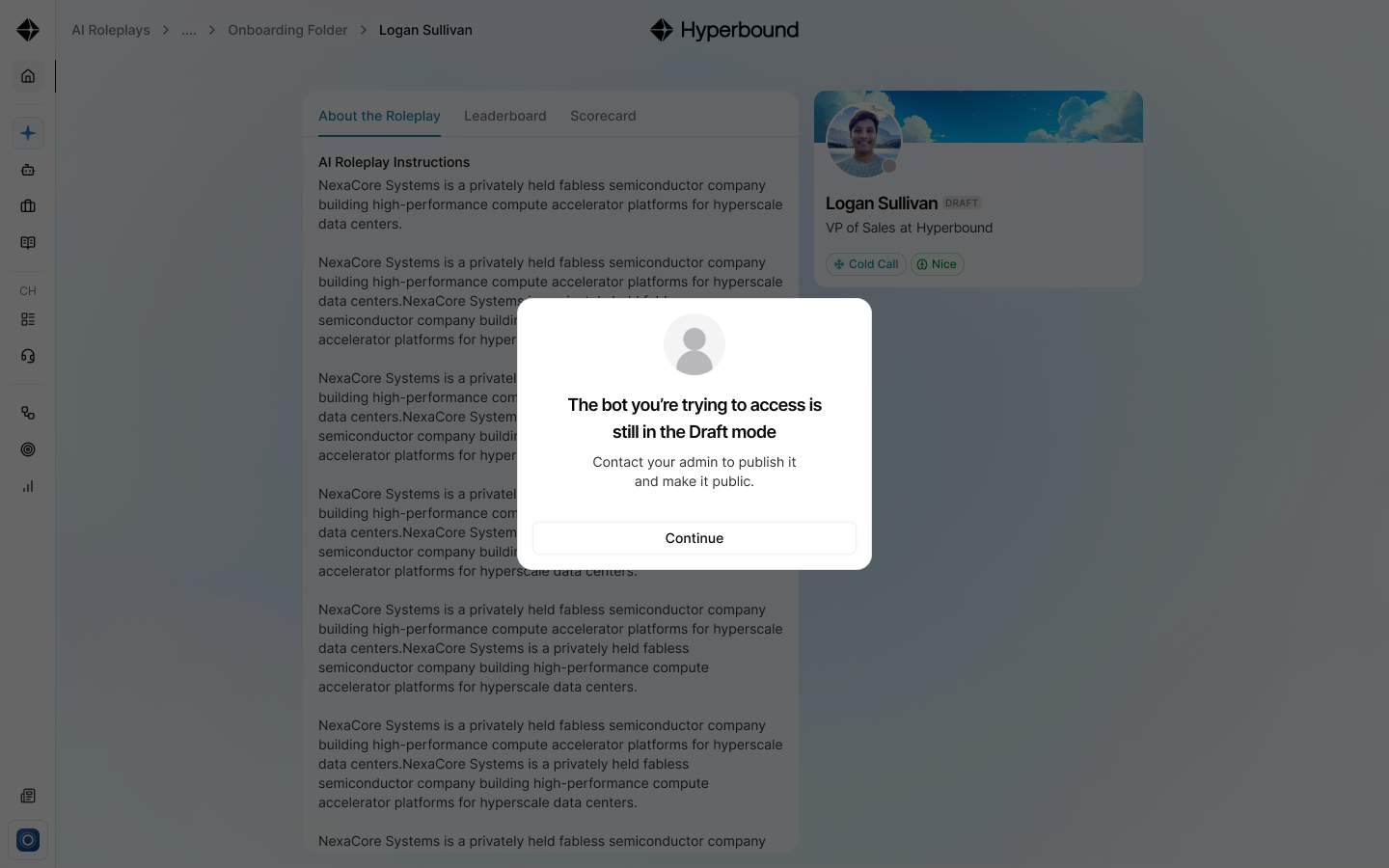
Because a draft bot isn't finished, its draft status is reflected everywhere the bot appears:
AI Roleplays (Quick Access) and Individual Bots
Learning Modules
Draft bots can't be selected or assigned. Only published bots are available here.
Pre-Call
Notes
Only admins can see and edit draft versions of a bot.
Reps and members can never access a draft bot, even with a direct link.
Publishing a draft doesn't delete your draft history. If you make further unsaved edits after publishing, the bot moves back into the Draft + Published state.
If you have any other questions, feel free to reach out to the Hyperbound team, either via the chat button, or email us at help@hyperbound.ai.