Outlook Workspac
Last updated: August 12, 2026
Learn how to connect Outlook Hyperbound so you can automatically import your emails and calendar
Ensure Outlook is enabled for your company, if not, reach out to your SE team
What connecting Outlook does
It brings your email and calendar into Hyperbound so Kota, the AI deal coach, can read deal health, risks, and coaching moments from the full picture, not just calls.
Once connected, Hyperbound pulls in:
Emails: threads tied to each deal and stakeholder.
Calendar events: past and upcoming meetings, including a deal's next meeting.
Where it shows up:
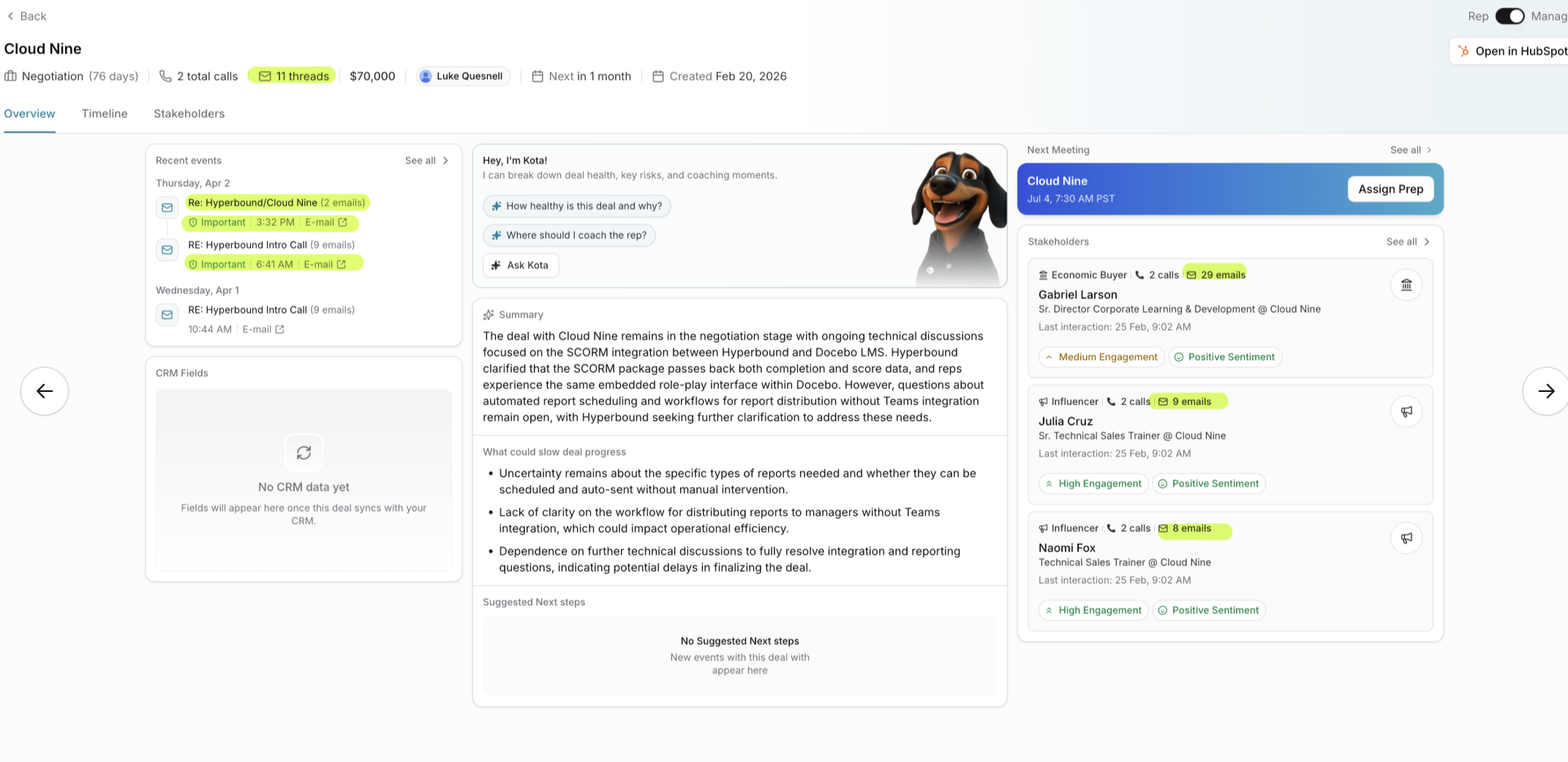
Recent events: see your email threads
Next Meeting: from your calendar, and stakeholder cards with email and call volume, engagement, and sentiment
Kota uses it all to write the deal Summary and risks
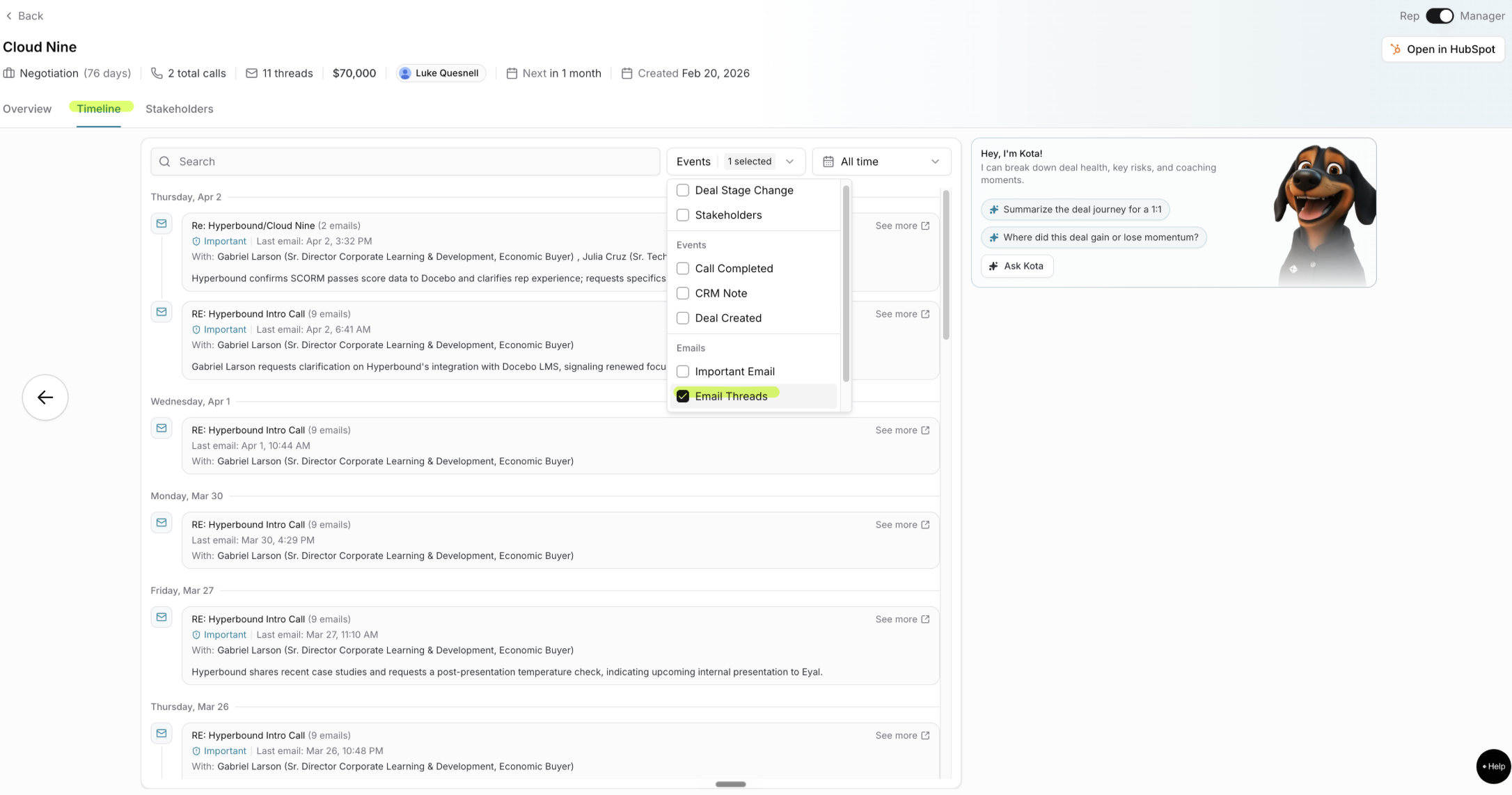
Timeline: every email thread in order with an AI summary. Filter by type using the Events filter (Email Threads, Important Email, Call Completed, and more).
Stakeholders: each contact is tracked with their email count, engagement level, and sentiment, so you can see who's driving the deal and who's gone quiet.
Together, this is what extends Hyperbound Perform beyond call scoring into full deal coaching. Kota can answer questions like "How healthy is this deal and why?" and "Where should I coach the rep?" because it can see the emails and meetings, not just the calls.
1. Create the Integration in Hyperbound (admin)
Go to Workspace Settings > Integrations
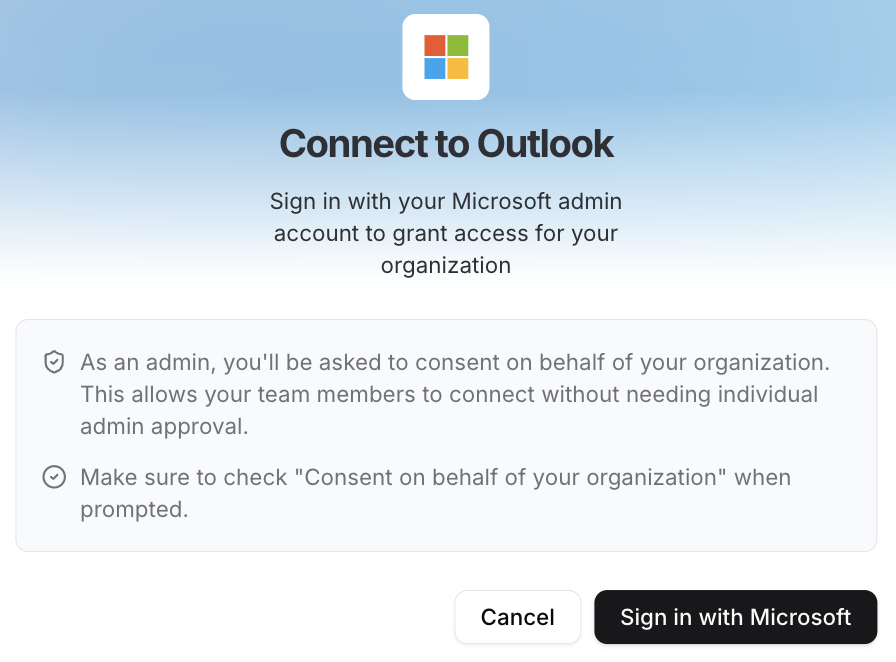
In the Available tab, find Outlook and click Sign in with Microsoft
Microsoft is now enabled for the members and teams you selected
2. Setting up the Integration for Members (member)
Check your inbox for an invite from Hyperbound. The subject line reads:
"[Inviter's name] invited you to connect your Outlook Workspace"
Click Accept Invite
In Hyperbound, click Connect with Outlook
Choose the Outlook account you want to connect
Review the permissions Hyperbound requests and click Allow
Managing Your Integration
From the Integrations page you can:
Settings: navigate to the External Workspace Connection Settings.
Remove: remove the integration entirely
From the External Workspace page you can:
Track the status of these invites: see everyone connected to your organization's Outlook integration, along with their email and team
Active = connected
Invited = invite sent, not yet accepted
Search and filter: use the search bar to find a user, or the Teams dropdown to filter by team.
Add: click + Add to invite additional members or teams to connect their workspace.
Manage a user: use the ⋯ menu on any row to Resend Invite or Remove that user.
FAQs
How do I know if a user has connected successfully?
Check the Status column on the External Workspace page. Active means the user has connected their account; Invited means the invite was sent but hasn't been accepted yet.
How do I disconnect a user or remove the integration?
To disconnect one person, use the ⋯ menu on their row and select Remove. To remove the integration for the entire organization, go to the Integrations page and choose Remove.
Still need help?
Contact support@hyperbound.ai