Kota Automations: How to Write and When to Use!
Last updated: October 1, 2026
Automations are standing instructions that watch your calls, deals, meetings, and role plays, and send you a report or nudge the moment something matches, without you extra work
Flag stalled deals, draft a follow-up email, catch every competitor mention, or send your team a weekly digest.
Understanding automation types
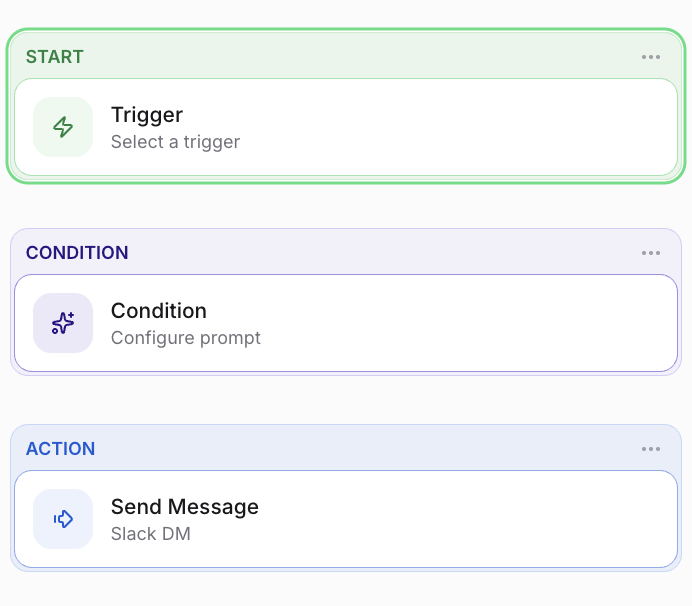
Automations run in one of two ways, and knowing which one you need will help you set it up correctly.
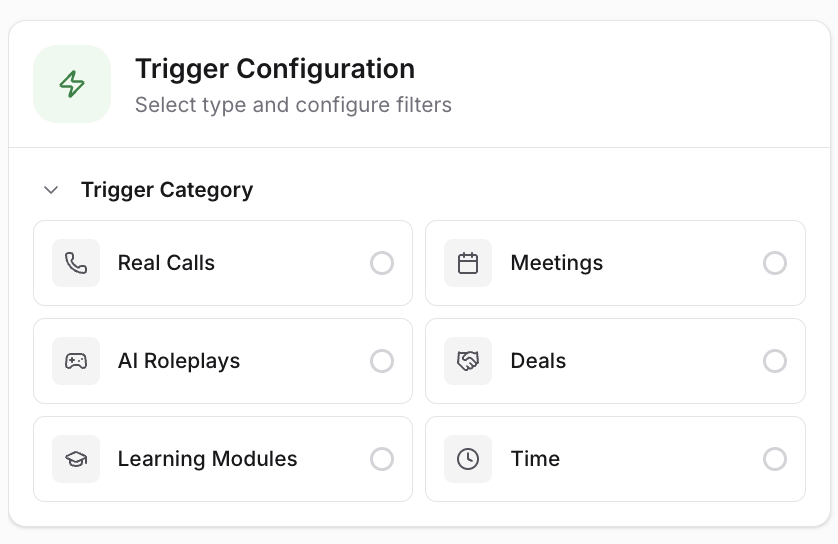
Event-based automations fire off something that just happened
A call ending, a meeting about to start, a deal moving stage, no activity on a deal for a set number of days, a role play getting completed.
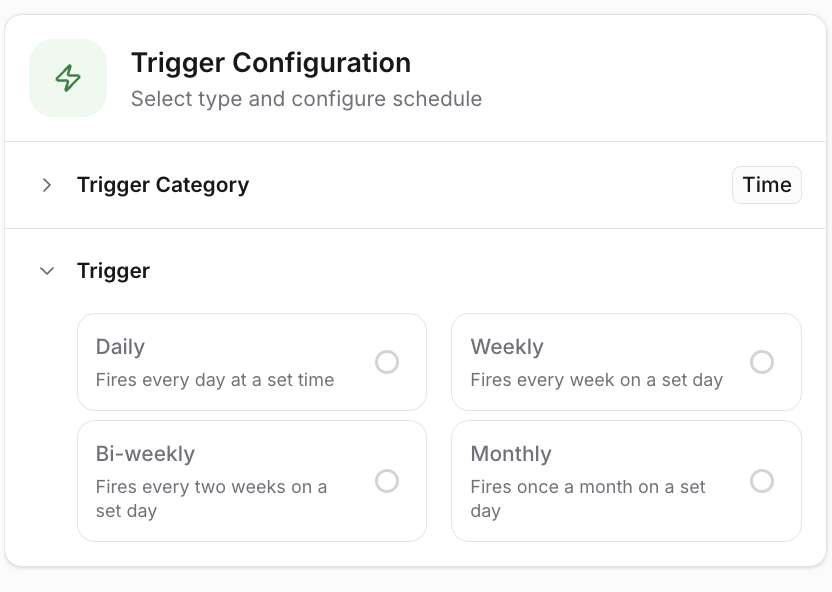
Time-based automations run on a cadence instead of an event: daily, weekly, biweekly, or monthly. Use these when you want a standing digest rather than a ping every time something happens.
A sales manager who wants a Friday afternoon rollup of every deal that moved, rather than a message every single time, would set this up as time-based.
Common use cases
Automations can handle a wide range of jobs depending on your role.
For reps
Getting a one-line reminder before a call of the one thing not to mess up
Getting a top-3-bullet summary after every call, focused on next steps
Having a follow-up email drafted automatically after each call
For sales managers
A weekly notice of any deal with no calls, emails, or calendar activity in the last 7 days, with a recommended next action
An alert the moment a deal moves from Contract Sent to Closed Won
A weekly audit of deals marked "commit" that actually look at risk
For Rev Ops
A notification whenever a competitor is mentioned on a call, including how it came up (are they replacing them, already using them, or challenging you directly)
Deal-stage-change alerts wired to your CRM, so the trigger reflects reality in HubSpot or Salesforce, not just Hyperbound
For Enablement
A weekly summary of what your top-performing rep does in the first two calls that other reps don't
A completion report when a learning module assignment is finished, or a heads-up when one is coming due
Choosing where an automation should land
Every automation ends with an action: Slack, Microsoft Teams, or Email. The right one depends on who needs to see it and how urgently.
Rule of thumb: the more personal or time-sensitive the nudge, the more it belongs in your own Kota bot DM or an email draft you can send yourself. The more a message is meant for a team to see and act on together, the more it belongs in a shared Slack or Teams channel.
Email actions land as a draft in your inbox rather than sending automatically, so you still review and hit send. Slack and Teams messages can go to a personal bot thread if you'd rather keep it private, or a specific channel if the whole team should see it.
Controlling who can see an automation
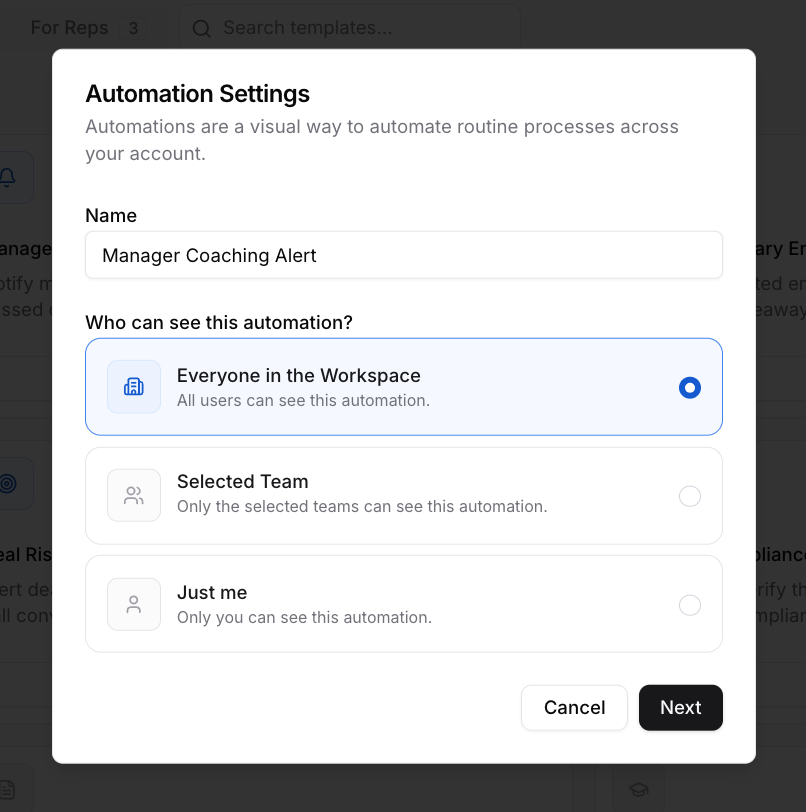
Visibility decides who can find and open an automation. You have three choices:
All teams you have access to so anyone on those teams can see it
Specific teams when only certain teams should
Just me to keep it private
Other people can open an automation you've shared, but they can't edit it. Only the owner can make changes.
Writing an effective automation
The way you describe an automation to Kota directly affects how useful the output is. A vague instruction gets a vague result, so if consistency matters, spend the extra minute being specific.
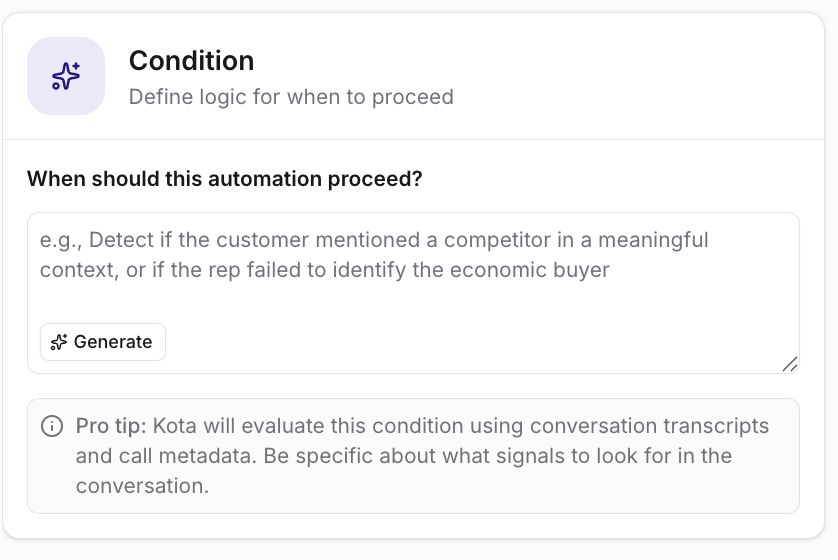
Describe what you want
Rather than clicking through every field by hand, describe what you want in plain English and let Kota create the message
Example: After every call, check whether a next step was logged with a date. If not, notify me on Slack so I can follow up before the deal goes cold.
Reuse a template once you have one
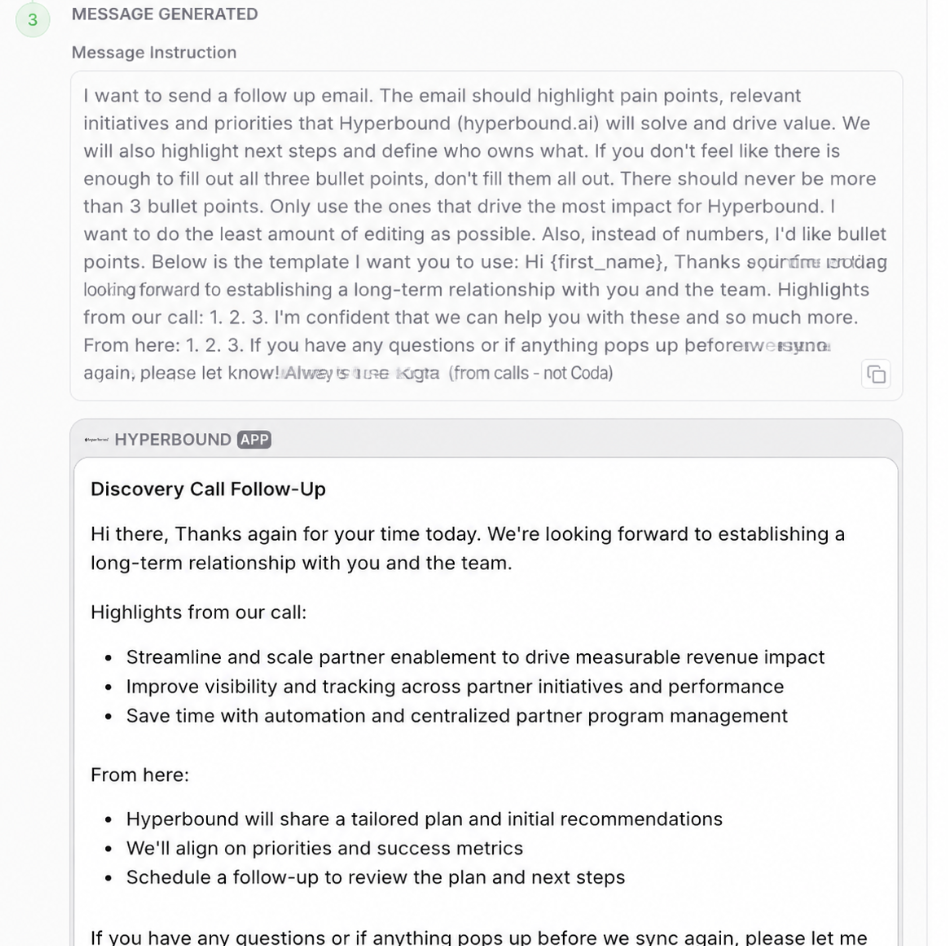
If you already have a format you like (a post-call recap you write by hand, a follow-up email template), paste it in directly instead of describing it from scratch. That exact wording becomes the instruction for how the message should read every time.
Be specific about formatting
If the output needs to look a certain way, say so. "Never more than 3 bullets, only the ones that matter most" produces a very different message than "summarize the call." Tell Kota the shape you want, not just the topic.
Testing and refining
Writing an automation is iterative. Set the trigger and condition, click Test, and Kota finds a real past event that matches and shows you exactly what the output would look like. Nothing goes out to anyone else during a test. If the message isn't quite right, adjust your instructions and test again before publishing.
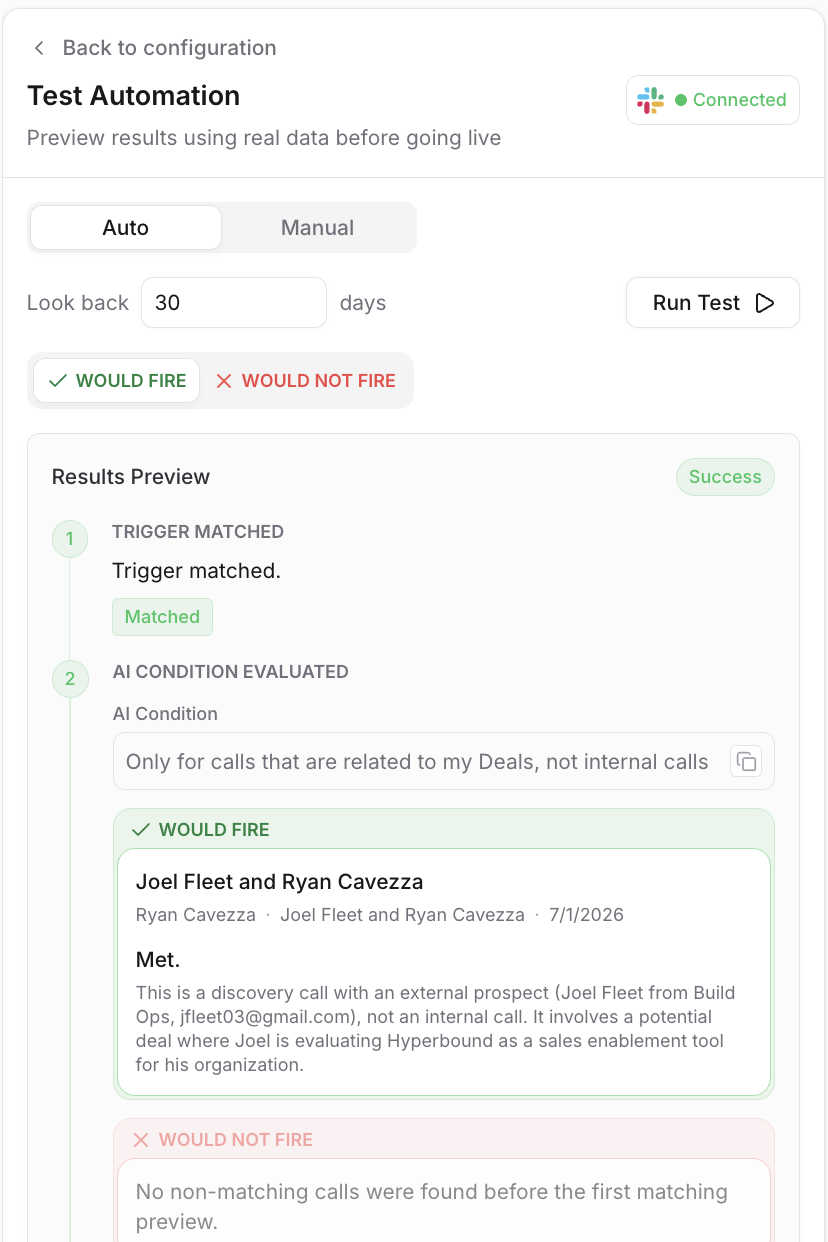
Once you publish, the automation only starts firing for events going forward — it won't retroactively notify you for anything that matched before you published it.
Controlling what data an automation reads
Data access is what the automation is allowed to look at.
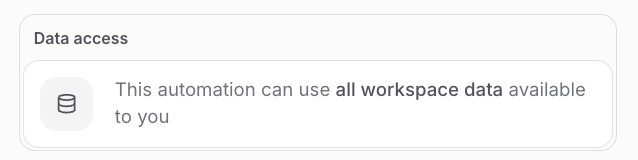
The default is All data available to you. This means the automation can look at everything you can already see in Hyperbound. If you want it to look at less, you can point it at specific teams or just your own data.
An automation only ever reads what you can see. So the same automation gives different results for different people, because each person can see different data.
A manager runs it and gets their whole team's calls and deals. A rep runs the same one and gets only their own.
When you open an automation someone else made, it shows whose data it uses, so you always know.
Open a teammate's automation and it says "All data available to Aguilia" instead of your name.
Understanding what automations can and can't do
Automations are grounded in your Hyperbound data — calls, deals, meetings, role plays, and learning modules — plus whatever's synced in from your connected CRM. Keep a few things in mind:
They surface information and draft content; they don't take actions on your behalf.
A personal automation only ever reads your own data, even if you add teammates to the audience. If you need it scoped to a whole team's data, set it up as a team automation instead
Getting inspiration from templates
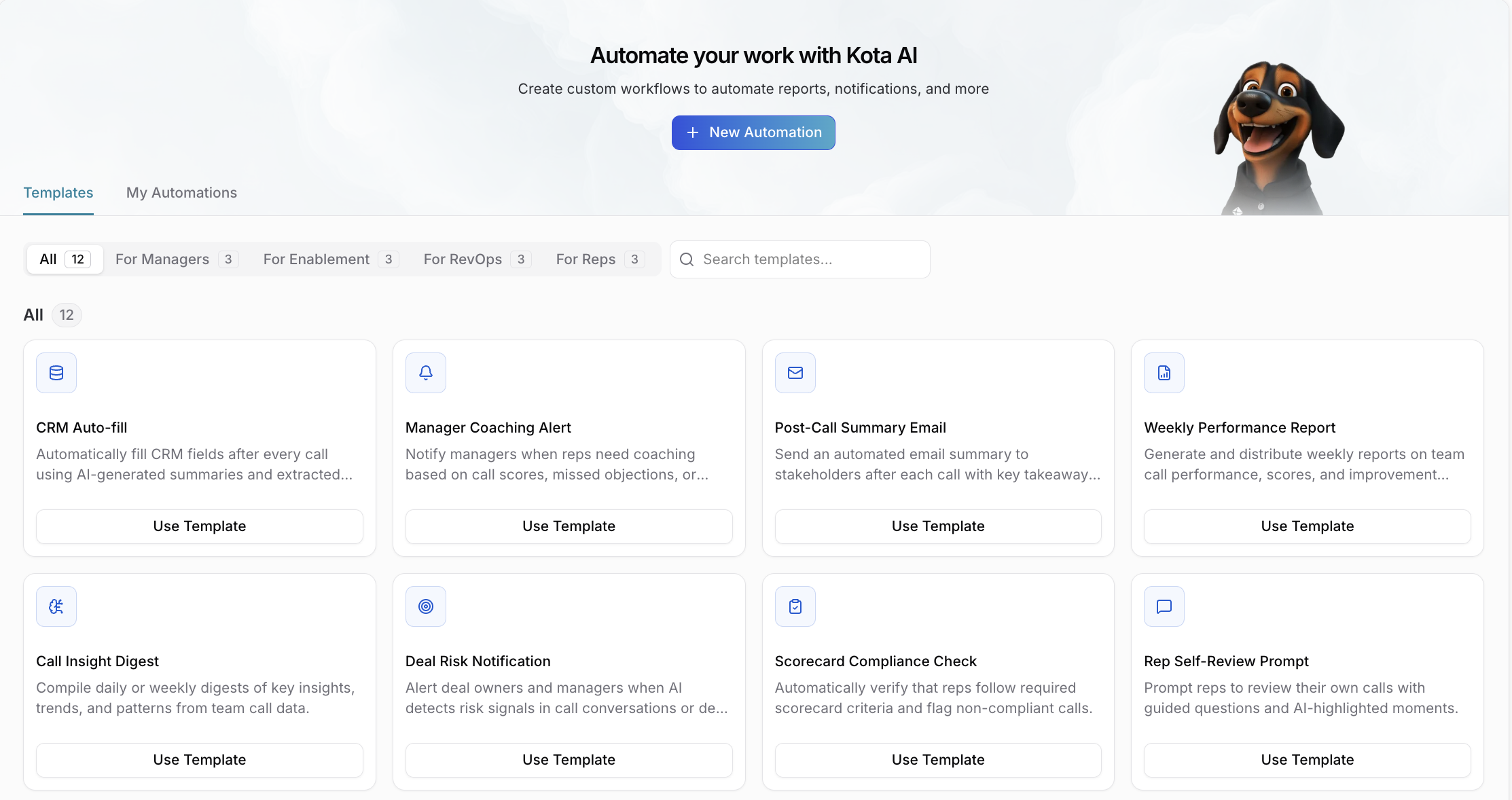
Sometimes it's easier to start from something that already works. Automations comes with templates pre-built for Reps, Sales Managers, Rev Ops, and Enablement. Browse Templates, and duplicate one to jump straight into the editor with a working starting point already filled in.