Slack x Hyperbound: Getting Started with Kota in Slack
Last updated: March 18, 2026
Kota is Hyperbound’s AI revenue assistant. Connecting Slack lets you interact with Kota directly where your team already works.
Once connected, you can:
• Ask Kota questions about deals, calls, and coaching modules
• Receive AI-powered insights and summaries in Slack
Setting Up Slack
Prerequisites
Contact your SE to enable the slack integration for your org.
You need permission to install apps in your Slack workspace (or the ability to request approval from your Slack admin).
Connect Slack to Hyperbound
In Hyperbound, navigate to Settings → Integrations.
Find the Slack Integration card -> Connect
You will be redirected to Slack.
Click Allow to authorize the connection.
That's it, Slack is connected and Kota is ready to use.

Using Kota in Slack
You can DM the Hyperbound bot in Slack. Just type your question normally.
Example:
What were the key objections in my last demo call?Multi-Organization Support
If your email is associated with multiple Hyperbound organizations:
The first time you use Kota, you'll be prompted to select which organization you'd like to query.
To change your default organization at any time, use the
/changeorgcommand in Slack. You'll see a dropdown of your available organizations.
Managing Notification Preferences
Kota can send you proactive notifications via Slack DMs. You can control exactly which types of notifications you receive.
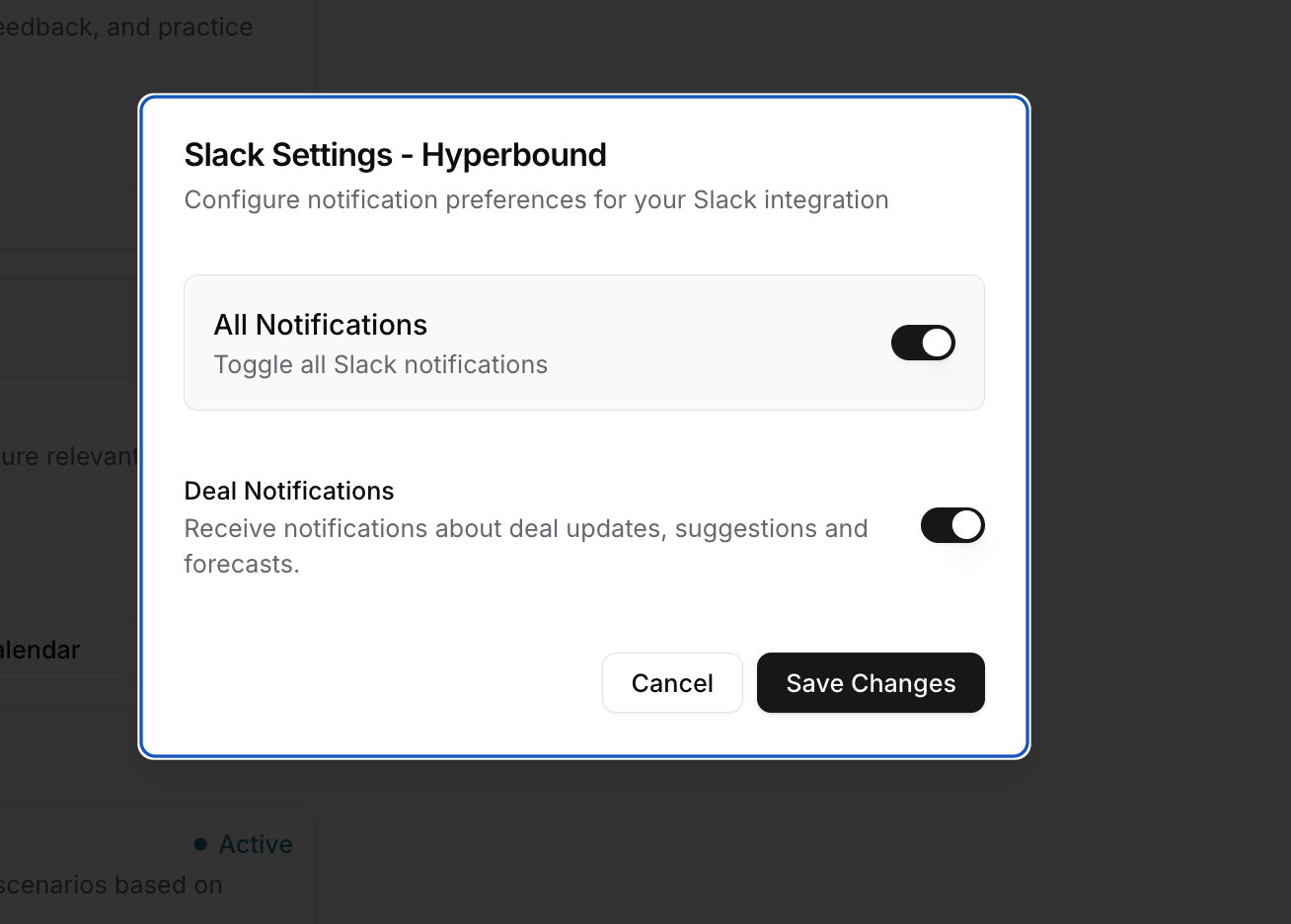
Adjusting Notification Settings
Go to Settings → Integrations.
Find the Slack card in the Installed tab.
Click the Settings button.
In the Slack Settings modal, you'll see toggles for three notification categories:
Notification Type | What You'll Receive |
Deal Notifications | Updates about your deals, AI suggestions for call prep |
Toggle the category on or off based on your preferences.
Use the All Notifications master toggle to quickly mute or unmute everything.
Click Save Changes.
Disconnecting Slack
If you need to remove the Slack integration:
Go to Settings → Integrations.
Find the Slack card in the Installed tab.
Click the ⋯ (more options) menu -> Disconnect.
This will revoke the connection and stop all Slack notifications and Kota access. You can reconnect at any time by following the setup steps again.
Limitations
Currently, admins cannot create or update bots or scorecards through Slack, you still have to use Kota inside Hyperbound.
Frequently Asked Questions
Does everyone in my Slack workspace have access to Kota?
Only users whose Slack email matches a Hyperbound account in your organization can interact with Kota. If someone without a Hyperbound account tries to use the Hyperbound app, they will receive an error
I'm in multiple organizations, how does Kota know which one to use?
Kota will ask you to pick an organization the first time. You can change your default anytime with the /changeorg command.
What data does the Slack integration access?
Hyperbound requests permission to read basic channel and user information, send messages, and handle slash commands. It uses your Slack email to map you to your Hyperbound account. The bot only reads messages that are directed to it (in the Hyperbound App), it does not monitor your conversations.
Need help?
If you have further questions contact Hyperbound Support (support@hyperbound.ai).